
What Obsidian is, and who it’s for
Obsidian is a note-taking app for people who want their notes to connect without giving up ordinary files. Your notes live in a folder called a vault, as Markdown files. I opened a vault on Windows without signing in, linked notes, searched them and edited one outside the app. The app itself is free, including for work; syncing and publishing through Obsidian are separate paid services.
The local vault is useful without an account or a subscription. But I cannot recommend it after an automatic link update changed text it should have left alone in one imported-note test.
What changed in 1.15?
Version 1.15 matters most if you use diagrams, Bases or automation. The release notes describe faster Mermaid diagrams that match the theme and resize with the note, which should help if you keep flowcharts alongside your writing.
If you use Bases to keep a table of notes, moving filters between views should make a complicated setup easier to manage. The heading commands are more useful for scripts that collect entries in an existing note. The quick switcher’s accent matching matters when you know a name but do not want to type its accents.
Linked notes in practice
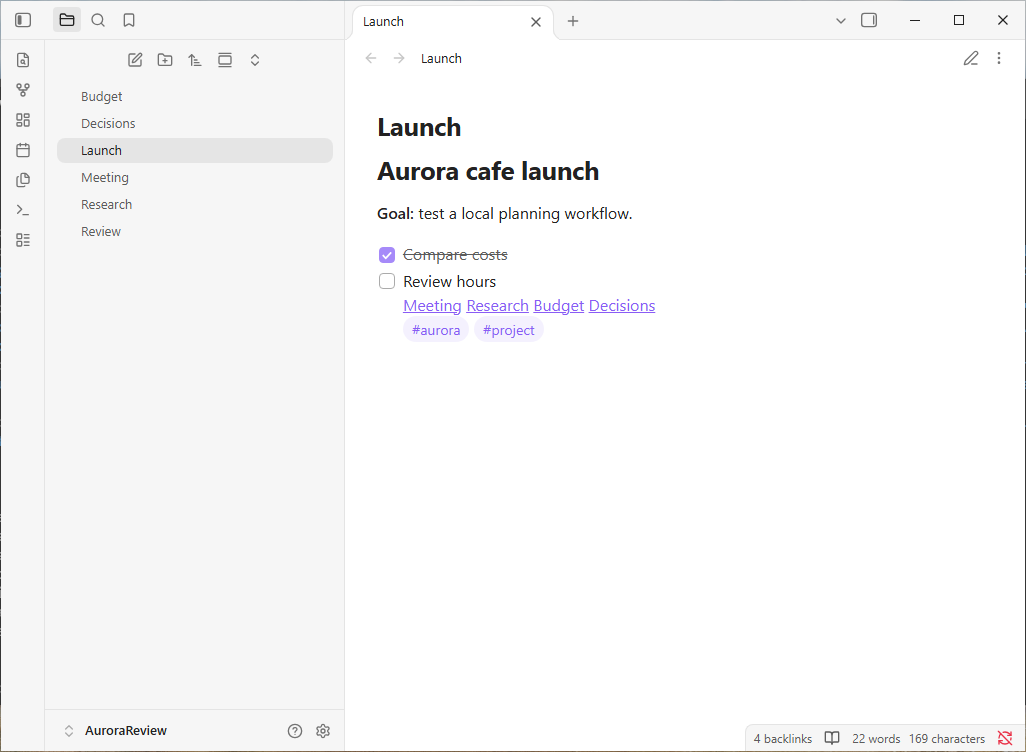
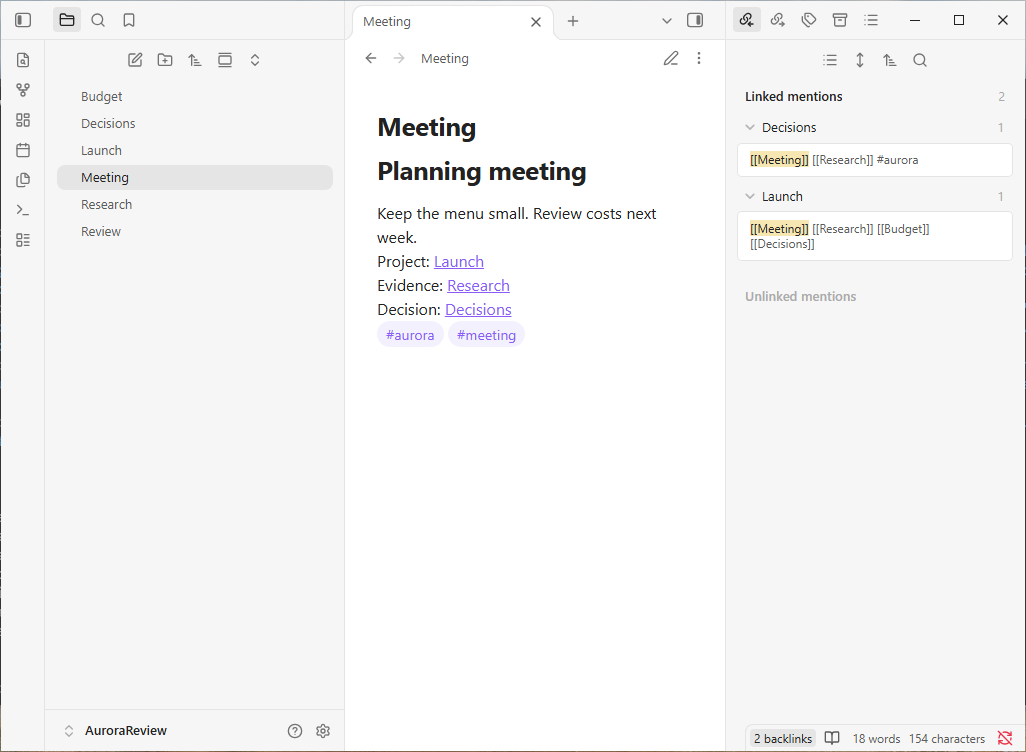
The reason to use Obsidian instead of a folder of loose notes is that the connections work both ways. I opened a local vault with six prepared Markdown notes. A link took me from Launch to Meeting; in Meeting, the backlinks showed the two notes that pointed to it. Launch had four backlinks. I didn’t have to remember which note mentioned which meeting to follow the trail back.
 Open larger screenshot
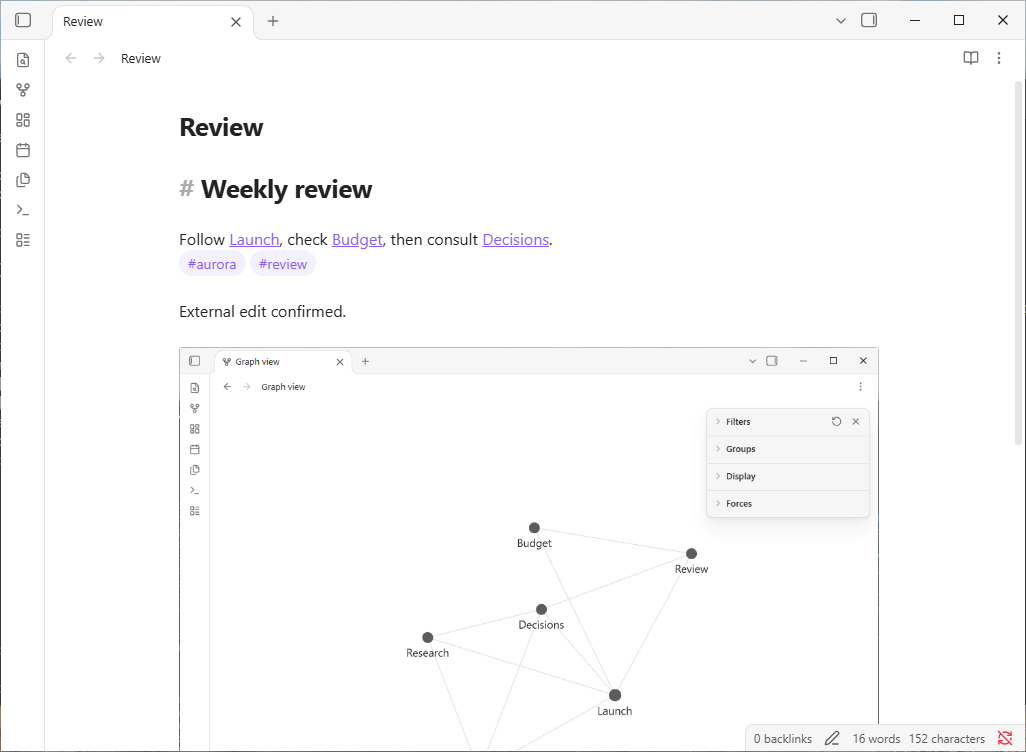
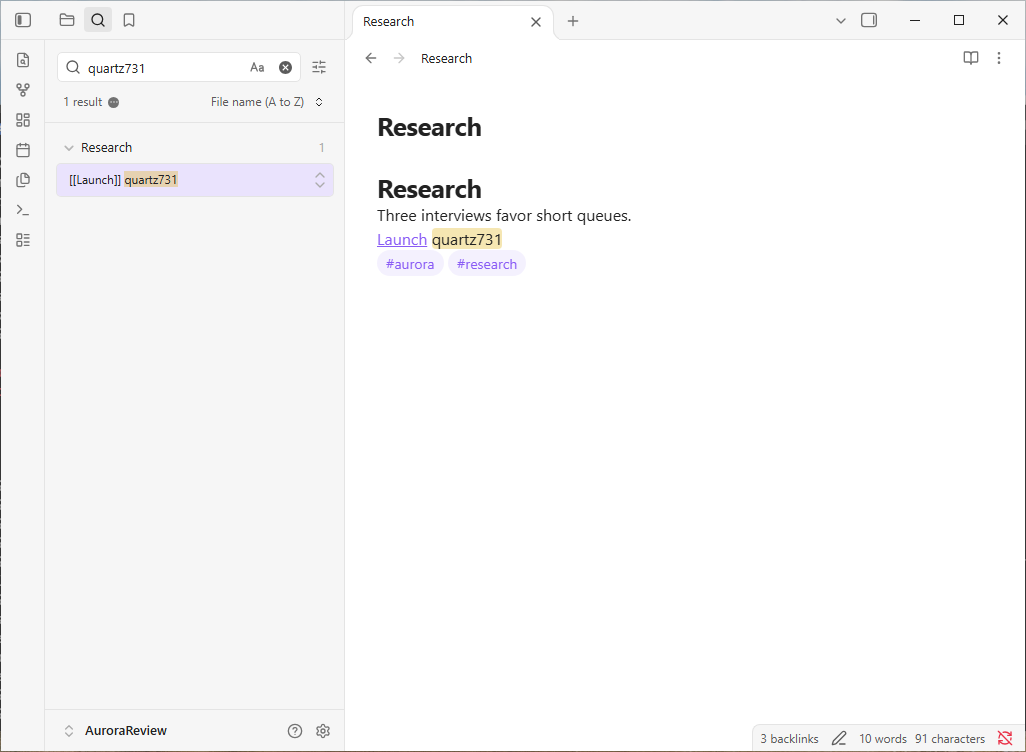
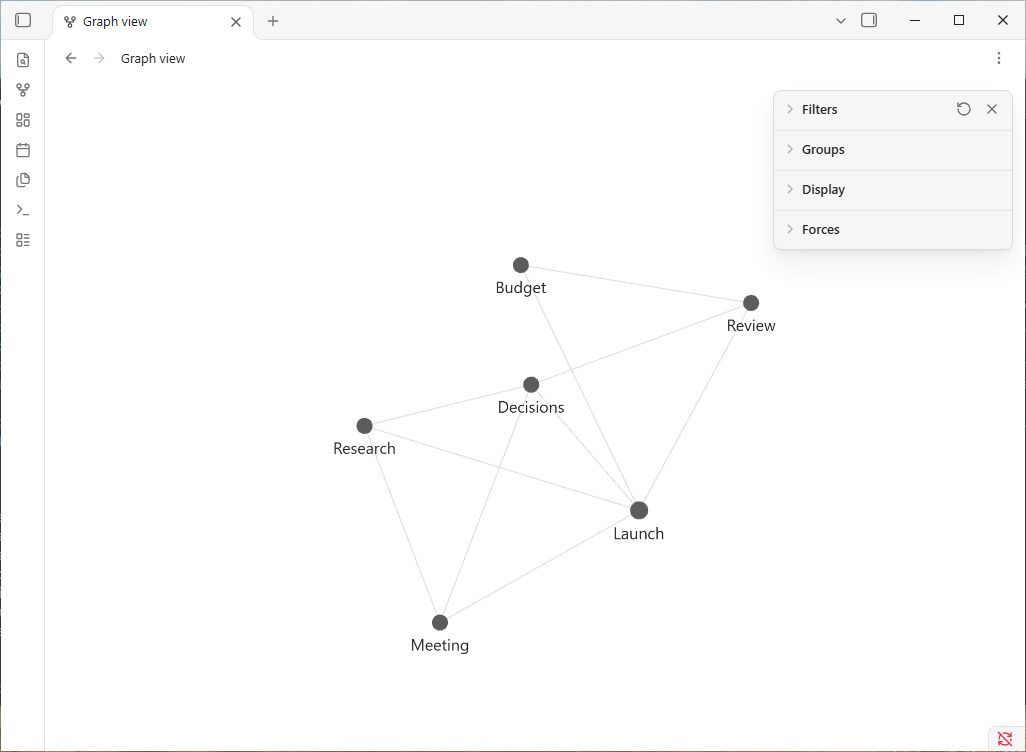
The graph showed the six notes and their connections, and clicking Budget opened it. Search found the one note containing my test word; a shared tag brought up all six. The graph is a useful map of this small set, while search and tags gave me a direct way to get back to a note.
 Open larger screenshot
Writing in the vault worked as expected too. A heading, bold text, ordered list, checklist and two-column table rendered in my notes. I checked a task and Obsidian struck through its text. That is enough structure for the little project I made without turning each note into a separate document format.
The files also stayed useful outside Obsidian, with one wrinkle. I opened a note in Notepad, added a sentence and saved it. Obsidian refreshed the text immediately. But Notepad’s formatted Markdown mode escaped the opening brackets in the note’s Obsidian links and image embed. I restored those brackets as plain text; the links and embedded image worked again. Your text is in ordinary files, but another editor’s formatting choices can change app-specific syntax.
Dealbreaker: link updates can change surrounding text
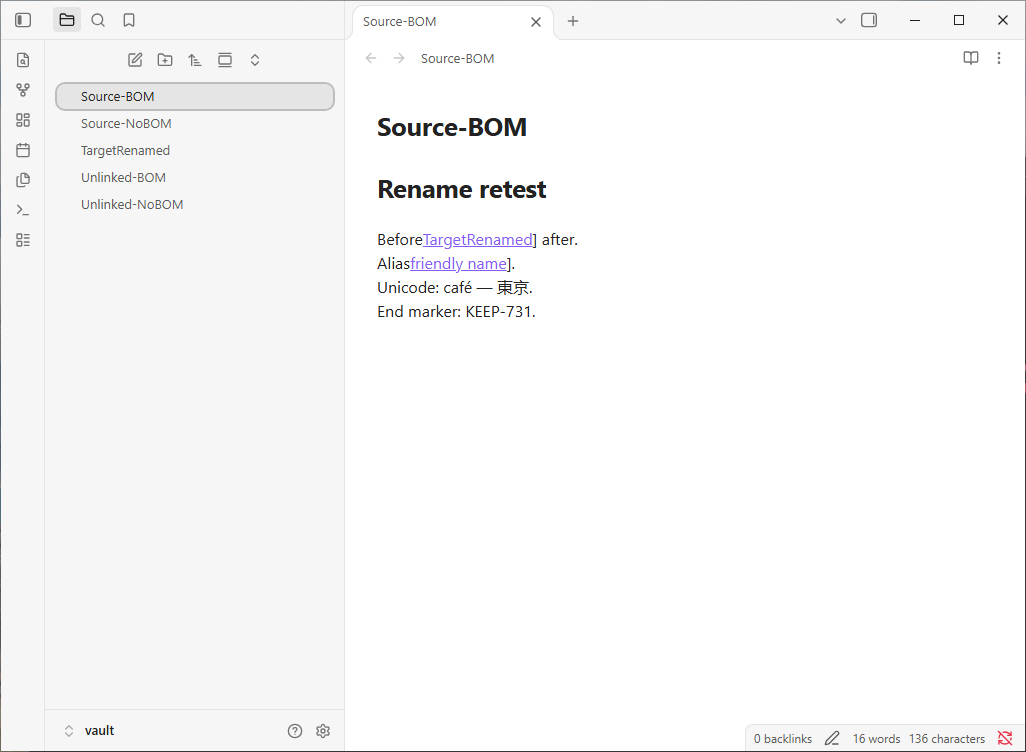
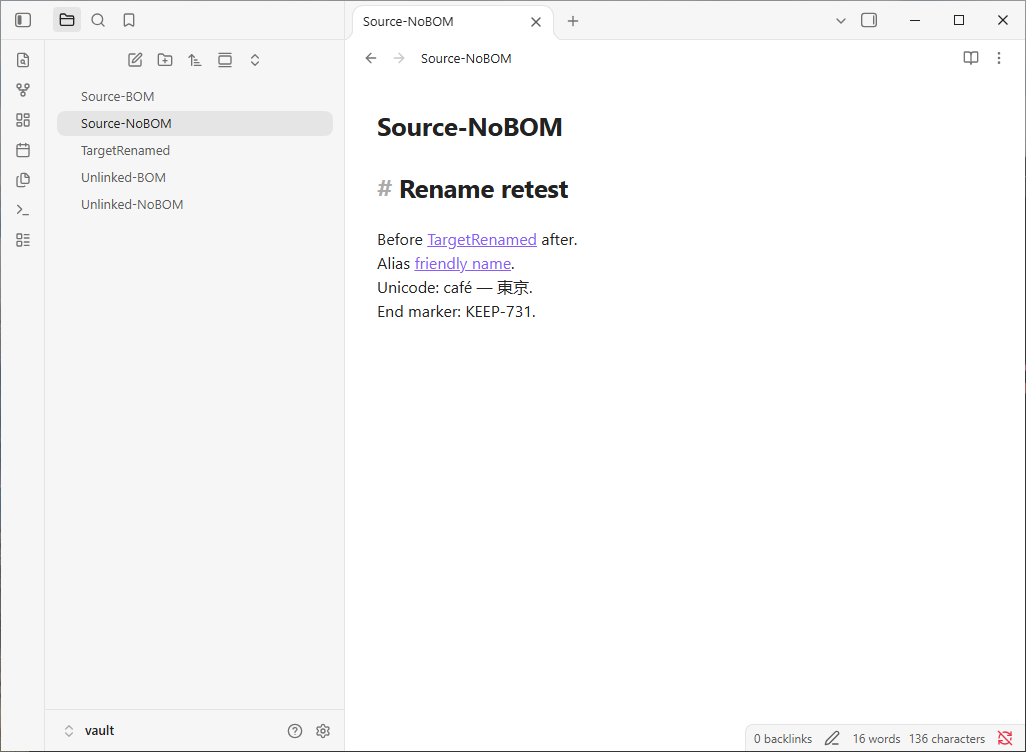
Automatic link updates changed more than the links in one of my notes. With Automatically update internal links enabled, I renamed a target note. In a linked UTF-8 file with a byte-order mark, the link changed to the new name, but the space before it disappeared and an extra closing bracket appeared. A second link with an alias changed the same way.
A byte-order mark is an optional marker at the start of a text file; an imported note can have one depending on the editor that saved it. My matching note without that marker updated correctly. Unlinked control files and the target’s contents stayed unchanged. This was a controlled test of one pair of notes, not proof that every imported note is affected.
 Open larger screenshot
 Open larger screenshot
For me, changing surrounding text in a note is a dealbreaker for trusting this automatic rewrite with files that have the marker. Keep a separate backup before enabling it, and check the affected notes after a rename. The local vault has useful features, but this result stops me recommending it.
Installation and first run
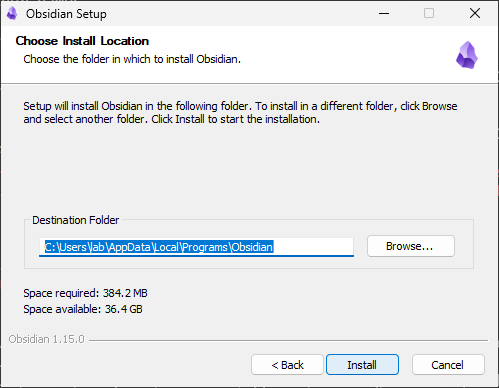
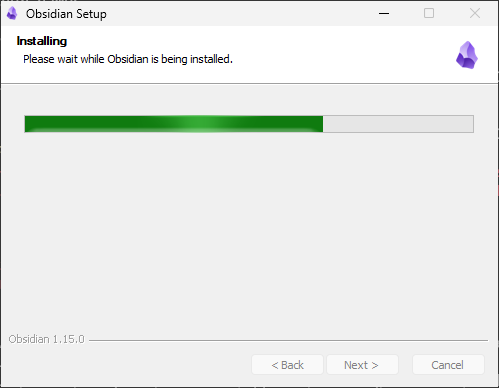
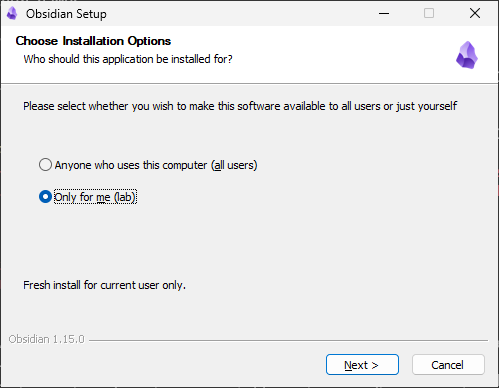
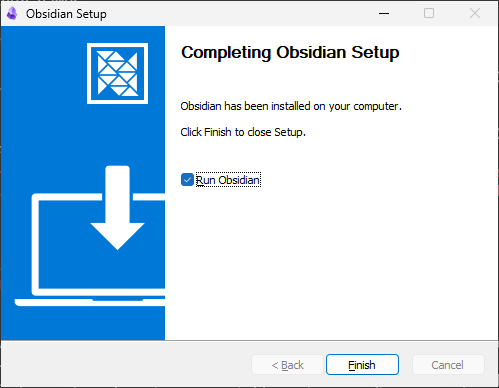
The Windows installer was a signed 324 MB download. I chose the default current-user installation; setup reported 384.2 MB required and completed without a companion offer or account prompt. On a later reinstall, it offered a choice between the current user and all users, then a destination folder. The final screen had Run Obsidian checked.
 Open larger screenshot
It added a desktop shortcut and a Start menu shortcut.
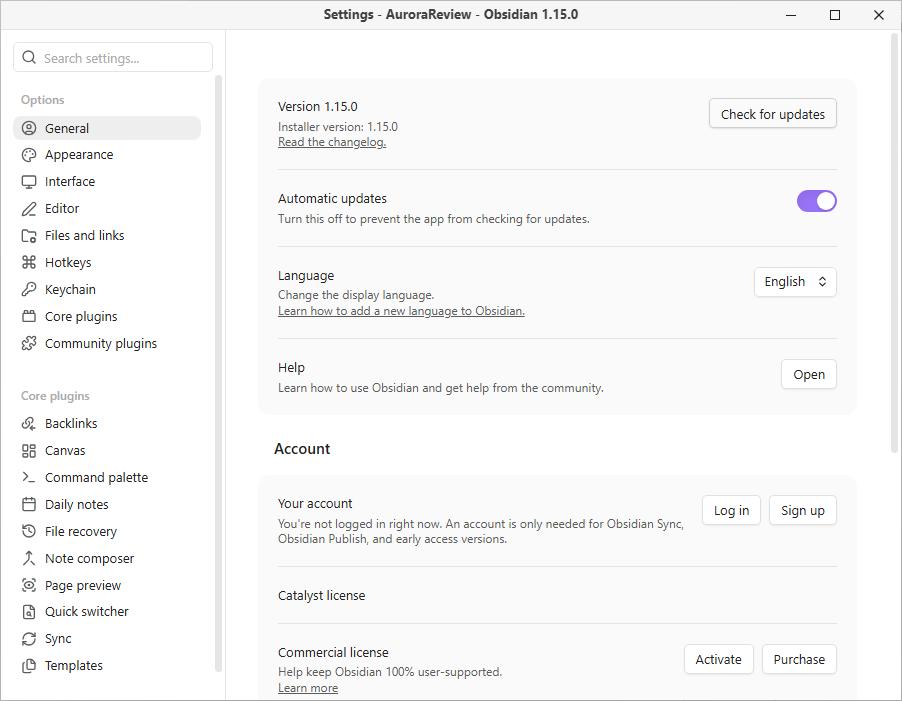
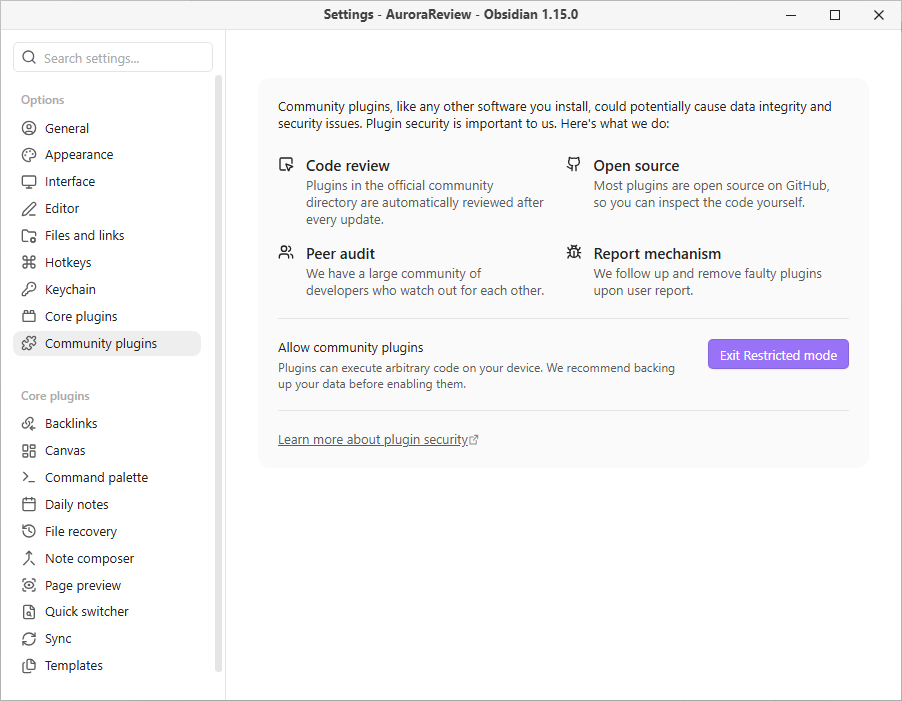
A comparison of service, scheduled-task and startup-command names before and after installation showed no changes. Obsidian offered a new local vault, an existing folder or sign-in to Sync. I opened the prepared vault without signing in. Sync was not configured, community plugins were in Restricted mode, and automatic updates were on. There is a manual update-check button too, though I didn’t see a definitive completion message after clicking it.
Day-to-day use
I liked how little stood between me and my notes once the vault was open. The quick switcher opened Launch and Review by name, and a link took me straight to the related meeting. When I closed Obsidian and reopened it from the desktop shortcut, the external edit, image, checked task and backlinks were still there. Its four processes had disappeared when I closed the window.
Obsidian’s privacy policy says the desktop app collects no telemetry. It also describes connections for updates, plugin and theme browsing, and embedded websites.
Six notes are enough to see the links working, but not to judge a large vault. The app is also available for macOS, Linux, Android and iOS; my hands-on test was on Windows.
Price and value
The local app costs nothing, including for work. It let me write and connect notes without an account, and the Markdown files were accessible in another editor. The link-update problem makes that free price less reassuring if your existing notes have to survive automatic rewrites.
Sync and Publish are separate subscriptions; buying one does not include the other. The Editions compared table puts the free local app beside the two optional Sync plans and their published limits. Those limits apply to Obsidian Sync, not your local files. Standard has one synced vault and a 5 MB file limit; Plus allows more vaults and larger files. Publish is for putting notes on the web. I didn’t test either paid service, so decide whether you need it before adding a recurring bill.
Catalyst is a one-time support license with early access to beta versions. The optional Commercial license supports development and adds no app features; it is not required for work. Neither includes Sync or Publish, and neither license is refundable.
What happens when the trial or subscription ends
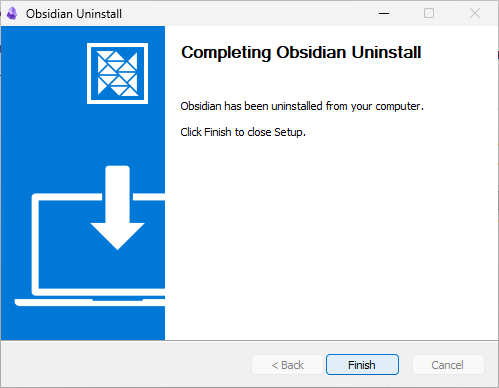
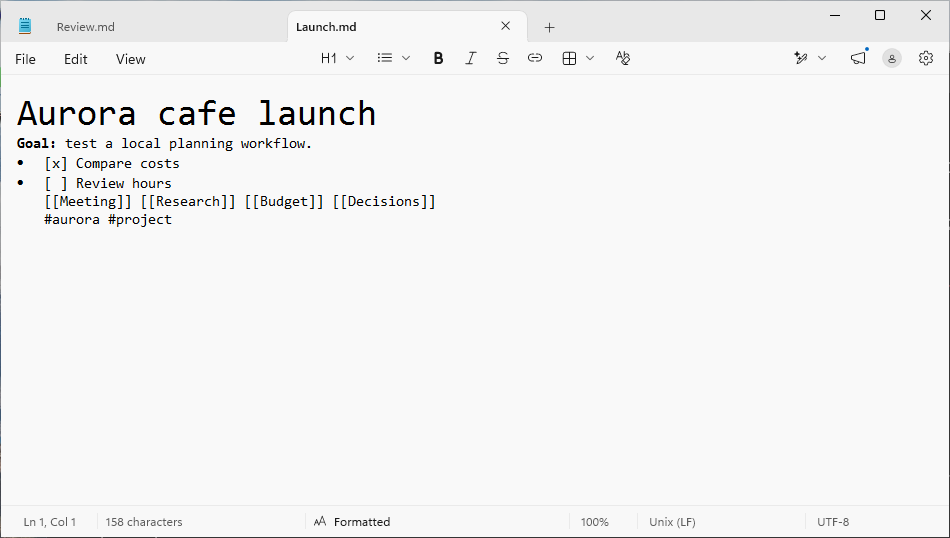
There is no trial to expire for the free app. After I uninstalled Obsidian, its program folder and desktop shortcut were gone, while the vault, its six notes, attachments and vault settings remained. The roaming Obsidian data remained too. I opened the Launch note in Notepad and its file hash matched the copy from before uninstall.
 Open larger screenshot
Sync and Publish offer a full refund within seven days. A refund removes the service and deletes the remote vault or published site immediately; keep a local copy first. After a missed payment and expiry, remote data is retained for 30 days before deletion, while local vaults remain. The privacy policy also says canceling the subscription yourself deletes remote data immediately. These paid-service outcomes are based on the stated terms.
Alternatives, and who should skip it
If you only need a few plain text files, Windows Notepad is already there. It opened and saved my Markdown note, but its formatted Markdown mode escaped Obsidian-specific brackets, so check those links before using it to edit an Obsidian vault. Standard Notes offers another approach to notes: its free syncing requires an account, and its Markdown editor requires a paid plan.
Joplin is another free Markdown notes app with notebooks and optional sync through several services; its hosted Joplin Cloud plans cost extra. Those sync options are published features rather than results from my test. If automatic syncing matters more than local linked notes, compare those options before choosing.
Bottom line
The free local vault connects notes without an account, and its links, backlinks and search worked in my test. But an automatic link update altered surrounding text in a note with a byte-order mark, so I cannot recommend it. Keep a separate backup and check affected notes after a rename if you use that feature. If all you need is an occasional plain-text note, Notepad may be enough.