
What 7-Zip is now, and who it’s for
7-Zip is a free archiver, and that’s all it is. It packs and unpacks 7z, ZIP, TAR, GZIP, XZ, BZIP2 and WIM, and it opens a long list of other formats, from RAR and ISO to disk images and installers. It encrypts with AES-256 and makes self-extracting archives. No account, no cloud, no ads, no paid edition. The x64 installer is about 1.6 MB.
It is open source. Most of the code is under the GNU LGPL. You can use it at home or at work without registering or paying. There is no trial and no subscription. More on that further down.
The window looks like Windows in 2005: a toolbar of big buttons over a file list. Some people hate that. I don’t mind it. What I care about is that it opens archives fast and gets out of the way, and it does.
Who is it for? Almost everyone who handles archives on Windows. If you only double-click the odd ZIP, Windows’ own tools are enough. If you open RAR or 7z downloads, make your own archives, or want smaller files than ZIP gives you, this is where I would start. It is a Windows program, though. On Linux and macOS the developer offers only a command-line version, and there is no Android or iOS app from the developer.
Do the 26.05 changes matter to you?
Version 26.05 came out on 21 October 2026. Its short release notes cover improved unpacking of Z archives and Mach-O files (Apple program files), plus bug and vulnerability fixes without details or CVE numbers. My tests below cover ordinary archives, not Z or Mach-O files.
So does it matter? Yes, but for the boring reason. 7-Zip opens files that strangers send you, and that is exactly where security holes hurt. The 26.x line has had a fix in almost every release: an XZ overflow in 26.02, eight holes in disk-image and archive handlers in 26.01, and in 26.03 a case where a crafted archive could make 7-Zip drop the Mark of the Web. I didn’t try to exploit any of them. If you are on anything older than 26.05, update.
That last fix is worth a closer look, because the Mark of the Web is also where 7-Zip’s defaults are weakest. See the Mark of the Web part below.
Compression in practice: speed, size and formats
7-Zip’s own format makes the smallest archives I have seen in these tests. The price is time.
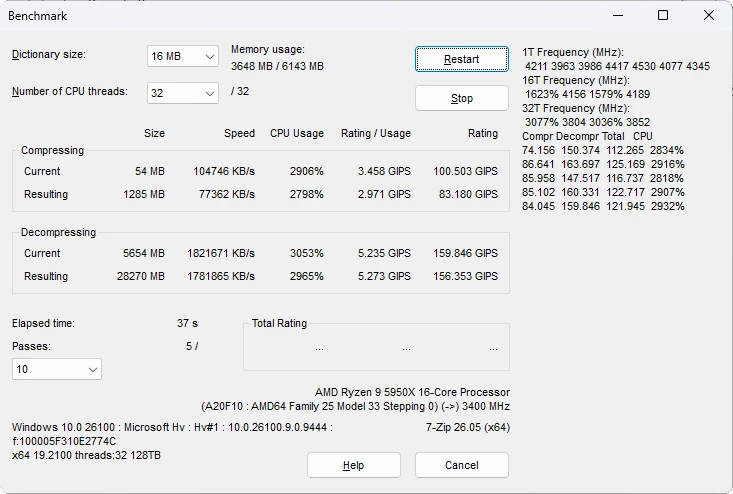
Method, in one line: 1,466 files, 522.6 MB (Windows programs, text files and 100 MB of random data that can’t be compressed), each job run twice in a Windows 11 test environment with 32 logical CPUs and 6 GB of RAM, faster run shown. It is the same file set I used for WinRAR.
| Job | Time | Archive size |
|---|---|---|
| 7z, fastest setting | 2.5 s | 43.6% |
| 7z, default setting (Normal) | 39.7 s | 37.9% |
| 7z, best setting (Ultra) | 134.7 s | 35.9% |
| ZIP in 7-Zip, default | 3.6 s | 49.0% |
| ZIP with Windows’ tar.exe | 16.2 s | 49.9% |
ZIP is the easy win here: 7-Zip made it about four times as fast as Windows’ own tool, and slightly smaller.
The default 7z setting made smaller archives than ZIP, by eleven points, but it took 40 seconds and peaked at about 1.6 GB of memory. WinRAR’s default RAR setting took 8.6 seconds on the same files for 43.7%. So 7-Zip gives you smaller files, WinRAR gives you speed. Ultra saved another 10 MB for more than three times the wait and 2.7 GB of memory. For backups you make once and keep for years, maybe. For everyday use, no.
 Open larger screenshot
The fastest 7z setting is the surprise. In 2.5 seconds it made a smaller archive than ZIP did. If you send files to people who also have 7-Zip, that setting is hard to beat.
Extraction was quick: 2.2 seconds for the Normal archive, 3.6 for Ultra, 3.2 for the ZIP. Every file matched the original. Windows’ tar.exe extracted the same ZIP faster, in 1.7 seconds. It also won with big TAR files: on an archive of 100,000 small files, 7-Zip took 27 to 30 seconds to unpack it and tar.exe 22 to 23, plain or gzipped. Those timings are from one machine with a virtual disk and Defender scanning both tools.
RAR and other people’s archives
7-Zip can’t create RAR files. It said “Not implemented” when I tried. But it unpacked every RAR5 archive I made with WinRAR’s own Rar.exe: default, solid with encrypted file names, split into volumes, and one with a 1 GB dictionary. All 764 files came back identical, and a wrong password gave a clear error. It was also faster than Rar.exe itself at unpacking, 2.4 seconds against 3.1. I could only make RAR5 files, so old RAR4 archives are untested, and my 1 GB-dictionary file was too small to really use that dictionary.
Archives with the wrong extension were no problem. I renamed four of them (ZIP as RAR, RAR as ZIP and so on). 7-Zip opened each one by its contents, with a warning that the type didn’t match the name, and extracted them fine. That warning is the right call: you learn something is odd, and you still get your files.
Big archives open fast. A ZIP with 100,000 small files opened in the File Manager in under 0.75 seconds, and a 7z with the same files in about a third of a second, using under 60 MB of memory.
One gap from my WinZip review: on a ZIP encrypted with WinZip’s new “Quantum-resistant” method, 7-Zip 26.05 listed the files and then said “Wrong password”, with the right password. WinZip’s “Compatible” encrypted ZIPs opened fine.
Mark of the Web
Windows marks downloaded archives as coming from the internet. If the files you extract keep that mark, SmartScreen and Office’s Protected View can still warn you before you open them. If they lose it, that safety net is gone.
Out of the box, 7-Zip drops the mark. I tested the command line, 7-Zip’s Extract dialog and Explorer’s right-click Extract Here, with ZIP, 7z and RAR downloads. None of the extracted files kept the mark. WinRAR keeps it by default for programs, scripts and Office files. 7-Zip doesn’t.
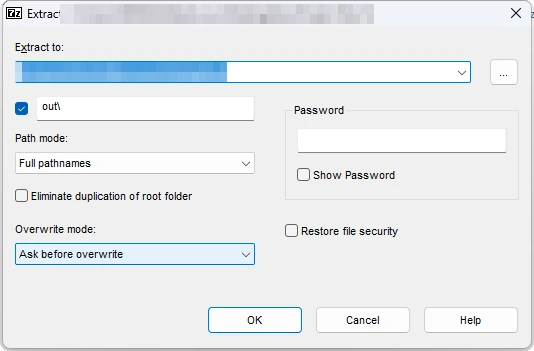
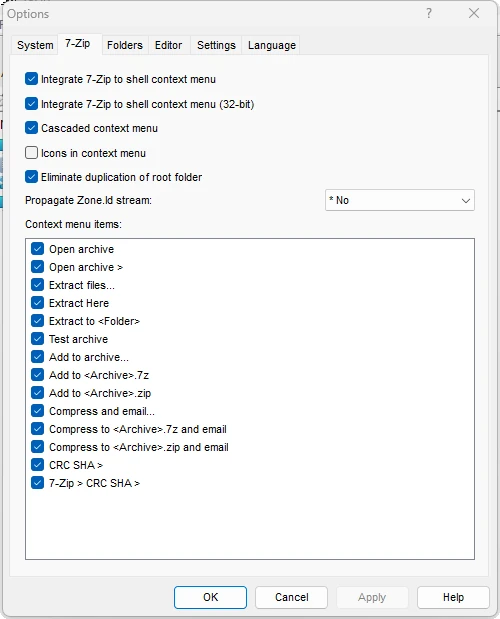
You can fix it. In Tools, Options, 7-Zip, “Propagate Zone.Id stream” is set to No. Set it to Yes and Explorer’s Extract Here marked every file in my test. The setting is meant for the right-click menu and the File Manager. It doesn’t reach the command line, and in my test not even the Extract dialog started from it. There you have to add the -snz switch, which marked every file, nested archives included. So if you script 7z.exe on downloaded files, add -snz. I only checked that the mark was there; whether SmartScreen then warns on a given file, I didn’t check.
 Open larger screenshot
I think the default is wrong. It is easy to change, and Windows’ own PowerShell Expand-Archive dropped the mark too in my test, but for a tool whose main job is opening files from the internet, it should be on.
Installation and first run
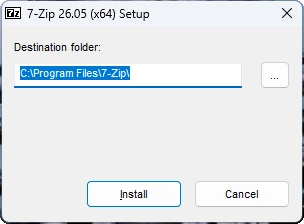
The installer is one page: the folder, Install and Cancel. No licence screen, no options, no offers. About 22 seconds later, in the test environment, it said “7-Zip 26.05 (x64) is installed”. No browser window opened.
One thing before you run it: the installer isn’t digitally signed, so Windows can’t show a publisher name, and the 7-Zip website publishes no checksums. The download links on the site point to the project’s GitHub release, which lists checksums for each file. Mine matched. I didn’t test what SmartScreen says about an unsigned download on a normal PC.
My before-and-after check found a 5.6 MB program folder, two Start menu shortcuts (7-Zip File Manager and 7-Zip Help), the right-click menu, and an uninstall entry. No desktop shortcut. No services, no scheduled tasks, no start-up entries. And it took over no file types at all. Double-clicking a ZIP still opens Windows’ own handler until you choose otherwise in Tools, Options, System. I like that. Some people will be confused by it.
The File Manager opened in half a second. No welcome screen, no tips, no sign-in. The menus have nothing to do with the internet: no update check, no news, no account. Closing it left nothing running.
Day-to-day use
Day to day, 7-Zip is quiet. With just the main window open it used about 22 MB of memory, and it does nothing when you’re not using it.
The right-click menu
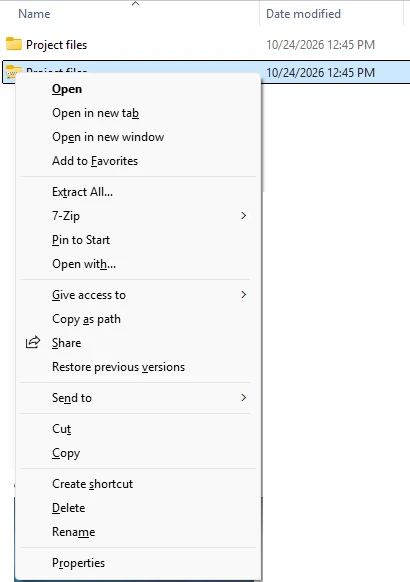
This is where Windows 11 users will notice its age. 7-Zip doesn’t appear in the new Windows 11 right-click menu. You have to click “Show more options” first, then open the 7-Zip submenu. Everything is there once you do: open, extract, extract here, extract to a folder, test, add to archive, add to 7z or ZIP in one click, and checksums. It is two extra clicks every time.
 Open larger screenshot
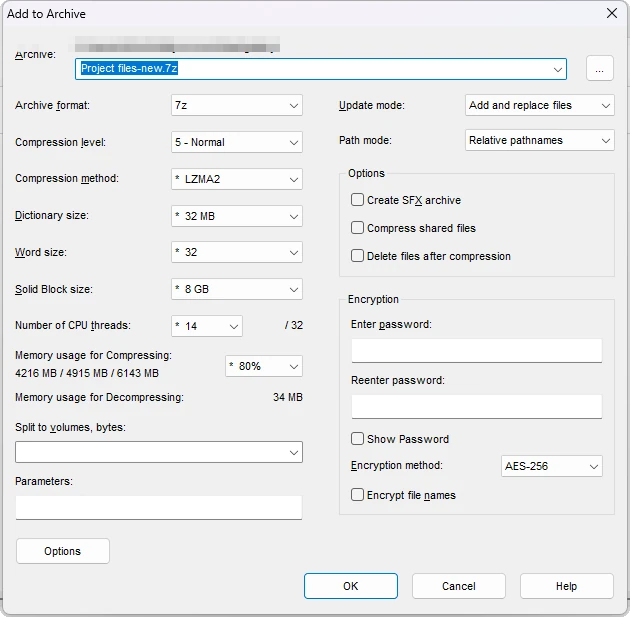
The Add to Archive dialog is busy but honest. The defaults are sensible (7z, Normal, LZMA2), and the encryption option includes encrypting file names, which ZIP can’t do.
Updates and network
7-Zip has no update check. None in the menus, none in the six Options tabs, none in the bundled help. I captured the network traffic through installation and first use: 7-Zip made no connections at all.
That keeps it quiet on the network. For security it’s the same problem I had with WinRAR. The 26.x line has had a fix in almost every release, and nothing in 7-Zip will tell you. You have to check the website yourself.
Removing it
The uninstaller is one page too. Uninstall, about three seconds, done. No survey, no web page, no restart. It removed the program, the shortcuts, the right-click menu and the uninstall entry. Left behind: your 7-Zip settings in the registry, an empty registry key, and a 17 KB copy of the uninstaller in your temp folder. None of it runs. File types were never touched, so there was nothing to give back.
Price and value
It’s free, for home and for business. So the value question is short. You get the smallest archives in my tests, fast ZIPs, RAR extraction and a full command line, and you pay nothing. Nothing I tested was held back or reserved for a paid version, because there isn’t one.
The cost is elsewhere: the old interface, the extra clicks in Windows 11, and the fact that keeping it up to date and switching on the Mark of the Web are your job. That is a fair trade for most people. It is not for everyone.
What happens when the trial or subscription ends
Nothing, because there is no trial and no subscription. 7-Zip is free for good. There is no expiry date to move the clock to, no reminder, no key and nothing to cancel. I used it for the whole test without being asked for anything.
Your files are not locked in either. 7z is an open format, and the developer publishes the code to read it. The only lock-in is the one you choose: if you send a 7z, the person on the other end needs a tool that reads 7z. If it has to open anywhere, make a plain ZIP.
Alternatives, and who should skip it
- Windows’ built-in tools. Free and already there. In my test tar.exe made ZIPs four times slower than 7-Zip but unpacked ZIP and TAR faster. No 7z creation and no encrypted ZIPs.
- WinRAR. Paid once, with a trial that never locks. It is the only way to create RAR files, it adds recovery records, and by default it keeps the Mark of the Web on programs and Office files. I reviewed it separately.
- WinZip. Mostly sold as a yearly subscription. I reviewed it too, and for basic archiving it is hard to justify against 7-Zip.
Skip 7-Zip if you need to create RAR archives; that takes WinRAR. Skip it too if the old-style window would bother you every day, or if you want a window on a Mac or Linux PC, where 7-Zip only has a command line. If you script it on downloaded files, add -snz.
Bottom line
Install it, then spend one minute in Tools, Options: set “Propagate Zone.Id stream” to Yes, and decide which file types you want 7-Zip to open. After that, the only upkeep is yours: check the 7-Zip website for new versions now and then, because 7-Zip never will.