
VLC media player icon

VLC media player v3.0.24

Open source
  • Windows
  • macOS
  • Linux
  • Android
  • iOS and iPadOS

A good free choice for awkward subtitles and mixed video files, with setup defaults I would change.

Release Highlights

  • Decoding moves to FFmpeg 8.1, upgraded from 4.4, with APV and ATRAC3/ATRAC9 decoding added.
  • Subtitle languages are detected more reliably from file names and SSA/ASS metadata.
  • The file-open dialog’s default folder is fixed.
  • The old NPAPI browser plugin is removed.
  • Update checks are verified with a new RSA-4096 key.

View Changelog

In Summary

  • Video seeking, a fixed subtitle offset and resume worked in the short local tests; audio-track switching was checked through the menu only.
  • Setup ticks optional extras, including ActiveX, and first launch starts with both network boxes ticked. The network preferences stayed off after relaunch.
  • The resume prompt is easy to miss; the unsigned uninstaller keeps settings unless you select their removal.
  • Free under the GNU GPL, with no paid edition, account or trial. Would you pay for a player when these are the controls you need?

Rate VLC media player

VLC media player v3.0.24

Verify your email or sign up · Sign in

We appreciate your opinion. Tell us what worked well and what could be better.

The verdict

Editor score9.1 /10 Highly recommended

I would keep VLC for its control over local video: accurate jumps, a subtitle offset corrected without editing the file, and resume when you need it. Those worked on the short test clips. Audio-track selection was menu-only, with no audible confirmation.

The default choices need more attention than I would like: extra components, network access and windows that grow past a small screen. The brief resume prompt and unsigned uninstaller are rough edges, and removing settings takes an explicit choice. If Windows already handles your files comfortably, staying with it is reasonable. If subtitles or navigation keep getting in the way, VLC is worth adding.

“The useful part is fixing subtitle timing while you watch, without editing the file.”

The good

  • Pro: Displayed the H.264, 4K HEVC 10-bit and AV1 video samples.
  • Pro: Go to Time landed within two frames; the fixed subtitle offset was corrected at both cue points.
  • Pro: Labels audio and subtitle tracks by language; offers resume.
  • Pro: No services, scheduled tasks or startup entries; about 37.5 MiB idle.
  • Pro: Update and metadata preferences stayed off after relaunch.

The bad

  • Con: Setup ticks almost every extra, including an ActiveX plugin and folder commands.
  • Con: First launch suggests network access with both boxes ticked.
  • Con: Window grows to the video size, so 1080p and 4K opened bigger than the screen.
  • Con: Unsigned uninstaller; it keeps your settings unless you tick a box.
  • Con: 4K HEVC used about 1 GB of memory without hardware decoding on the test machine.
  • Con: The resume question disappears after a few seconds while the video starts over.

What’s new in 3.0.24

Released September 22, 2026

3.0.24 came out on 22 September 2026, a maintenance release after 3.0.23.

Decoding

  • Decoding now uses the FFmpeg 8.1 generation.
  • APV video decoding is added through FFmpeg 8.
  • ATRAC3 and ATRAC9 audio can be decoded.
  • Dirac decoding uses avcodec; the Schroedinger integration is removed.
  • Speex memory leaks and packet handling are corrected.
  • WebVTT CSS handling and its error paths are corrected.
  • FLAC and HEVC packet handling receive edge-case fixes.
  • An AudioToolbox MIDI synthesis crash on macOS 26 and newer is addressed.

Containers and subtitles

  • MP4 files can carry CEA-708 closed captions.
  • The MPEG demuxer makes ID3v2 metadata available.
  • Subtitle languages are identified more reliably from filenames and SSA/ASS metadata.
  • Matroska handling receives fixes for crashes, memory leaks, stalls and invalid data.
  • An AVI stall involving empty strd chunks is addressed.
  • Edge cases in MP4, MPEG-TS, Ogg, RealAudio and subtitle demuxing are corrected.

Sources and network access

  • RIST input and output move to librist, with both Simple and Main profiles.
  • The SRT network transport gains listener mode.
  • SFTP gains public-key authentication settings and ED25519 host-key support.
  • SMB2 network-share listing is updated.
  • The RealRTSP plugin is excluded from every build configuration.

Device discovery

  • Chromecast discovery names include the model reported through mDNS.
  • Bonjour service URLs handle IPv6 addresses correctly.

Video output

  • Direct3D11 adjustment-filter and texture memory leaks are corrected.
  • MediaCodec checks crop values before use.
  • Moore Threads hardware gains Super Resolution scaling support.

Windows

  • DirectShow capture supports NV12 video.
  • UWP compilation and runtime compatibility are improved.
  • Windows mmdevice audio handling receives crash, leak and deadlock fixes.
  • Windows package builds produce debug symbols by default.
  • A startup delay associated with daylight-saving transitions is addressed.

Qt interface

  • The file-open dialog uses the corrected default folder.
  • The Effects window preserves its geometry correctly.
  • Hotkey-dialog wording is improved.

Casting output

  • HEVC output is disabled when targeting first-generation Chromecast devices.

Update verification and safety

  • Update verification changes to a new 4096-bit RSA key.
  • Multiple memory-access, arithmetic and object-lifetime defects are corrected.

Other changes

  • Flatpak builds are supported.
  • The audio equalizer High Frequency parameter is corrected.
  • Artwork preprocessing handles a missing artwork title without crashing.
  • A race in the LibVLC media-list player is corrected.
  • The NPAPI browser plugin is removed.
  • The nonworking YouTube Lua integration is removed.

Bundled libraries

  • Video/image libraries: aom 3.15.0; dav1d 1.5.4; FFmpeg 8.1.2; x265 4.1; JPEG v9f; OpenJPEG 2.5.4; PNG 1.6.58.
  • Audio libraries: chromaprint 1.6.0; FAAD 2.11.2; FLAC 1.4.2; GME 0.6.5; libmad 0.16.14; mpg123 1.33.6; mysofa 1.2.1; Opus 1.6.1; Vorbis 1.3.7.
  • Text/subtitle libraries: libass 0.17.5; FreeType 2.14.3; HarfBuzz 14.2.1; zvbi 0.2.45.
  • Network libraries: libmicrodns 0.2.0; NFS 6.0.2; SMB2 6.1; SRT 1.5.6; ssh2 1.11.1; UPnP 1.14.20; vncclient 0.9.15; shout 2.4.6. librist 0.2.20 is added.
  • Cryptography/TLS libraries: gcrypt 1.12.2; GnuTLS 3.8.13; gpg-error 1.61; Nettle 3.10.2; libtasn1 4.21.0.
  • Disc/container libraries: asdcp 2_13_2; libbluray 1.4.1; libebml 1.4.6; Matroska 1.7.2.
  • Acceleration libraries: AMF 1.5.2 and GLEW 2.3.1. Intel VPL 2.13.0 replaces the mfx library.
  • SDL moves to 3.4.10, with SDL_image 3.4.4.
  • Other dependencies: libarchive 3.8.8; libxml2 2.15.3; protobuf 3.4.1; zlib 1.3.2.

What VLC is now, and who it’s for

VLC is the media player you install when you don’t want to think about formats. It plays video and audio files, discs and network streams, it reads subtitles inside the file or next to it, and it lets you pick the audio track, fix subtitle timing and jump to an exact time. It is free and open source under the GNU GPL. No account, no ads, no paid edition.

The Windows window still looks like a program from another decade: a menu bar, a seek bar and a row of small buttons. I don’t mind that. A player should show the video and stay out of the way, and VLC mostly does.

Who is it for? Anyone who gets video from more than one place. If you only watch MP4 files from your phone, the Media Player app in Windows may be enough. If you have MKV files with several audio tracks, subtitles that are a couple of seconds off, or a 4K HEVC clip that Windows won’t open without an add-on, this is where I would start. There are also versions for macOS, Linux, Android and iOS. I tested the 64-bit Windows version.

Do the 3.0.24 changes matter to you?

Version 3.0.24 came out on 22 September 2026. It is a maintenance release, but a big one under the hood. Decoding moves from FFmpeg 4.4 to 8.1, almost every bundled library is updated, and there is a long list of crash, leak and memory-safety fixes, many of them in MKV, MP4 and subtitle handling. The full list is in the changelog.

The security fixes are the reason to update. A media player opens files from strangers, and malformed files are where those fixes count. My H.264, 4K HEVC 10-bit and AV1 samples displayed video in 3.0.24.

The release also changes subtitle-language detection from file names and the file-open dialog’s default folder. In 3.0.24, my subtitle file ended in .eng.srt and VLC listed it as English; the file-open dialog opened in the folder I had last used. Release 3.0.24 also removes the old NPAPI browser plugin, yet the installer still offers, and ticks, an ActiveX web plugin.

Subtitles, tracks and resume in practice

VLC’s seeking, subtitle timing and resume controls are the reason I would keep it installed. The three-minute 640×360 test video had a burned-in clock and frame counter, two labelled audio tracks and subtitle cues near the start and end. The picture itself was the reference for seeks and timing.

Seeking was exact enough. Go to Time (Ctrl+T) for 0:45 landed on 0:44.933, two frames early, and the video stayed paused. Alt+Right jumped ten seconds, Ctrl+Right a minute, Ctrl+Left a minute back, and the burned-in clock agreed each time. At the end of the file VLC stopped and went back to its orange cone. No repeat, no autoplay of something else.

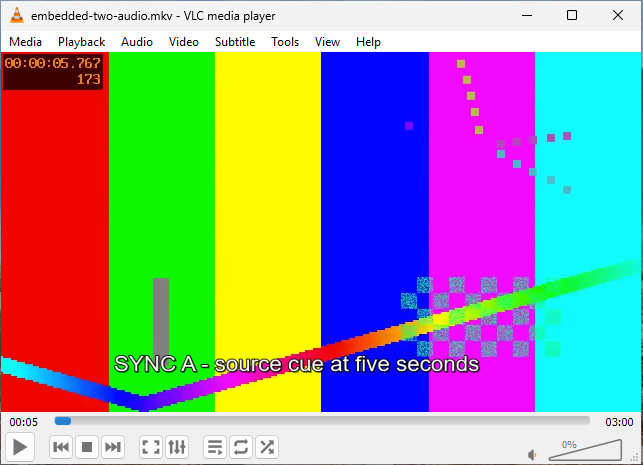
The MKV with its embedded subtitle track showed the first cue at 0:05.933, inside its 5.0 to 6.5 second window, with the subtitle on by default. Subtitle, Sub Track, Disable removed it.
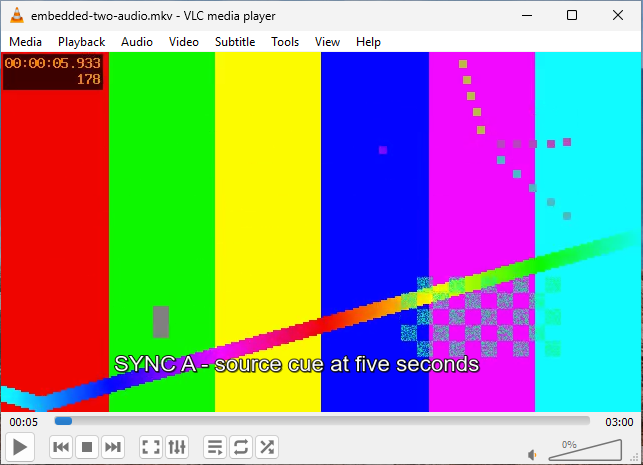
VLC playing an MKV test video with the burned-in clock at 00:00:05.933 and the subtitle SYNC A - source cue at five secondsOpen larger screenshot
The embedded subtitle appeared inside its cue window; the burned-in clock shows the real position.

Audio tracks were listed by language, Track 1 English and Track 2 French, and switching moved the selection. My test machine had no sound device, so this confirmed the menu selection, not audible output. If you depend on dual-audio files, play one and listen before you trust it.
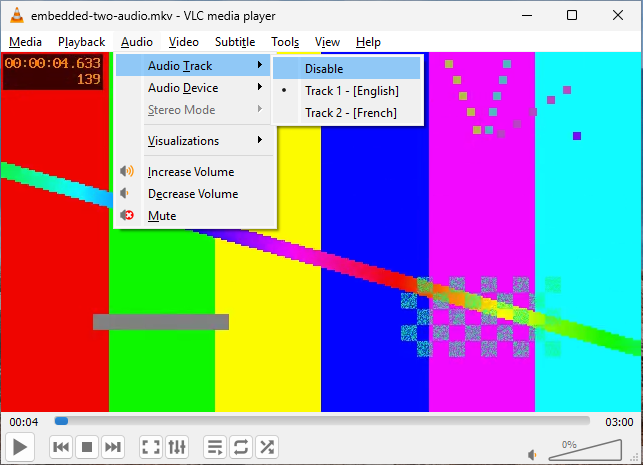
VLC Audio menu open on Audio Track with Disable, Track 1 - [English] selected and Track 2 - [French]Open larger screenshot
Both audio tracks are listed by language, so you don’t have to guess which number is which.

The separate subtitle file was easy to identify: VLC listed the added .eng.srt as Track 2, English, beside the embedded track. It was deliberately two seconds late, and its first cue appeared at 0:07.700.
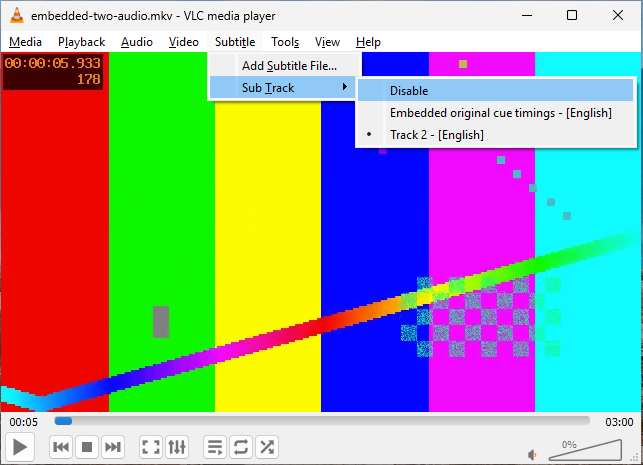
VLC Subtitle menu open on Sub Track with Disable, Embedded original cue timings - [English] and Track 2 - [English] selectedOpen larger screenshot
The added .eng.srt file shows up as an English track beside the embedded subtitles.

One setting corrected the two-second delay at both cue points. Subtitle track synchronization at -2.000 s (Hastened) put the first cue at 0:05.767 and the last at 2:51.000, both inside their original windows. The control is on the Synchronization tab in Adjustments and Effects (Ctrl+E). That is useful while watching: fix the timing without editing the subtitle file.
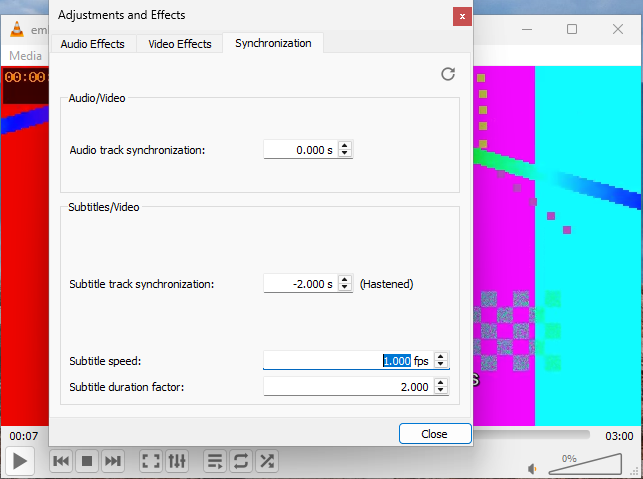
VLC Adjustments and Effects window on the Synchronization tab with Subtitle track synchronization set to -2.000 s (Hastened)Open larger screenshot
Minus two seconds pulls a late subtitle file back into place; VLC calls it Hastened.

Resume is useful, but its question is easy to miss. Reopening the MKV after stopping at 1:40 showed a Continue button, which returned playback to the saved position. The catch is that the video starts from the beginning while VLC asks, and the bar disappears after a few seconds. I missed it the first time. Preferences, Interface has a Continue playback? setting, which was set to Ask.
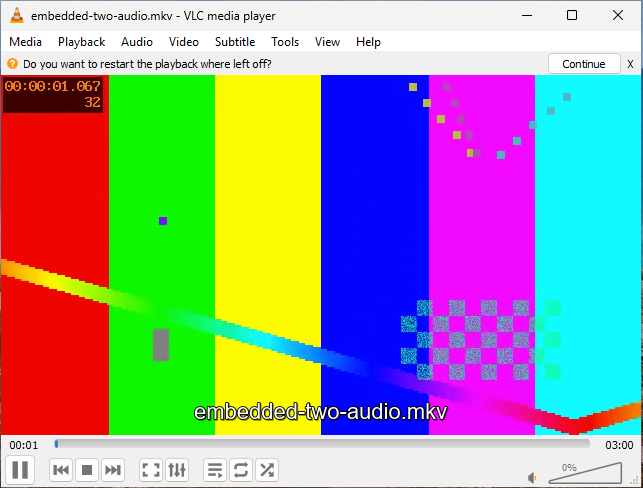
VLC with the bar Do you want to restart the playback where left off? and a Continue button above the video at 00:00:01.067Open larger screenshot
The resume question appears above the video. Click Continue before it goes away.

Installation and first run

The x64 installer is 46.3 MB. It is signed by VideoLAN, and its SHA-256 matched the checksum VideoLAN publishes. Windows showed VideoLAN as the verified publisher. Setup asks for a language, shows the GNU GPL licence and then the components page. There are no third-party offers.

Almost every optional component is ticked: Start menu and desktop shortcuts, the ActiveX web plugin, disc playback, file types for audio, video and most other formats, and context menus. A few of the other file types, such as ISO, ZIP and RAR, are left out, and so is “Delete preferences and cache”, which clears settings from an earlier install. The list scrolls, so it is easy to click Next without seeing half of it. Copying the 582 files took about a minute, and the finish page has Run VLC media player ticked.
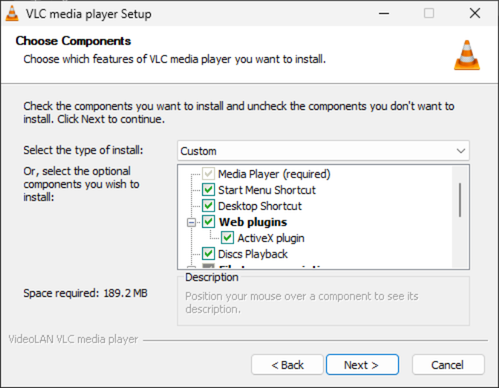
VLC media player Setup Choose Components page with Custom selected and Media Player, Start Menu Shortcut, Desktop Shortcut, Web plugins, ActiveX plugin and Discs Playback tickedOpen larger screenshot
Every optional part in view is ticked by default, including the ActiveX web plugin.

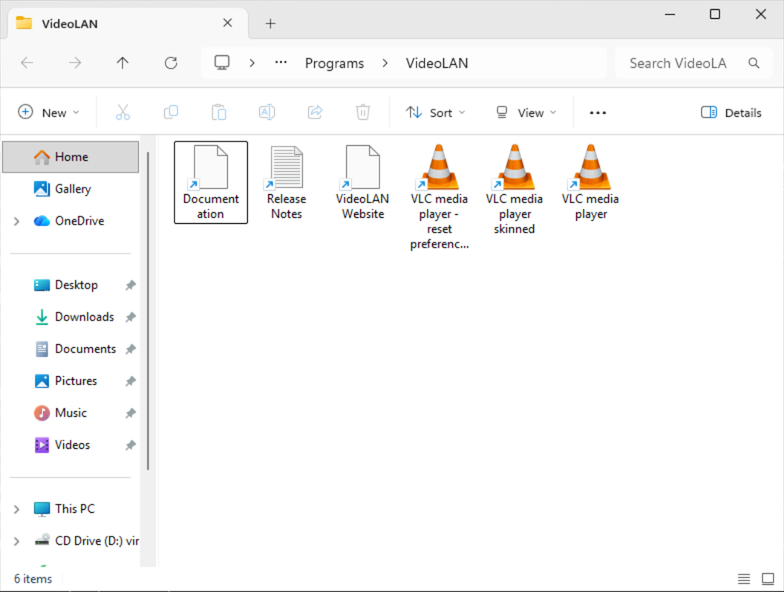
For all those extras, the background footprint was clean: no services, scheduled tasks or startup items. The installer added a VideoLAN Start menu folder with six entries (VLC, a skinned VLC, a reset-preferences shortcut, documentation, release notes and the website), a desktop shortcut, file types for audio and video, and two folder commands, Play with VLC media player and Add to VLC media player’s Playlist.

The file types are less of a takeover than they sound. Setup registered VLC for MP4, MKV, MP3 and the rest, but Windows kept Media Player as the default. When I double-clicked an MP4, Windows asked which app to use, with Media Player selected and VLC listed as new. You have to choose VLC yourself, once, in Windows.
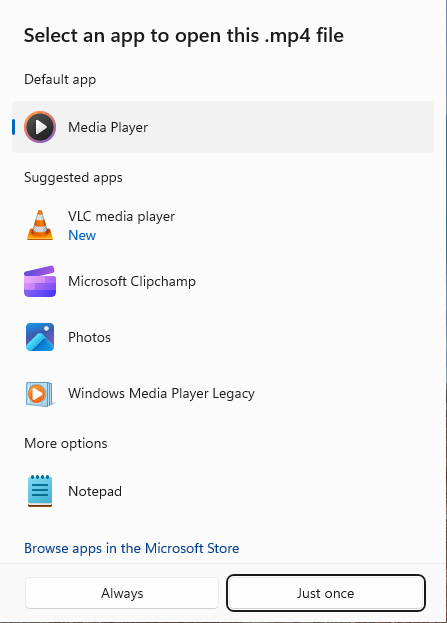
Windows Select an app to open this .mp4 file dialog with Media Player as the default app and VLC media player listed as NewOpen larger screenshot
After setup, Windows still opens MP4 files in Media Player until you pick VLC.

The first launch opens a Privacy and Network Access Policy dialog. It says VLC collects no personal data, but that fetching cover art and track names from internet services may identify some of your media files to those services. Both boxes are ticked: Allow metadata network access and Regularly check for VLC updates. I like that it asks. I would like it more if it asked with the boxes empty.
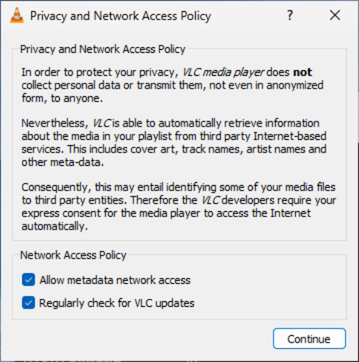
VLC Privacy and Network Access Policy dialog with Allow metadata network access and Regularly check for VLC updates both tickedOpen larger screenshot
The first-run question about network access, with both options ticked by default.

Day-to-day use

Day to day, VLC is quiet. In nine launches I saw the privacy question once and the resume bar when it applied. No donation request, no account, no rating prompt, no ads.

It is also light when it’s idle. With only the empty main window open, about five minutes after start, it used 37.5 MiB of working set and 9.6 MiB of private memory, steady over six samples. The captured TCP connection list for VLC was empty. Playing my 640×360 MKV it used about 96 MiB of working set. Bigger files cost more, and that is normal: about 220 MiB for a 1080p H.264 clip, about 128 MiB for 720p AV1 and about 45 MiB for a FLAC file, which showed its title from the tags.

The 4K HEVC 10-bit clip is the one to know about. VLC played it, and its statistics showed no lost frames, but it used about 1 GB of memory and about half of my four processor cores. My test machine had only a basic display adapter, so that was software decoding.
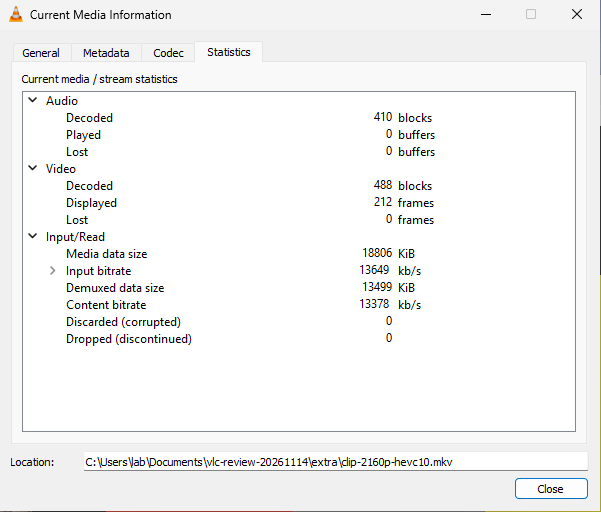
VLC Current Media Information Statistics tab for a 2160p HEVC clip showing 212 displayed and 0 lost video framesOpen larger screenshot
Playing 4K HEVC 10-bit on the test machine: no lost frames in VLC’s statistics.

One default annoyed me. Resize interface to video size is on, so the 1080p and 4K clips opened windows bigger than my 1280×800 screen. On a big monitor you may never notice. On a laptop, untick it in Preferences, Interface.

The two network preferences stayed off after a restart, and the privacy question did not return. Both choices were also saved in VLC’s settings file. The controls are Activate updates notifier and Allow metadata network access, under Tools, Preferences, Interface, Privacy / Network Interaction. While the notifier was on, the settings recorded an update check on the first day; with 3.0.24 current, no prompt appeared.
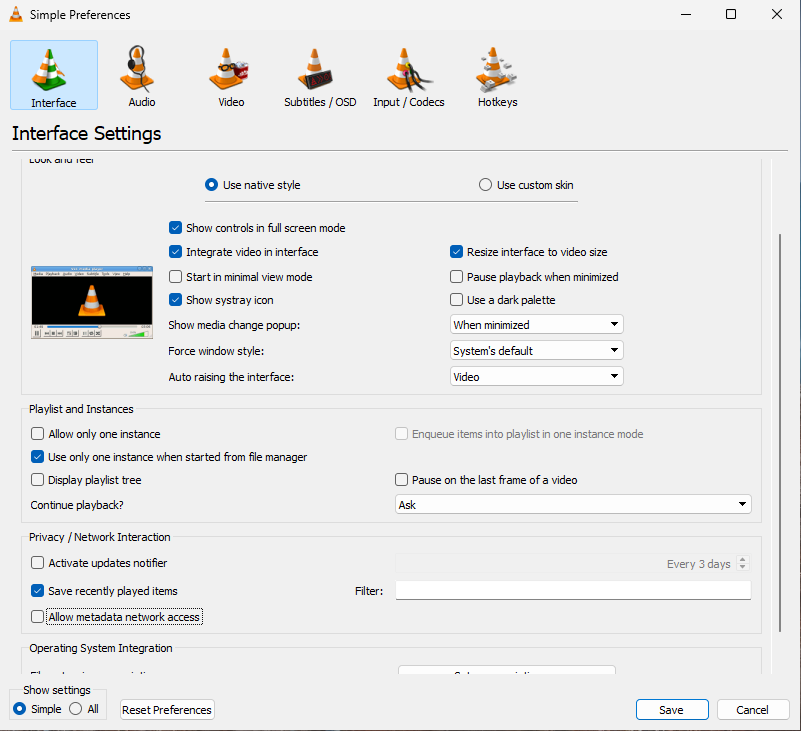
VLC Simple Preferences Interface page with Activate updates notifier and Allow metadata network access untickedOpen larger screenshot
Update checks and metadata lookups switched off. Both settings stayed off after a restart.

Price and value

Free, with nothing held back. No paid edition, no trial and no subscription. VideoLAN takes donations on its website, and the app never asked me for one.

For a mixed collection, the appeal is having the playback and subtitle controls in one free player. You can try it alongside the player you already use before deciding which should open your files.

What happens when the trial or subscription ends

There is no trial or subscription to end. VLC is free software under the GNU GPL, with no activation, key or renewal. There is no expiry date that takes away playback or access to your files.

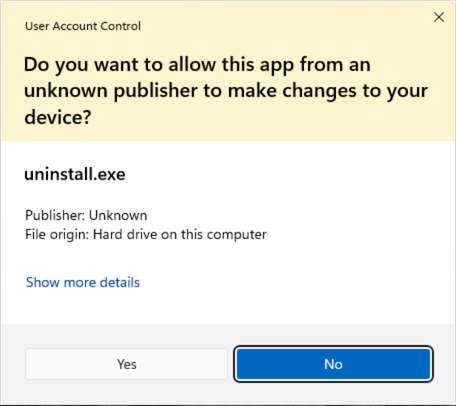
Uninstalling through Windows Settings works, with two small catches. The uninstaller isn’t signed, so Windows’ permission prompt shows an unknown publisher, unlike the signed installer. And its “Delete preferences and cache” option is unticked by default, so your settings stay behind.
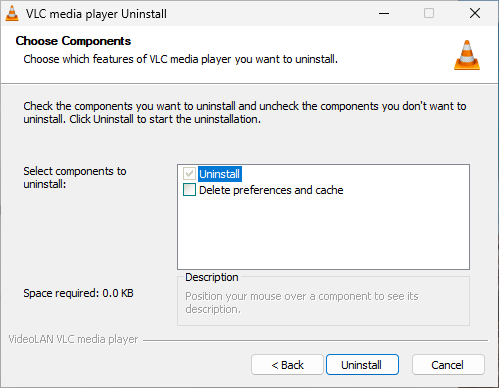
VLC media player Uninstall Choose Components page with Uninstall ticked and Delete preferences and cache untickedOpen larger screenshot
Delete preferences and cache is off by default, so VLC’s settings stay after removal.

With the defaults, removal took out the program, the shortcuts, the file types, the folder commands and VLC’s registry key. It left an empty VideoLAN folder in Program Files and VLC’s settings folder in my profile, about 98 KB. If you don’t want your settings left behind, tick the option.

Alternatives, and who should skip it

The Media Player app in Windows is already there and stays the default after VLC installs. For phone videos and ordinary MP4 files it may be all you need.

For conversion, I would start with HandBrake. Its presets and queue are built around that job, and in my HandBrake review its short MP4, MKV and burned-subtitle jobs produced playable files. VLC also has Convert/Save; the playback and subtitle controls are what earned its place here.

Skip VLC if Windows already plays everything you have, or if you want a player that looks and behaves like a Windows 11 app. VLC doesn’t.

Bottom line

Get VLC if your videos come from more than one source, especially MKV files with several tracks or subtitles that are out of sync. During setup, scroll through the components and untick what you don’t want. On the first launch, decide on the two network boxes instead of clicking Continue.


User ratings and comments

No user ratings yet

Add your rating

Be the first to share your experience.

VLCMEDIA.PCX
SPRESS.BBS · newsletter

New software reviews and top picks, once a week.

No spam. Unsubscribe anytime in Your Account. Privacy Policy.

Search

Press / or Ctrl K to search from any page. Esc closes.

Your account

Necessary Always active

Shareware Press stores your cookie choices for 180 days in sp_consent. Opening the rating form sets sp_voter for one year to retrieve and update your vote. Starting an article Discussion or Helpful action sets sp_article_receipts for one year to prove that specific submission; linking it also needs a matching verified account. WordPress uses login and settings cookies for signed-in users, and comment-author cookies for one year when you ask it to remember your details.

Cookie Policy · Privacy Policy

Consent record reference