What Notepad++ is now, and who it’s for
Notepad++ is still the free text editor I would put on a Windows PC first. It opens plain text and source code in tabs, colours the syntax of dozens of languages, searches across whole folders with regular expressions, records macros and takes plugins. No account, no ads, no paid edition.
It is open source under the GNU GPL, and you can use it at home or at work without registering or paying. I tested the 8.9.9.1 x64 installer on Windows 11. There are also 32-bit and ARM64 builds, portable ZIP and 7z packages and an MSI for IT departments, all free.
Who is it for? Anyone who edits text files more than once in a while: config files, logs, scripts, CSV exports, web pages, small programs. If you only jot down the odd note, Windows Notepad is already there. If you want a full development environment with a debugger and a terminal, this is not it. Notepad++ sits in the middle, and it has been good at that spot for a long time. It is a Windows program, though. There is no official macOS or Linux version.
Do the 8.9.9.1 changes matter to you?
Yes, mostly for the security fixes. Version 8.9.9.1 came out on 11 November 2026, five days after 8.9.9, and the package carries both releases. Version 8.9.9 fixed six vulnerabilities, two of them in how Notepad++ accepts commands from other programs, and one in the bundled MIME Tools plugin. A text editor opens files that other people send you. That is exactly where those holes matter. If you are on anything older, update.
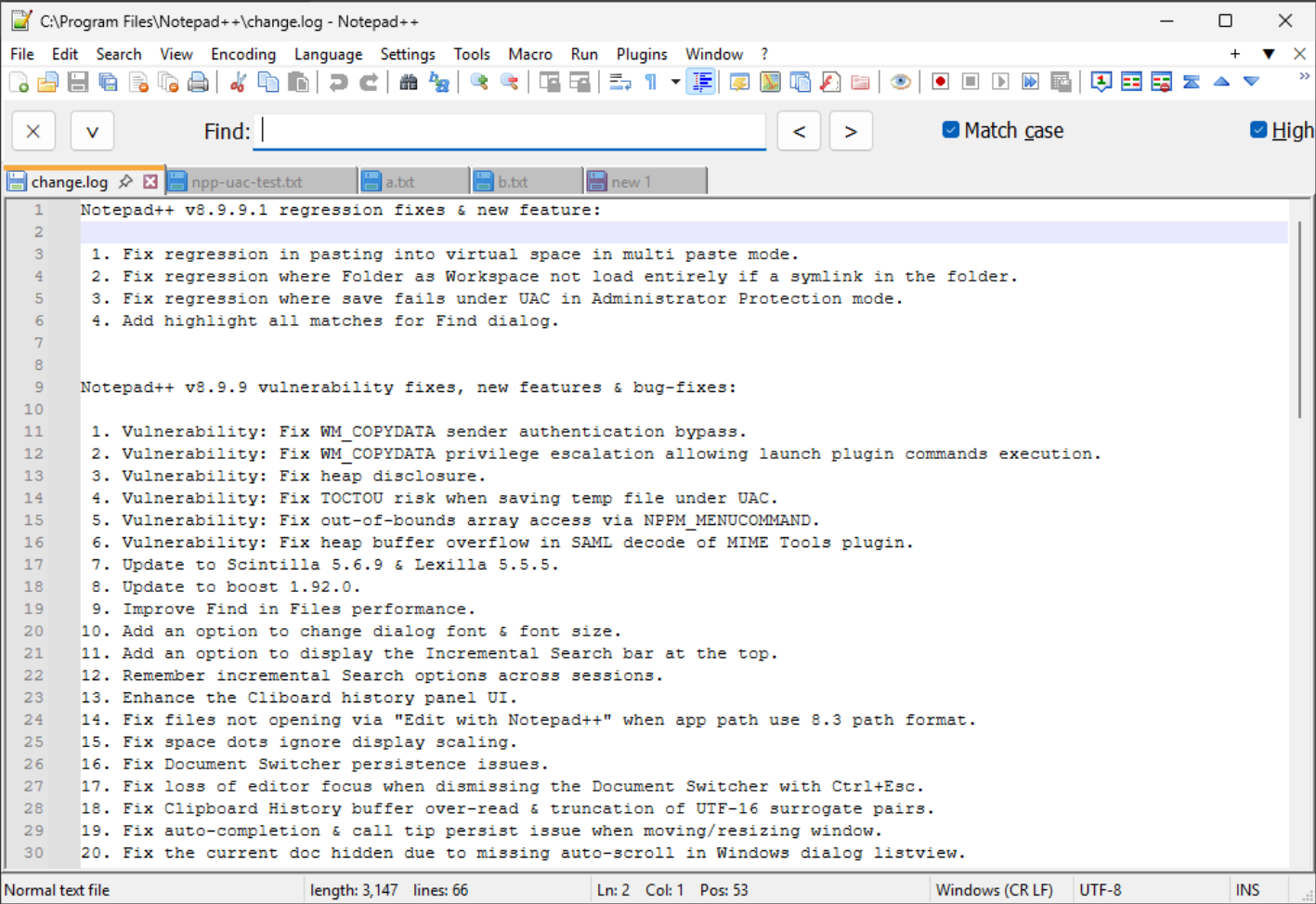
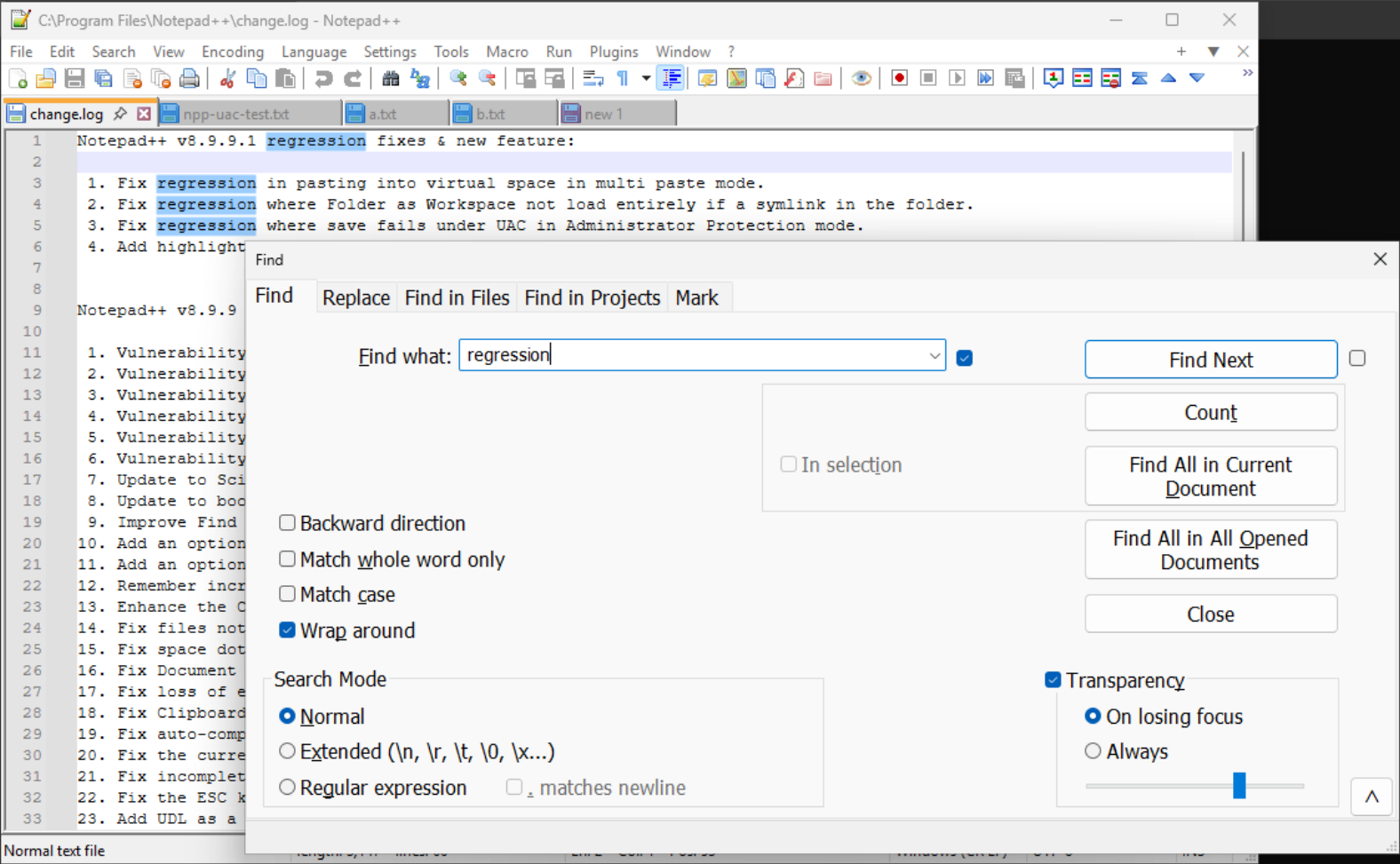
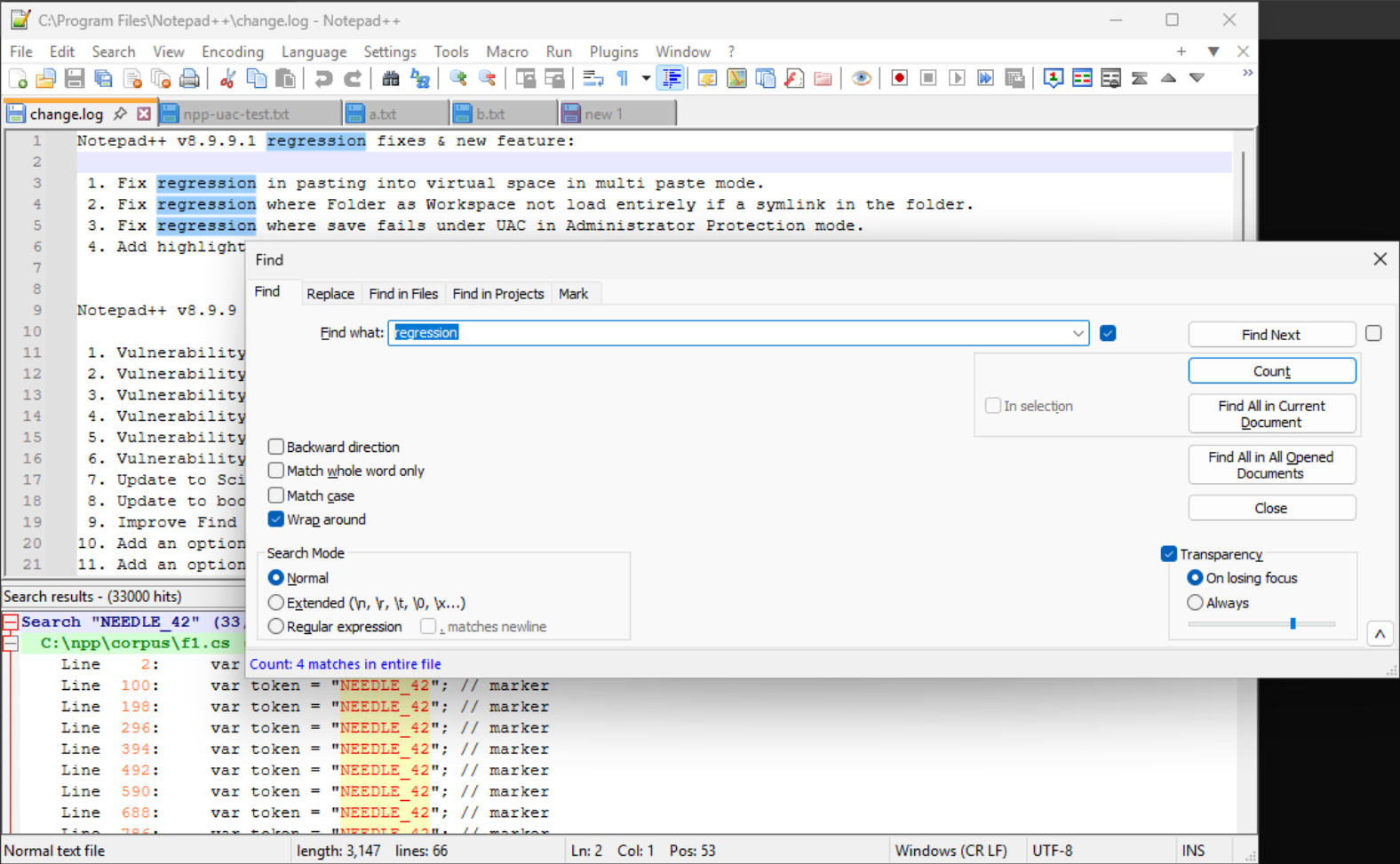
The new feature in 8.9.9.1 is highlight all matches in the Find dialog. It works, but you have to know where it is: it is an unlabelled checkbox to the right of Find what, off by default, and only its tooltip explains it. I ticked it, typed “regression” into Find what, and all four matches in the open change log lit up while I typed. Count agreed: four. The setting was still on after a restart.
 Open larger screenshot
Version 8.9.9 also added two things I like for different reasons. Incremental Search, the small search bar at the bottom of the window, can now sit at the top, and its options are remembered. I moved it up, turned on Match case and Highlight all, restarted, and all three stayed. And you can now set the font and size used in dialogs, which helps on a high-resolution screen or if small text is hard for you. It needs a restart. At 12 points the Find dialog was bigger than my Notepad++ window, and the top Incremental Search bar lost its Highlight all and Count controls off the right edge at that window size. So go up one or two steps, not four, and check the bars you use.
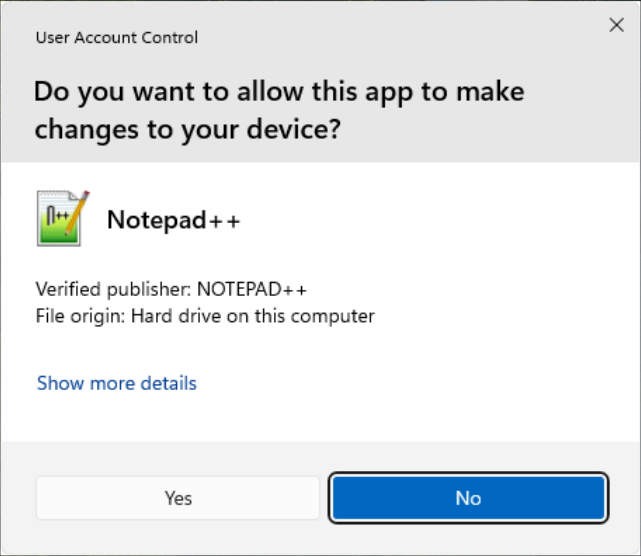
The 8.9.9.1 release also fixes saving under UAC when Windows 11 runs in Administrator Protection mode. My test machine used ordinary UAC. There, saving a new file into Program Files raised a UAC prompt for Notepad++, signed by its publisher, and the file was written correctly while the editor itself stayed unelevated. If your PC uses Administrator Protection and you edit files in protected folders, 8.9.9.1 is the version to have.
Searching in practice: 3,000 files at once
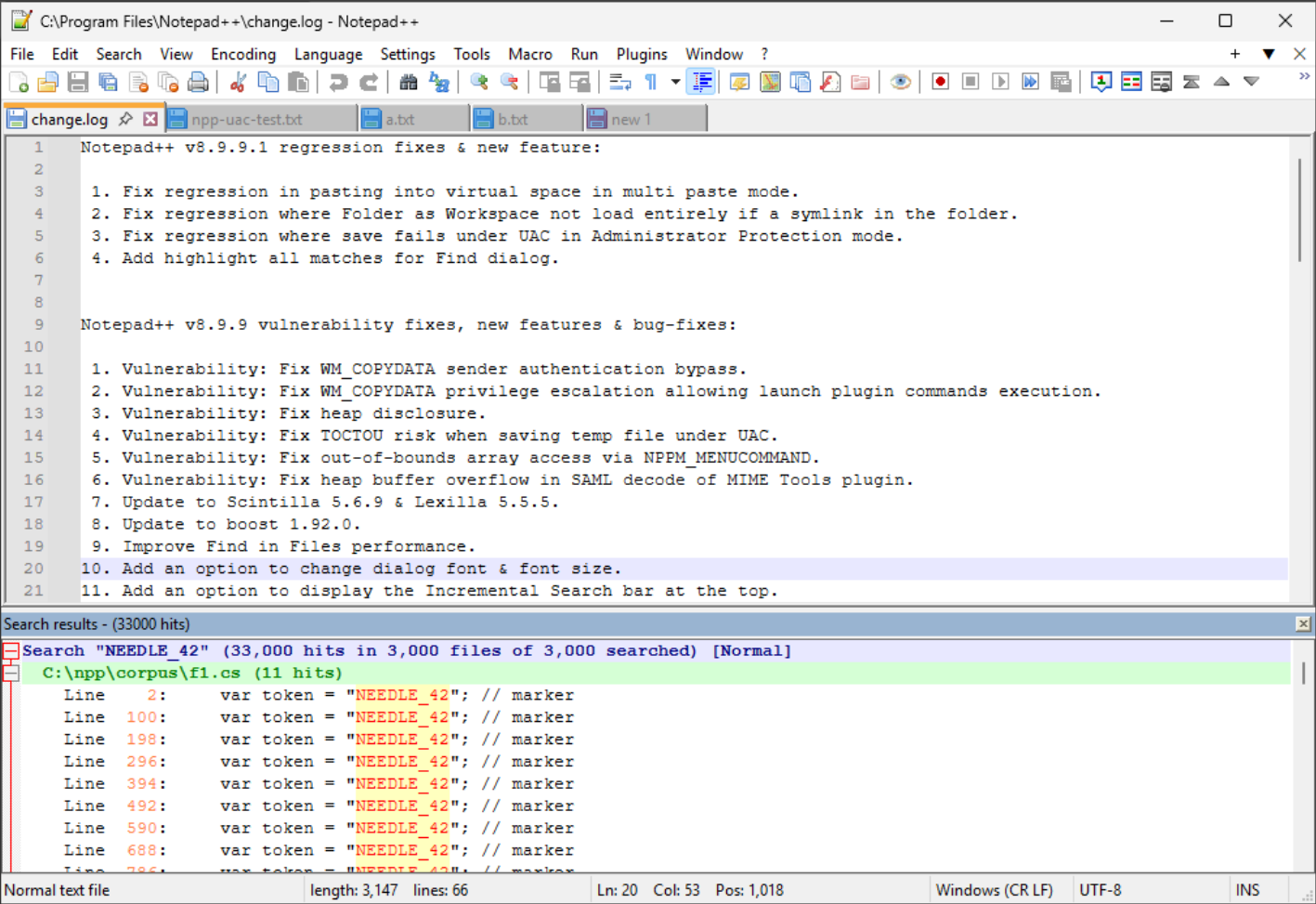
Find in Files matched the known count across the whole folder. A search that returned 33,000 results took long enough to interrupt the work.
Method, in one line: 3,000 source files totalling 205.3 MB, with a known word planted 33,000 times, searched from Notepad++ on the test machine; PowerShell’s Select-String counted the same word as a reference.
Notepad++ found all 33,000 hits in all 3,000 files, the same count as Select-String. A progress window with a Cancel button stayed up during the search. The second run took about 26 seconds to finish; a search for a different word that appeared nowhere in the same folder took about 5 seconds. The Select-String reference count took 3.4 seconds with warm files and produced a total rather than an interactive results list.
 Open larger screenshot
If a broad search returns far more than you need, narrow the file filter or use a more specific pattern before repeating it.
Plugins
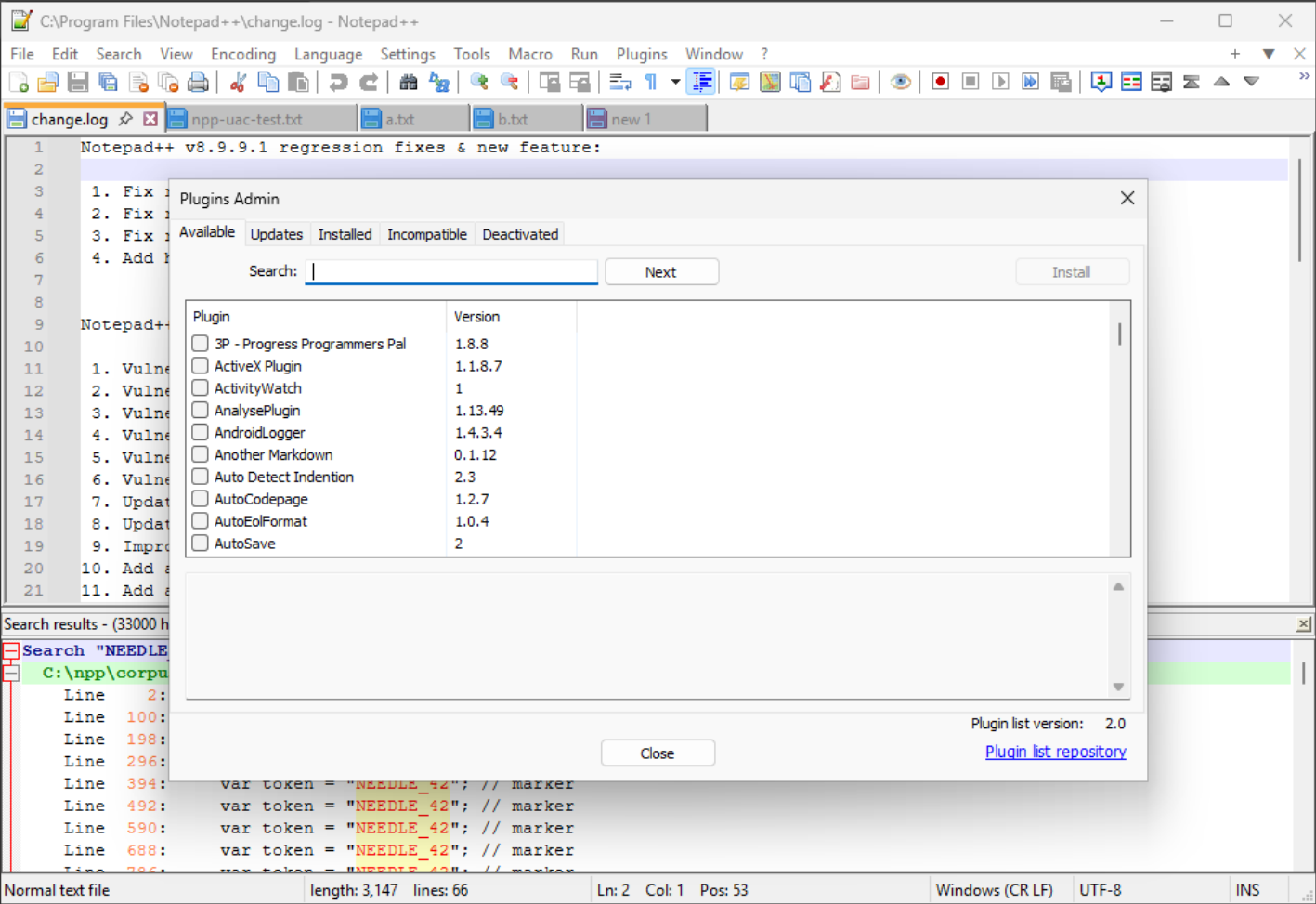
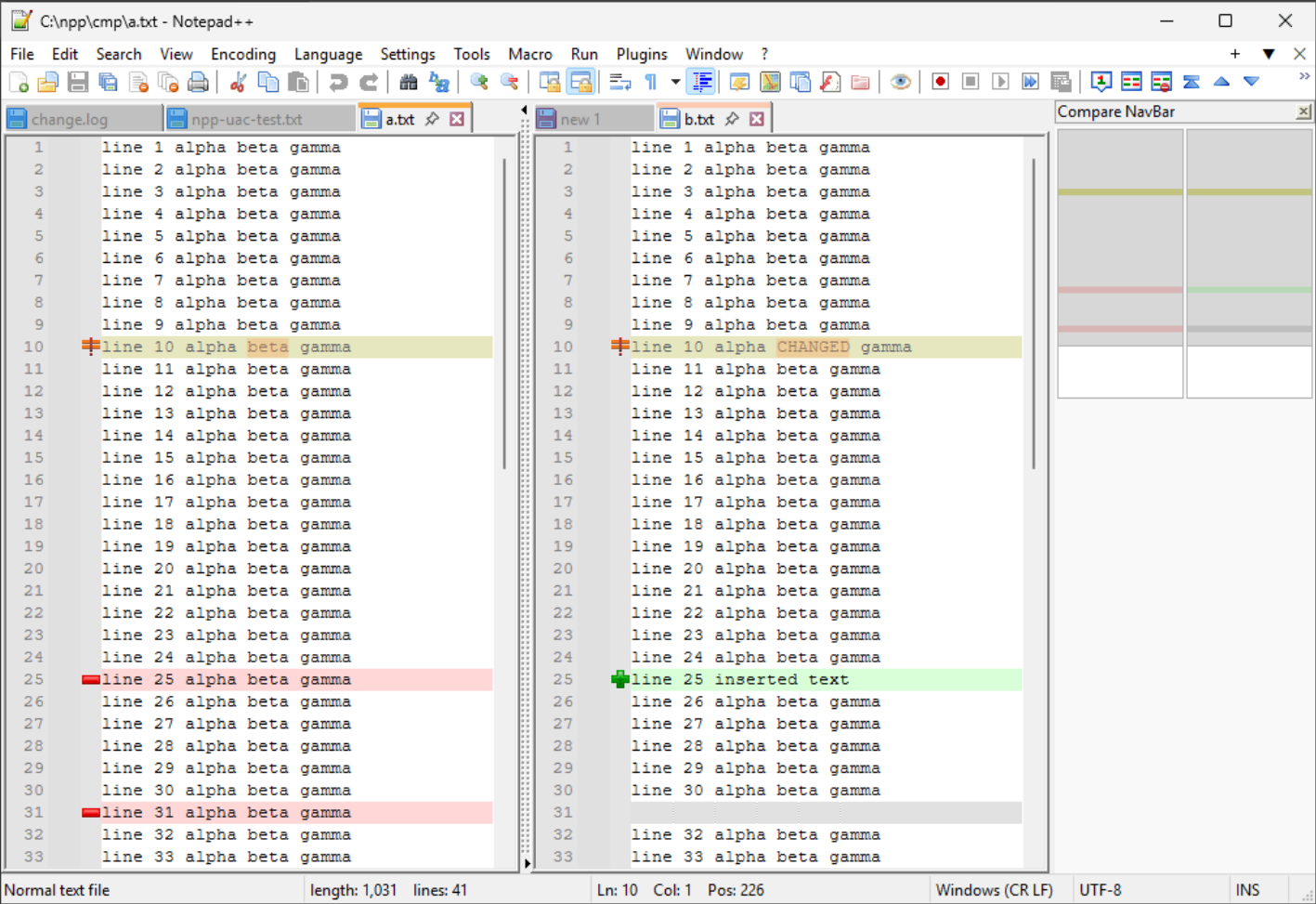
Plugins Admin, the built-in plugin manager, worked as it should. The list of plugins took around 15 to 20 seconds to load. I picked Compare, a plugin that shows the differences between two files. Notepad++ warned that it had to close, asked for UAC permission, installed the plugin and reopened with new Compare buttons on the toolbar. On two test files it marked a changed line, a second changed line and a removed line correctly.
 Open larger screenshot
Three plugins come with the installer: MIME Tools for Base64 and URL encoding, Converter for ASCII and hex, and NppExport for copying highlighted code as HTML or RTF.
Installation and first run
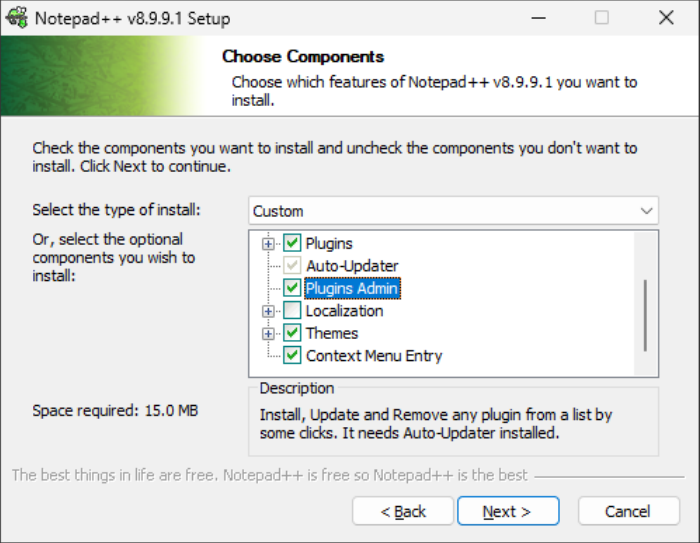
A small installer with an easily missed link between two component choices. The x64 installer is 7.0 MB, signed by Notepad++ through GlobalSign, and its checksum matched the published one. Setup has a licence page, a folder page, a components page and a page of extra options. No offers, no account, no email.
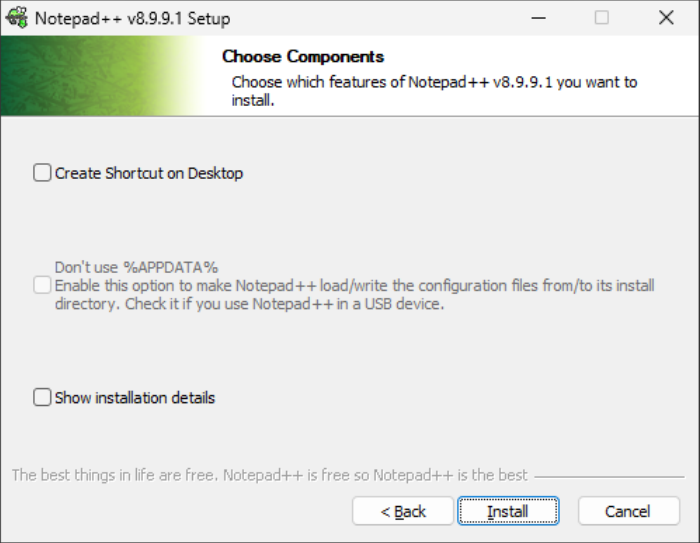
The components page lets you leave out the plugins, themes, auto-completion files and the Explorer menu entry. Localization files were unticked by default. The Auto-Updater was ticked and greyed out, which looks like you cannot remove it. You can, but only after you untick Plugins Admin, which needs it. Then the Auto-Updater box comes free and the space required drops from 15.0 MB to 13.2 MB. The Plugins Admin description explains the dependency; the greyed-out box alone makes it easy to miss. I restored the defaults and tested that installation.
 Open larger screenshot
The desktop shortcut is off by default, which I prefer. Setup added a Start menu shortcut, the Program Files folder, nine settings files in my profile and an Edit with Notepad++ entry in the Windows 11 right-click menu. The before-and-after comparison found no new Notepad++ service, scheduled task or Windows start-up entry. My timed run took under four and a half minutes, including my pauses for screenshots between pages. On first launch Notepad++ opened its own change log. No welcome tour, no sign-in, no donation request, no question about usage data.
 Open larger screenshot
Installed, it takes 20.8 MB in Program Files. That is nothing on a 2026 PC.
Day-to-day use
Notepad++ stays out of your way. After about 12 minutes with only the change log open, it used about 60 MiB of working set, of which about 12.5 MiB was private. No updater or other helper process was running in those memory samples.
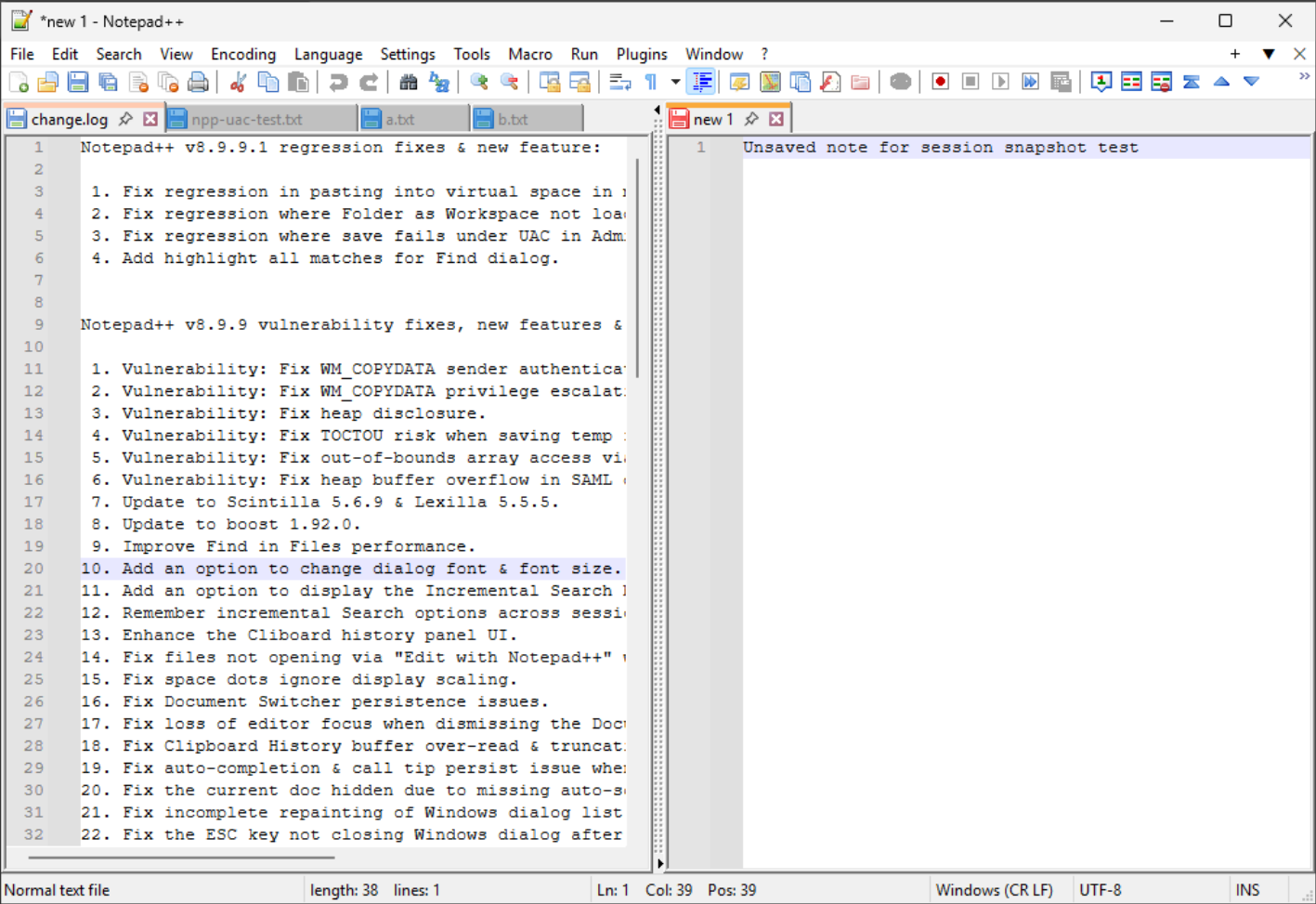
The session snapshot is the feature I would miss most. I typed into a new, never-saved tab, chose File, Exit, and Notepad++ closed without asking anything. On the next start the tab and its text were back. That is convenient, and it is also a habit you need to understand: the unsaved text lives in a backup folder in your profile until you save or close it. If you are used to editors that ask before closing, this is different.
 Open larger screenshot
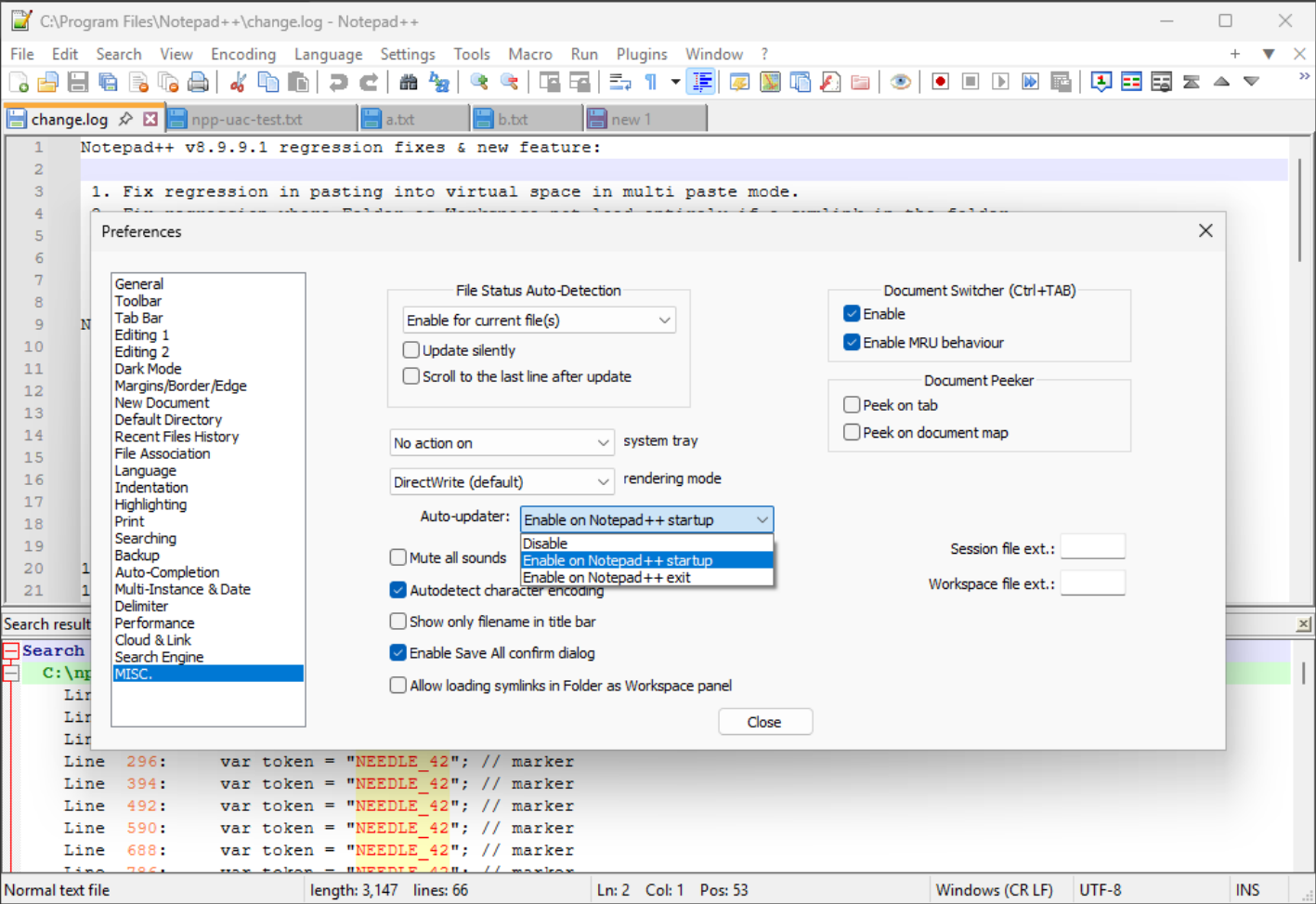
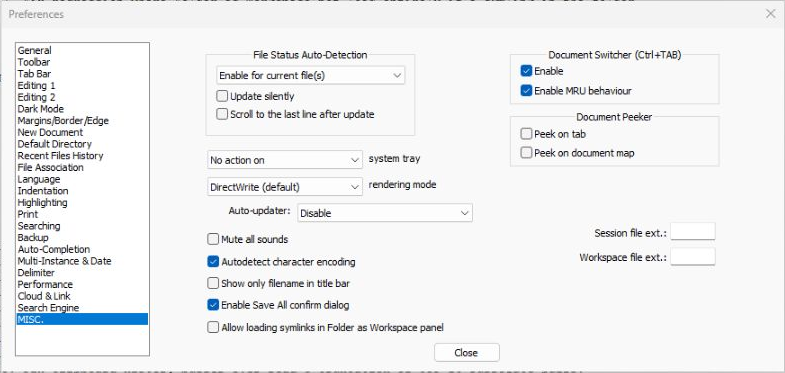
The tested default setting was Enable on Notepad++ startup. Preferences > MISC also offers Disable and Enable on Notepad++ exit. Automatic checks are normally spaced at least 15 days apart. I selected Disable, exited and relaunched the editor; Disable was still selected, and stayed saved after a second exit. No updater process appeared in either roughly 31-second launch observation, but the next automatic check was not yet due. When I asked for an update check by hand, it said no update was available, with a link to the download page. In my test I saw no donation prompt, no in-app ads and no account request across several restarts.
 Open larger screenshot
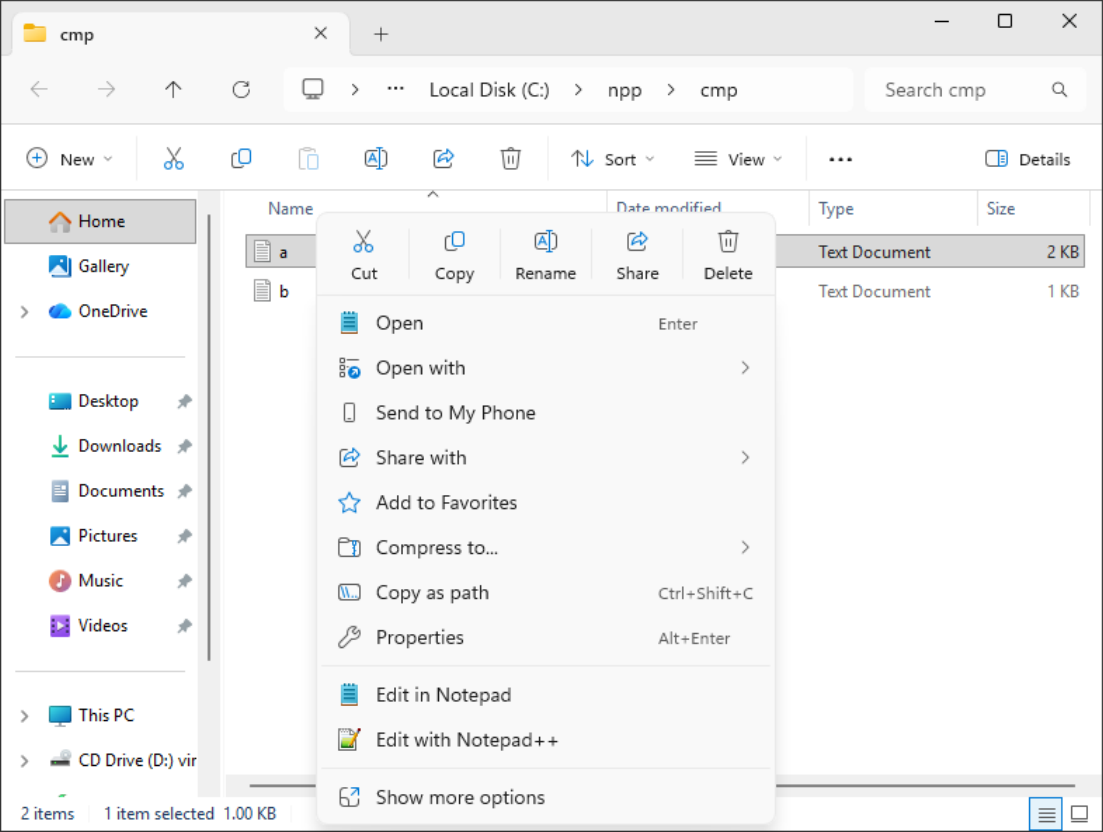
The Edit with Notepad++ entry appears in the first Windows 11 right-click menu, not hidden behind Show more options. Small thing. Daily, it matters.
Price and value
Notepad++ costs nothing, and nothing in it is locked. The project accepts donations on its website, and the app didn’t ask me for one. For what it does, I don’t see a reason to pay for a different Windows text editor unless you need something specific that it lacks, such as the same editor on a Mac.
What happens when the trial or subscription ends
There is no trial and no subscription, so nothing ends. Version 8.9.9.1 keeps working as long as you want it.
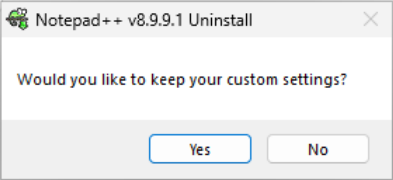
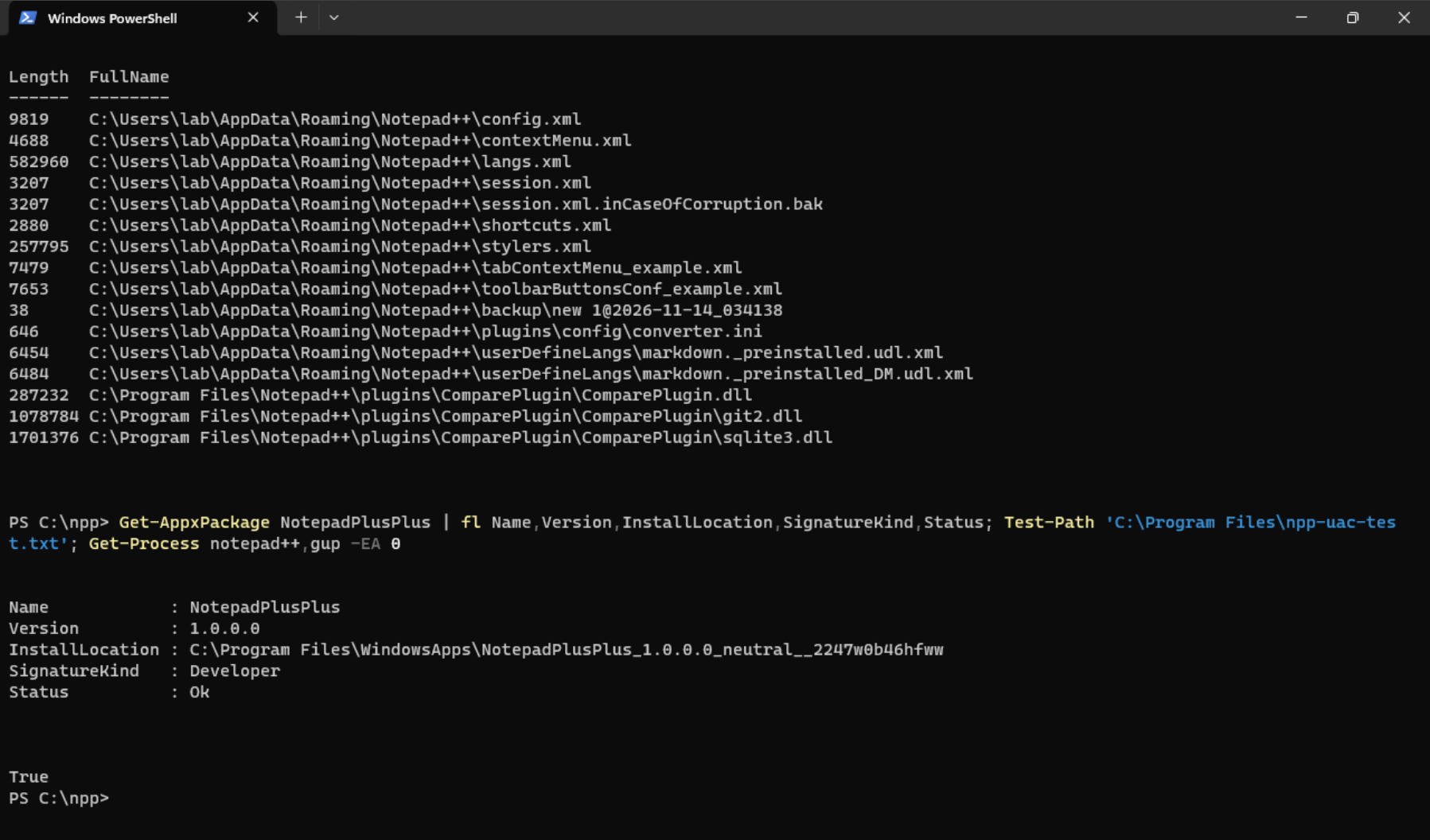
Uninstalling is where it is a little untidy. The uninstaller asked whether to keep my custom settings, with Yes as the default answer. I kept the default. The program, the Start menu shortcut, the uninstall entry, the registry key and the right-click entry were gone afterwards. What stayed:
- 13 settings files in my profile, including the backup of that never-saved tab. That is what keeping settings means, but remember that unsaved text is in there.
- The Compare plugin I had installed through Plugins Admin: three files, about 3 MB, in a leftover Notepad++ folder in Program Files.
- The package Windows uses for the right-click menu, still registered. It is only about 64 KB and the menu entry had already disappeared, but it was still listed in Windows.
 Open larger screenshot
The footprint check found no remaining Notepad++ service, scheduled task or Windows start-up entry. If the NotepadPlusPlus menu package is still registered after uninstall, Get-AppxPackage NotepadPlusPlus | Remove-AppxPackage removed it in my normal-user test. If you no longer want the added plugin or retained settings, inspect those folders and save anything you need before removing the leftovers.
Alternatives, and who should skip it
Windows Notepad is already installed and has tabs now. For a shopping list or a quick look at a log, it is enough, and you don’t need anything else.
Visual Studio Code is the free choice if you want an editor that grows into a development environment, with an integrated terminal, debugging and a huge extension library, and versions for Windows, macOS and Linux. It is also a bigger program to learn.
Sublime Text is a paid editor that also runs on macOS and Linux. Consider it if you work across systems and want one editor on all of them.
Notepad3 is a free, small Windows editor closer to Notepad than to Notepad++, for people who want a better Notepad rather than a plugin platform.
If comparing files is your main job, the separate Beyond Compare review covers folder comparisons and merges. Here, Compare 2.0.2 handled the changed and removed lines in two short test files.
Skip Notepad++ if you are on a Mac or Linux, or if you want an editor that also runs and debugs your code.
Bottom line
Install it if you edit text on Windows more than now and then. Check the updater setting and increase the dialog font in small steps if the default text is too small. Before uninstalling, save any unsaved text you want to keep as named files. Afterwards, check what remains and use the cleanup steps above only for leftovers you actually have.