
What Paint.NET is now, and who it’s for
Paint.NET did useful work on a small layered image, but one tested PNG save lost its iTXt Description. Keeping the picture is only part of preserving a file’s information.
It is a raster image editor with layers, selections, drawing tools, adjustments and effects. I used the free Classic 5.2 x64 release on Windows 11. Classic is proprietary freeware, available for home and commercial use.
The useful middle ground is an image that needs more than one crop or resize: a separate caption, a transparent border, an effect on the background and a project you can reopen. For a single resize, Windows Paint already did the job in my comparison. The normal release is for Windows; separate Linux and Mac packages run through Wine and are experimental.
Do the 5.2 changes matter to you?
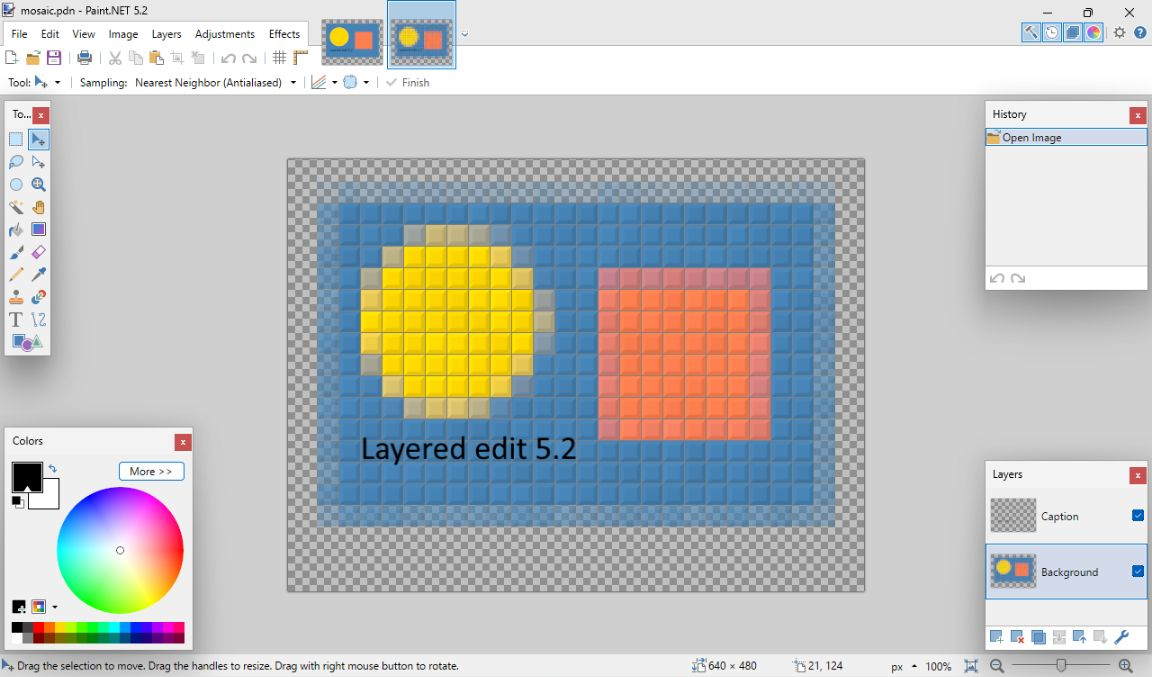
Mosaic gave me a result worth keeping. It is one of eight new effects in 5.2, released on 10 November 2026. I applied it to the background with the default square tiles, bevel and grout settings, kept the caption separate, saved the PDN and reopened it. The effect and the named layers were still there.
 Open larger screenshot
The other additions include carved-print and dot effects, stained glass, dithering, spherical and wave distortions, and halftone printing styles. They broaden the built-in choices for making a graphic. Whether that helps depends on whether you need the effect; a longer menu alone does not improve an ordinary crop.
The release also changes the layer-rendering engine to floating-point precision and updates the file-format plugin system. HDR image imports can be tone-mapped to SDR. That is a conversion when opening an image, rather than native HDR document editing. The full changelog below records the listed changes; the saved-file results are what matter in the jobs that follow.
Layers and editing in practice
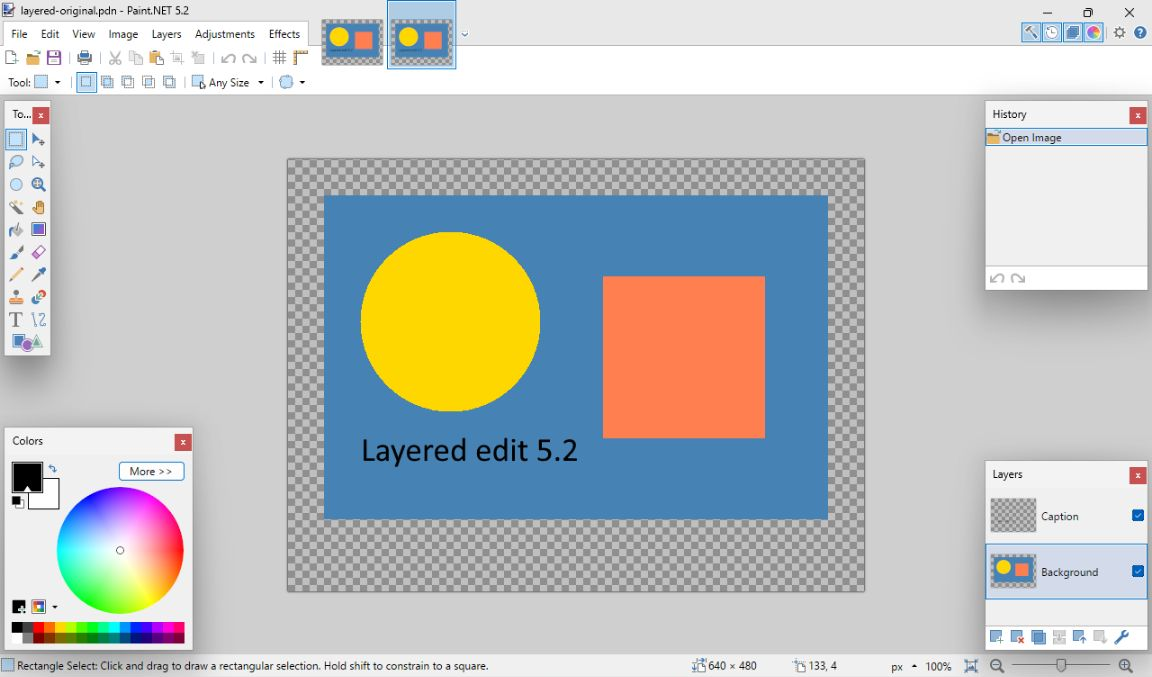
Separate layers made the caption easy to hide and reorder. My starting image was a 640 x 480 transparent canvas containing three colored shapes. I added a layer called Caption above Background, typed a short label and changed the wording before finishing it.
Unticking Caption hid the lettering. Moving it below the opaque part of Background covered it; moving it back to the top restored it. I saved the project as PDN, closed the document and reopened it. Both layer names and the visible result survived.
 Open larger screenshot
The text becomes pixels
Finishing the text was a commitment. After reopening the PDN, clicking the lettering with the Text tool started new text. Backspace did not remove the old letters. Keeping a caption on its own layer lets you move or replace that layer, but it does not preserve the wording as editable characters. For a label you expect to revise repeatedly, that is a real limitation.
Crop, resize and export
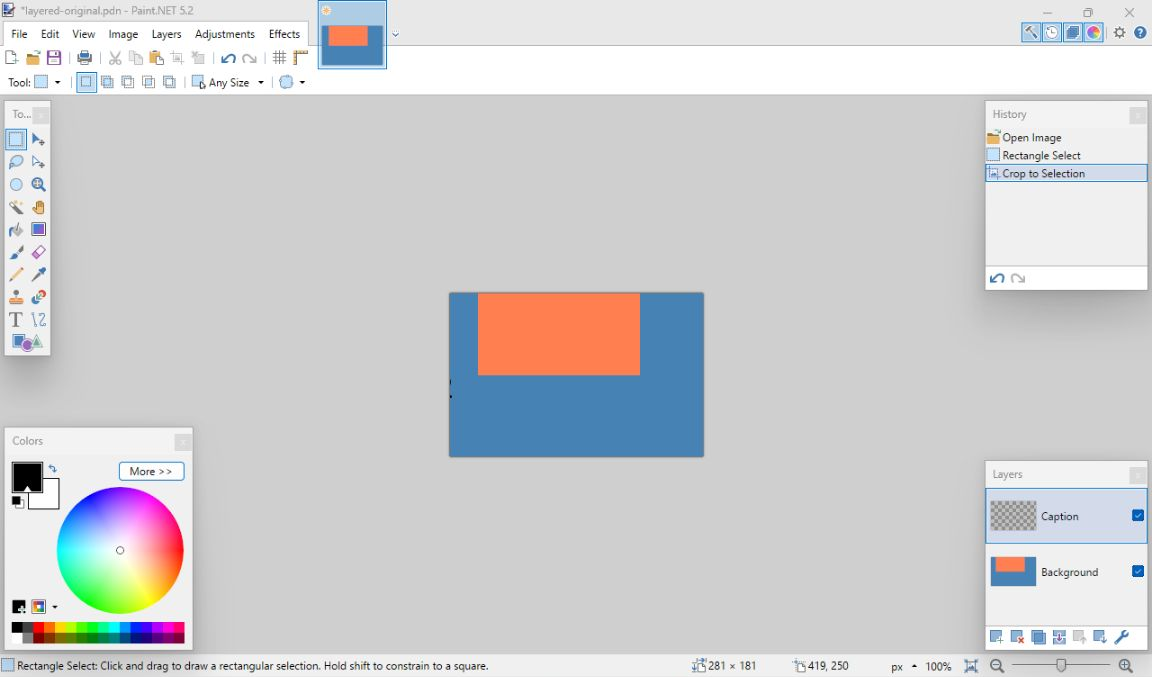
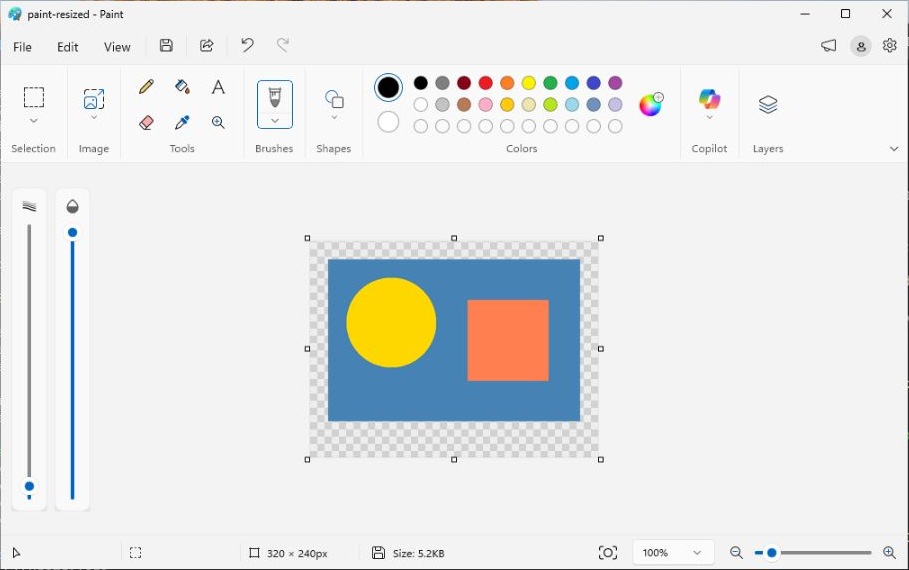
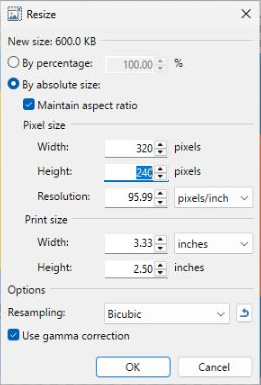
The basic image operations worked. My rectangular selection produced a 281 x 181 crop, and Undo restored the original 640 x 480 canvas. In Resize, keeping the aspect ratio and changing the width to 320 automatically set the height to 240. I applied that with Bicubic resampling and gamma correction enabled.
 Open larger screenshot
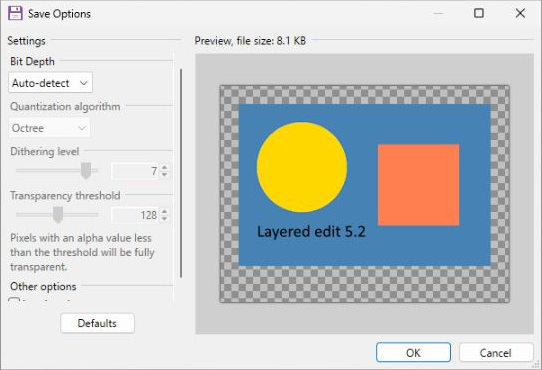
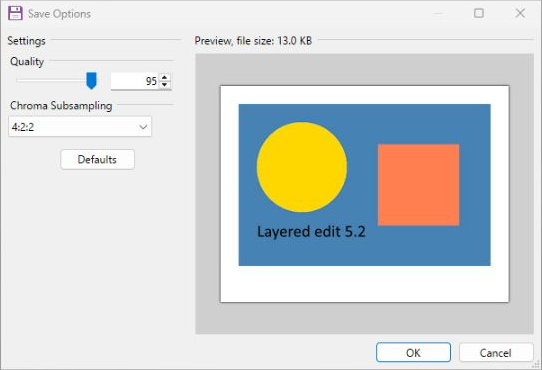
I kept the resized PDN as the project, then exported a PNG and accepted flattening for that copy. The PNG decoded at 320 x 240, kept its transparent corner and retained the sampled blue shape color. It also opened in Windows Paint. The JPEG export opened at the same dimensions, with the transparent border replaced by white. Choose PNG when that transparency matters.
A Description lost on save
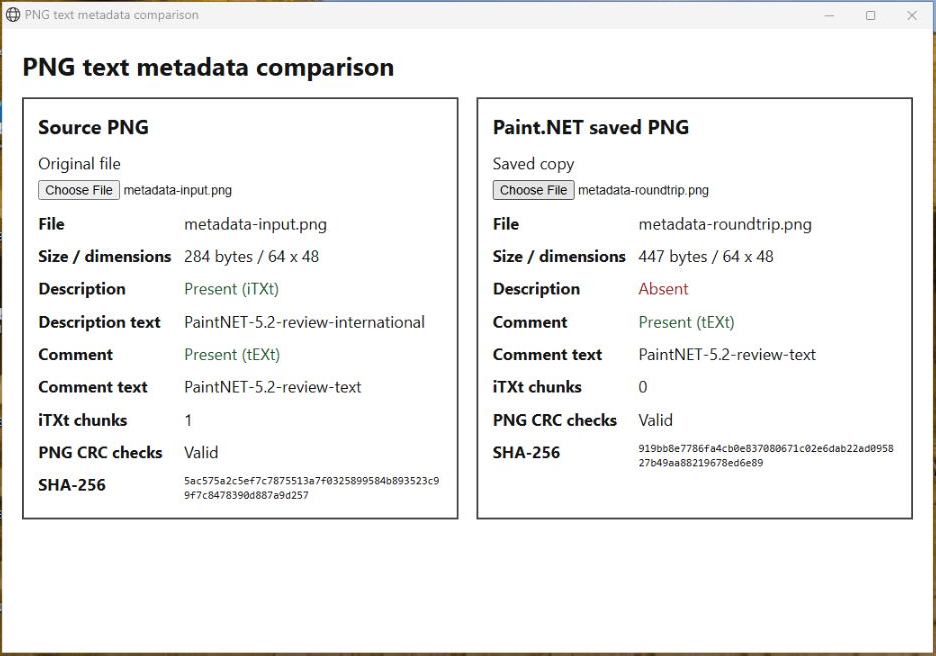
The metadata result was worse. I opened a small PNG containing a Comment in a tEXt chunk and a Description in an iTXt chunk, then saved a separate PNG. That saved copy kept the Comment but lost the Description and its iTXt chunk. The original file was unchanged, and both PNGs decoded to identical picture pixels. The loss was that text field in the saved copy.
 Open larger screenshot
If you rely on PNG descriptions, keep the original and check a saved copy before trusting this save path.
Installation and first run
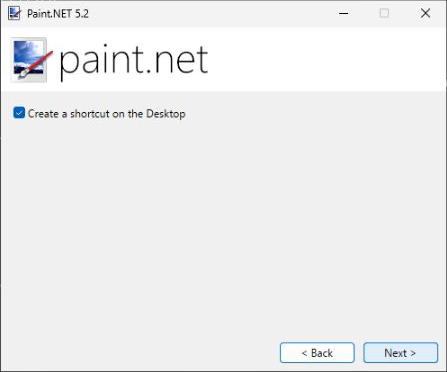
Setup offered a short set of choices. Express was selected initially. I chose Custom, left the checked desktop-shortcut option on and kept the default Program Files folder. The next screen was ready to install; this run did not present association or update checkboxes.
 Open larger screenshot
The official offline x64 package’s ZIP checksum matched the published release. Its extracted installer was 90.4 MB and had a valid DOTPDN LLC signature. Installation was complete when I checked about four minutes after starting it. The installed program files totalled 706.5 MB, excluding the downloaded installer and user data.
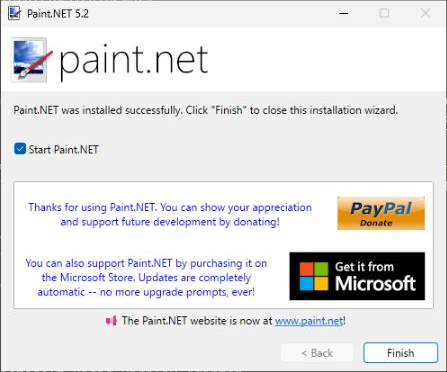
Setup added a shortcut on the shared desktop and a Start menu entry. Its completion screen promoted donations and the Store release, with Start Paint.NET checked. The app opened without an account or payment gate. No separate companion app appeared in the recorded installation.
Day-to-day use
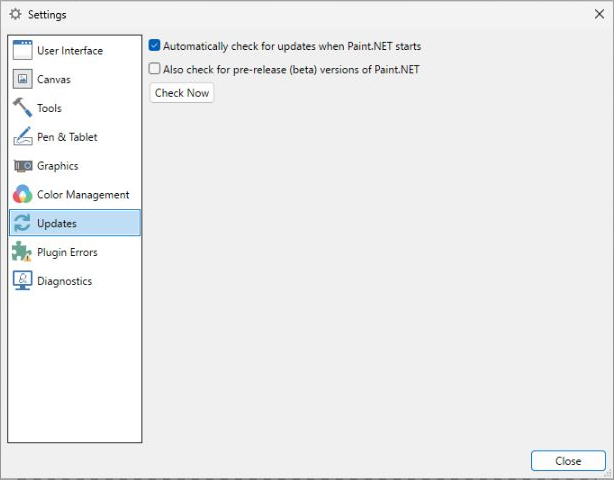
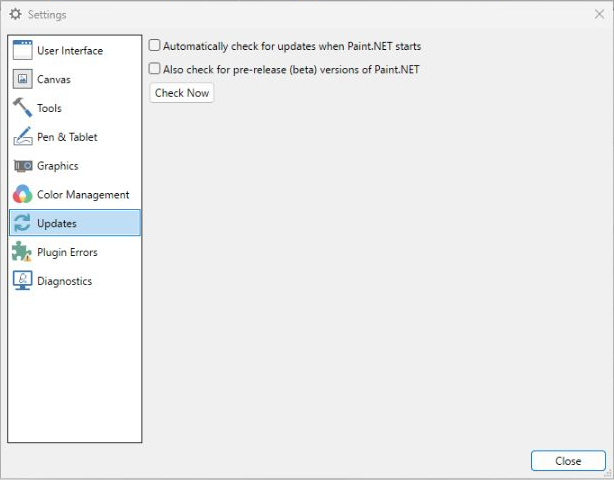
The update preference was easy to change and stayed changed. Automatic checks at startup were on by default, while prerelease updates were off. I disabled the automatic check, exited normally, launched the desktop shortcut and found it still off.
 Open larger screenshot
Across those two launches, I saw no account screen, payment gate or repeated-launch nag. Classic uses anonymous install and update completion reports as well as update checks. Its own integrations did not add a recorded Paint.NET service, scheduled task or boot-startup entry.
With the empty main editor open after startup settled, the Paint.NET process used about 259 MiB of working-set memory in three samples two seconds apart. That is the empty editor state; the layered project and effects came later.
Removing it
Normal removal through Programs and Features removed the program folder, its desktop and Start menu shortcuts, the installed-program entry and the recorded Paint.NET file-type registrations. After the editing apps were closed, no Paint.NET process remained.
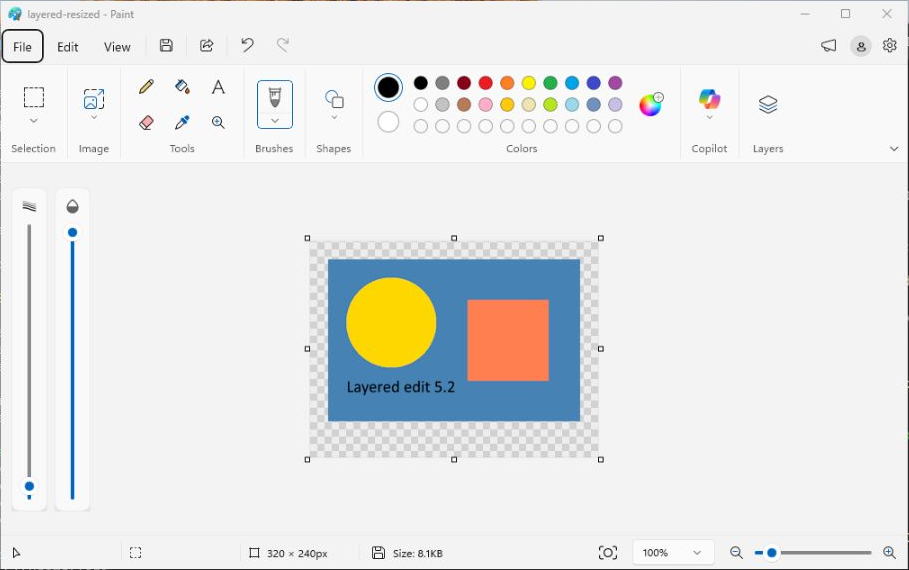
It left preferences in the registry and cache, optimization and session folders under Local AppData. The file inventory found a roughly 501 KB startup-optimization profile there. Those are leftovers, rather than a completely empty removal. The exported PNG still opened in Windows Paint afterward, with the caption and transparent border.
 Open larger screenshot
Price and value
Classic makes the tested tools available without payment. The optional paid Store distribution offers the same editing features with Store-managed updates.
For a small layered graphic, keeping a project and exporting a flat copy has value. For an occasional crop or half-size image, that extra project structure may give you nothing. The lost Description also makes me reluctant to make Paint.NET the routine save path for images whose embedded information matters.
What happens when the trial or subscription ends
There is nothing to end in the stable Windows Classic offer: it is free without a trial expiry or subscription. The saved PDN reopened before removal, and the exported PNG opened in another app after removal. Keep the PDN when you want the separate layers and export a common format for sharing.
The experimental Wine packages have a different rule: each build expires 12 weeks after its build date and needs replacing. That expiry belongs to those packages, not to the stable Classic Windows release.
Alternatives, and who should skip it
Windows Paint was enough for the basic comparison. It resized the original fixture from 640 x 480 to 320 x 240 and saved it, and a separate crop produced a 350 x 194 image. For a simple crop or resize, I would start there.
GIMP is the free alternative to consider when editable text layers or a regular desktop app for Linux and macOS are part of the job. Its text layers can retain characters for later editing in a saved project. That is a different workflow from Paint.NET’s committed text becoming pixels.
Skip Paint.NET for documents whose captions need repeated wording changes, or as an unchecked round trip for PNG descriptions. Its small layered-edit workflow worked, but those two requirements change the choice of editor.
Bottom line
I would not make Paint.NET the routine save path for PNG descriptions that must survive. If you still choose it for simple layered work, keep the original and a PDN, then check the exported copy before discarding anything.