

What VeraCrypt is now, and who it’s for
VeraCrypt is for files you want to keep encrypted while you work on them. You open a container with a password, it appears as a drive, and you use the files normally. When you finish, you dismount it. That suits a folder of private documents better than repeatedly unpacking and repacking an encrypted archive.
It is free, with no account, paid edition or subscription. The code is published under the Apache 2.0 and TrueCrypt 3.0 licences. There are desktop versions for Windows, macOS, Linux and BSD, but no official Android or iOS app. This review is about ordinary file containers on Windows 11. Encrypting the Windows system drive is a different decision, with boot and recovery consequences that a small container test cannot settle.
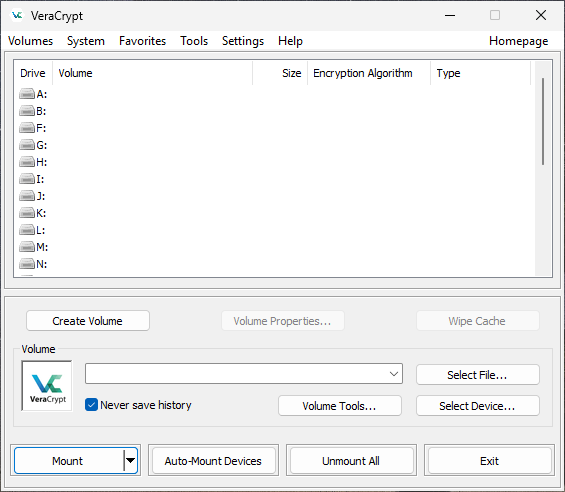
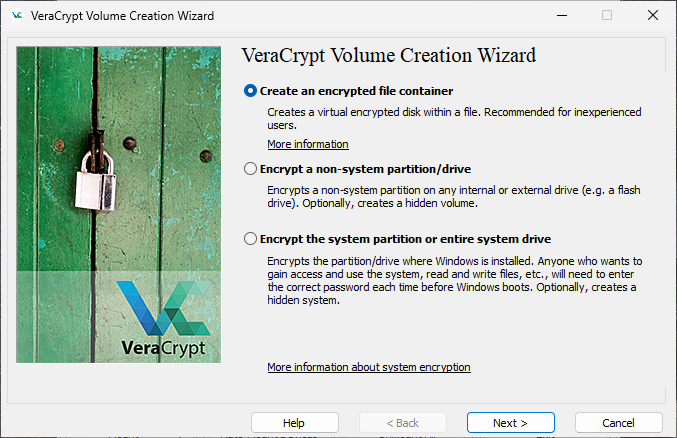
The main window is plain: a list of drive letters, a file picker and Mount. I like that once a container exists. Getting to that point takes more thought. The wizard asks about the kind of volume, encryption, password, size and filesystem. Those are useful choices, but someone who expects a single “protect this folder” button will have work to do.
Do the 1.26.31 changes matter to you?
Yes, especially if you already use VeraCrypt. The 2 November release concentrates on upgrades, Windows system-encryption support and Unix security fixes rather than a new way to use file containers. The Release Highlights and changelog cover those changes.
For Windows system encryption, the practical point is to resolve upgrade and recovery-backup warnings before a feature update. A successful ordinary container mount does not tell you that your bootloader and Rescue Disk are ready. For a new file-container user, the work below matters more than the version number.
Encrypted containers in practice
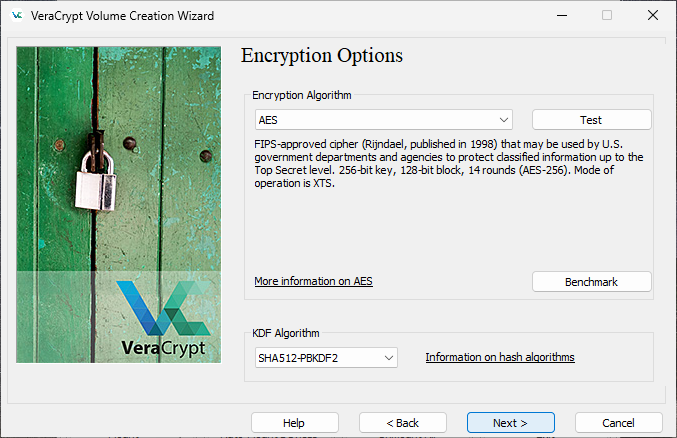
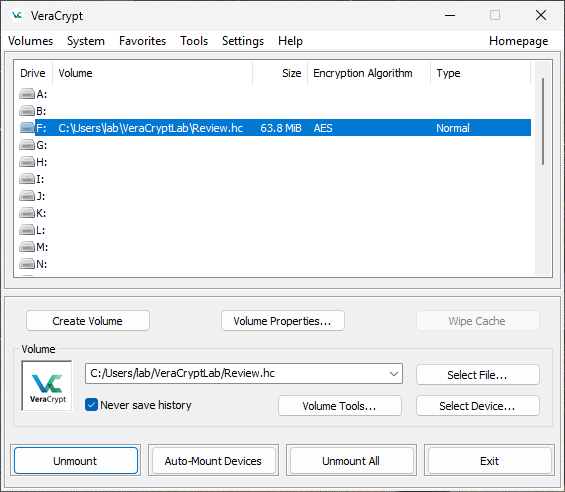
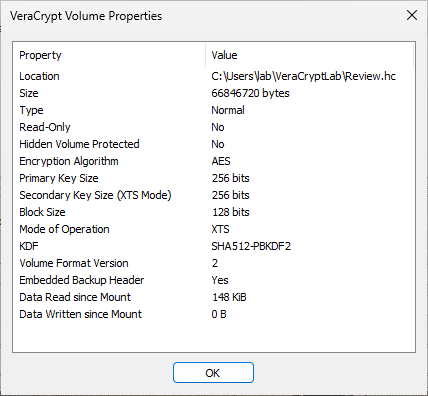
The basic job worked. I made a standard 64 MiB container with AES, the default SHA512-PBKDF2 key derivation and a FAT filesystem, then mounted it as F:. I copied two synthetic text files into it and read one back. After dismounting, F: was no longer accessible. After mounting it again, both files matched their originals by SHA-256.
 Open larger screenshot
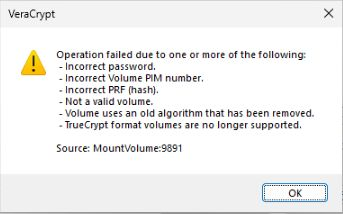
A wrong password was rejected. The message lists several possible causes, including the password, PIM, key derivation and the volume itself. That is less helpful than a simple password error, but the right password opened the same container afterwards.
 Open larger screenshot
This is the useful part of VeraCrypt: the programs using your documents do not need their own encryption feature. They see a drive. It is also the part that is easy to misunderstand. While that drive is mounted, applications running with access to it can read its contents. Dismount it when you are finished; closing a document is not the same thing.
Warning: A container protects what stays inside it. Windows and the programs you use may leave unencrypted temporary files, recent-file information or saved copies elsewhere. Dismounting does not remove those traces. Check where your editor saves temporary and recovery files; a container alone does not protect every copy of a document.
I also mounted the container read-only. Reading still worked, the files still matched, and an attempted write failed with “The media is write protected.” No new file appeared. That is a worthwhile option when you need to inspect an encrypted copy without changing it.
 Open larger screenshot
What Happens If You Forget Your Password?
VeraCrypt has no password-reset service. The developer cannot unlock a container for you, and a header backup still needs the credentials that protect it. I would not put important files here without a way to retrieve those credentials.
Before treating a failed mount as lost data, check the selected container, the password you entered, any custom PIM and the keyfiles you used. A PIM is an extra value used when opening the volume; the wrong value can make a correct password fail. Keyfiles are required credentials, not spare passwords. If a required keyfile is lost or its relevant contents change, the password alone will not open the volume.
Choose a long, unique password; I would use a trusted password manager to generate and store it rather than reuse a website password. Store any custom PIM there too, and keep protected, unchanged copies of required keyfiles outside the container. The locked container should never be the only place holding what you need to open it.
Backups and Recovery
Back up the files, not just the header. One option is a second standard container on a separate device, sized for the backup and created without Quick Format or Dynamic enabled. Save and close your documents, then copy directly between the two mounted containers. Reopen the backup and check its files. This avoids making an ordinary unencrypted backup folder; it does not prevent applications from leaving other traces. Keep that backup current, because encryption cannot prevent disk failure or accidental deletion.
I made a separate header backup with Tools > Backup Volume Header. Select the container first, follow the credential prompts and save the backup somewhere protected outside it. The header contains information needed to decrypt the volume, not copies of the documents; it cannot recreate missing file contents.
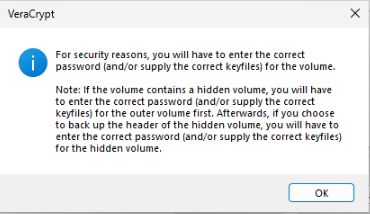 Open larger screenshot
For an ordinary file container, Mount Options includes “Use backup header embedded in volume if available”. This attempts to open the volume through its embedded backup header. Tools > Restore Volume Header is the separate repair operation. Before trying a repair, preserve a copy of the dismounted container and work on that copy.
Warning: Restoring an old header also restores the password, PIM and keyfile requirements from when that backup was made. Keep a new header backup after changing those credentials, and protect old backups because their old credentials can still matter. This is not a password reset.
An intact container, RouteProof.hc, opened read-only through its embedded backup header with the known password. Both synthetic files matched their source hashes, and I dismounted it afterwards.
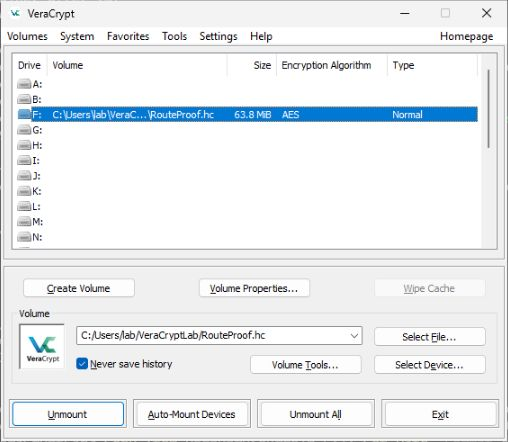 Open larger screenshot
That was an intact-container mount, not a demonstration of corrupted-header repair, forgotten-password recovery or external-header restoration. For important documents, a checked data backup is more useful than assuming a repair option will save them.
Installation and first run
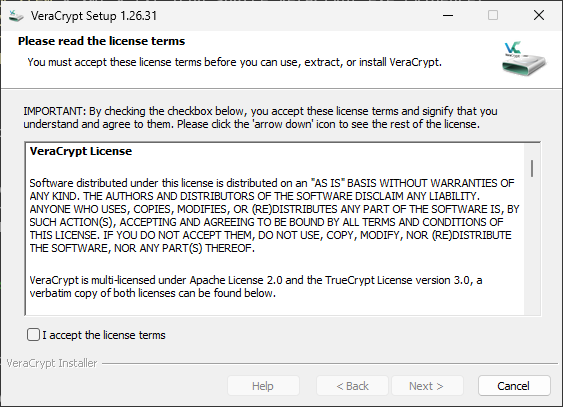
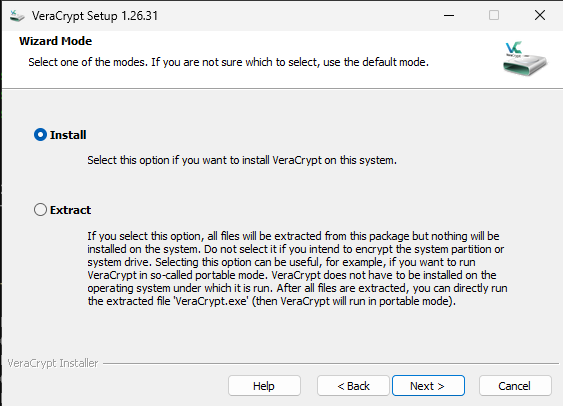
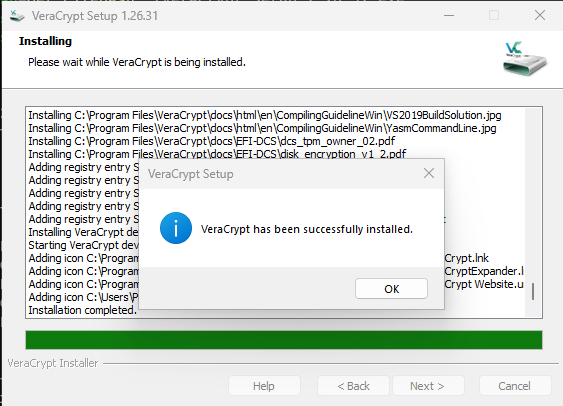
The installer gives you meaningful choices without trying to sell another program. The download was 44.5 MB, signed by IDRIX SARL, and its SHA-256 matched the official checksum. I chose Install rather than Extract, which is the portable-mode route. Installation completed successfully; its duration was not measured.
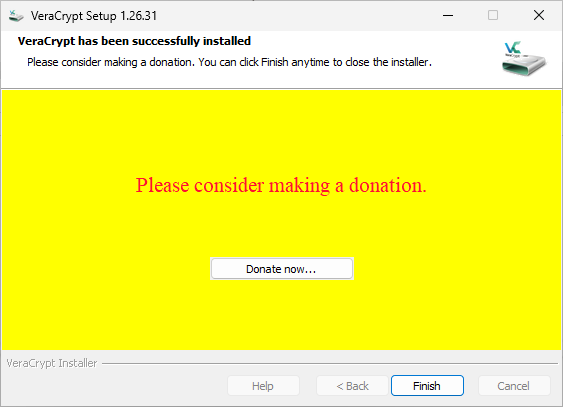
The default setup selected all users, Start menu and desktop shortcuts, and the .hc file association. Memory protection and screenshot protection were enabled. There were no third-party offers or account prompts. The final donation page is bright yellow and hard to miss, but Finish works without donating.
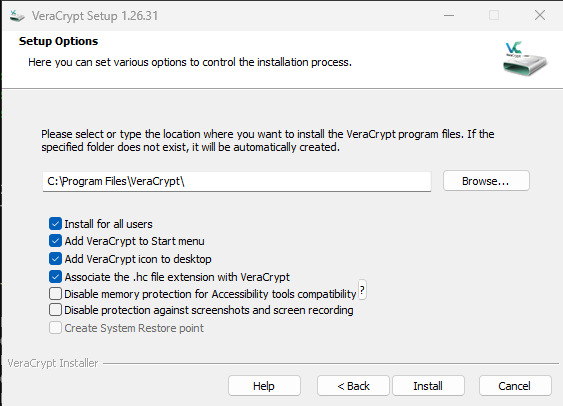 Open larger screenshot
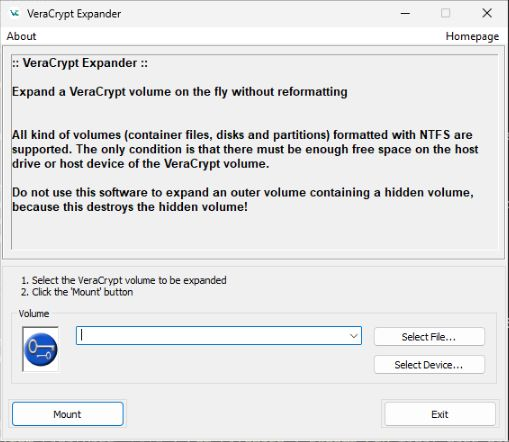
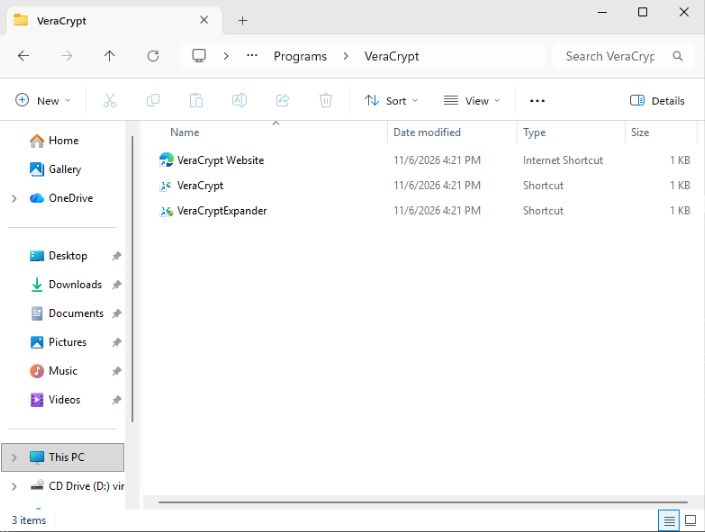
The install added the VeraCrypt driver, a desktop shortcut and a Start menu group containing VeraCrypt, VeraCryptExpander and a website link. The .hc extension was registered to VeraCrypt. My startup inventory was unchanged, and I found no VeraCrypt scheduled task. The driver is part of the encryption tool, not an updater. The bundled Expander is for enlarging existing VeraCrypt volumes. I opened Expander to its empty volume-selection window, then closed it without choosing a volume. There is no separate installer choice to leave this companion out.
The first launch went to the main window after an optional tutorial offer. Two further launches brought no account, payment or update prompt. “Never save history” was checked, and the selected container path cleared when I relaunched the app.
Day-to-day use
Mount, work, dismount is simple enough. The settings need more attention than the main window suggests.
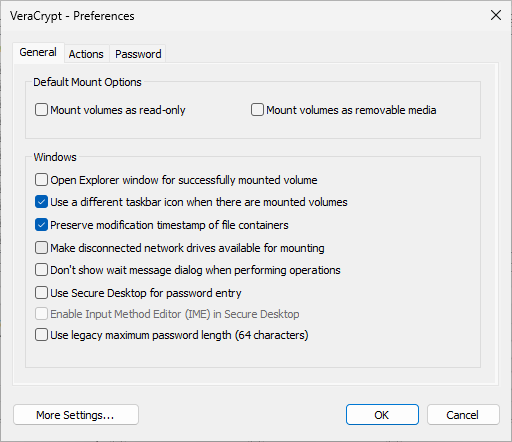
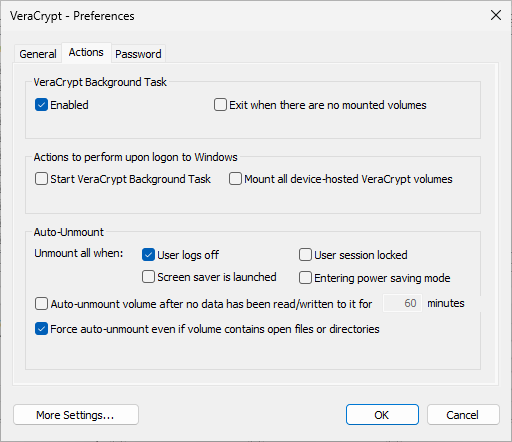
VeraCrypt’s background task was enabled by default, and its process remained after I closed the main window, even with no mounted volume. Starting that task at Windows logon was a separate, unchecked option. With the Actions tab’s option to exit when no volumes remain mounted enabled, closing the empty main window also ended the process. Turning on start at logon added a VeraCrypt startup entry; switching it off removed that entry. These are separate choices.
 Open larger screenshot
Disabling the background task produced a clear warning: automatic unmounting, hotkeys, favourite-volume automounting, notifications and the tray icon would also be disabled. With no volume mounted, I turned it off and closed the main window; the process ended. After restoring the setting, closing the window left the process running again. If you only want the idle process to end, start with the exit-when-empty option.
The same tab offers automatic unmounting on logoff, session lock, screensaver, power saving or inactivity. Logoff was selected; the others were not. If you expect locking Windows to lock your container too, review this setting instead of assuming the default does it. Save and close your files before dismounting, especially if you use the option that forces unmounting with files still open.
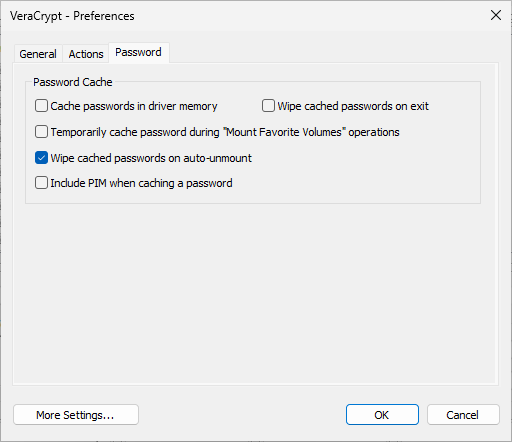
Password caching was off. Enabling it keeps credentials in driver memory so later mounts can avoid another prompt: convenient, but dismounting alone may not force a new password prompt. If you use caching, review the option to wipe cached passwords on exit and clear the cache when finished; merely switching caching off does not clear an existing cache.
Secure Desktop password entry was off too. It puts the password dialog on a separate desktop to help isolate entry from the ordinary desktop, rather than leaving it among your other application windows. Preserving the container’s modification timestamp was on. The container’s file date can therefore stay the same after editing its contents. That makes the date a poor way to judge whether a backup is current. Check that your backup method detects the changed data.
There was no automatic-update control in the preferences or Help menu I inspected. Help provides links to downloads and version history. For an encryption tool with frequent security fixes, checking for updates is part of keeping it.
Removing it
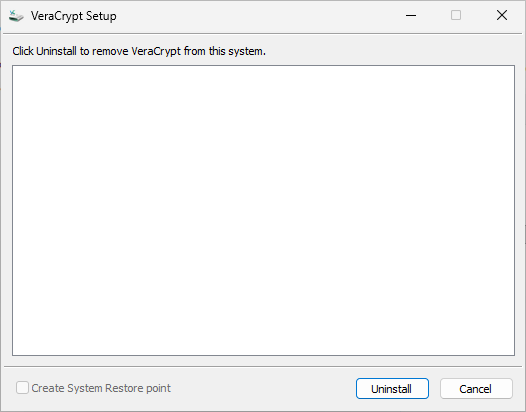
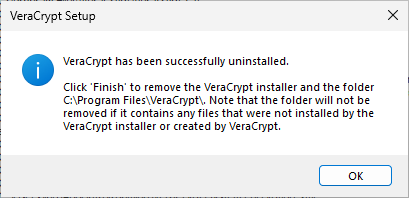
Normal uninstall removed the executable, roaming configuration, running process and VeraCrypt driver in my check. The test container and separate header backup stayed byte-for-byte unchanged. After a later reinstall, the existing container mounted again.
That is the right separation: removing the app does not remove your encrypted data. But preserving the container does not make it readable without a compatible program and its password. Export anything you need in another form before giving up the tool.
Price and value
For a reusable encrypted workspace, free is a good price. Nothing in my container test asked for a licence key, subscription or donation before it would work. The donation request belongs to setup rather than every launch.
The cost is the attention you have to give it: choosing a volume type, looking after the password, keeping backups and remembering when a mounted drive is still open. If that fits how you work, there is little reason to pay for another tool just to get a password-protected workspace. If you only need to send one encrypted package, an archiver asks less of you.
What happens when the trial or subscription ends
There is nothing to end. VeraCrypt is a non-expiring free application, with no renewal or paid tier to unlock. There is no clock to run out and no subscription to cancel. Your ability to open a container depends on the software, the container and its credentials, not a paid account.
Alternatives, and who should skip it
- 7-Zip. For an occasional encrypted package, start here. It creates password-protected archives for free. I reviewed its archiving and encryption separately. An archive is less convenient for documents you keep editing, because you have to manage extraction and saving changes back into it.
- Windows BitLocker or Device encryption. Consider Windows’ own encryption when the main concern is a lost laptop rather than a separate container. Full BitLocker management is available in Pro, Enterprise and Education editions; qualifying Home devices can have Device encryption. These protect whole volumes and serve a different job from the file-container workflow tested here.
Skip VeraCrypt if you want password recovery through an online account, or if you are unlikely to manage backups and mounted drives carefully. Its control is useful only if you use it.
Bottom line
Start with a small container and disposable files. Get used to mounting, saving and dismounting, then check your backup and password before moving anything important into it. For an encrypted workspace you control yourself, VeraCrypt is worth that preparation.