

What VLC is now, and who it’s for
VLC is the media player you install when you don’t want to think about formats. It plays video and audio files, discs and network streams, it reads subtitles inside the file or next to it, and it lets you pick the audio track, fix subtitle timing and jump to an exact time. It is free and open source under the GNU GPL. No account, no ads, no paid edition.
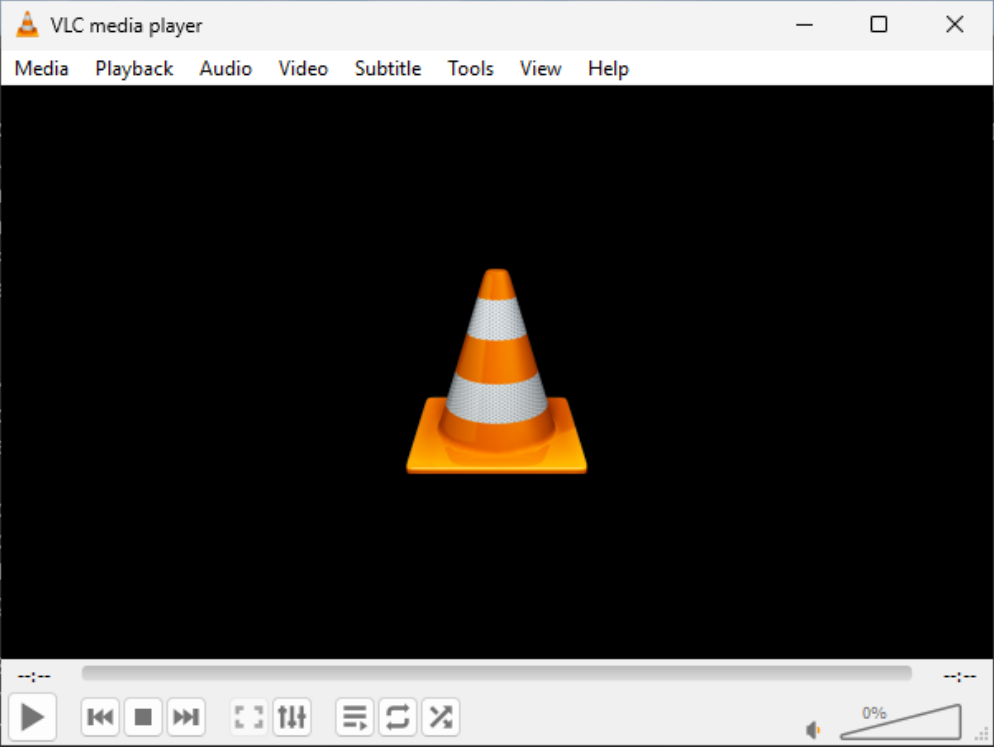
The Windows window still looks like a program from another decade: a menu bar, a seek bar and a row of small buttons. I don’t mind that. A player should show the video and stay out of the way, and VLC mostly does.
Who is it for? Anyone who gets video from more than one place. If you only watch MP4 files from your phone, the Media Player app in Windows may be enough. If you have MKV files with several audio tracks, subtitles that are a couple of seconds off, or a 4K HEVC clip that Windows won’t open without an add-on, this is where I would start. There are also versions for macOS, Linux, Android and iOS. I tested the 64-bit Windows version.
Do the 3.0.24 changes matter to you?
Version 3.0.24 came out on 22 September 2026. It is a maintenance release, but a big one under the hood. Decoding moves from FFmpeg 4.4 to 8.1, almost every bundled library is updated, and there is a long list of crash, leak and memory-safety fixes, many of them in MKV, MP4 and subtitle handling. The full list is in the changelog.
The security fixes are the reason to update. A media player opens files from strangers, and malformed files are where those fixes count. My H.264, 4K HEVC 10-bit and AV1 samples displayed video in 3.0.24.
The release also changes subtitle-language detection from file names and the file-open dialog’s default folder. In 3.0.24, my subtitle file ended in .eng.srt and VLC listed it as English; the file-open dialog opened in the folder I had last used. Release 3.0.24 also removes the old NPAPI browser plugin, yet the installer still offers, and ticks, an ActiveX web plugin.
Subtitles, tracks and resume in practice
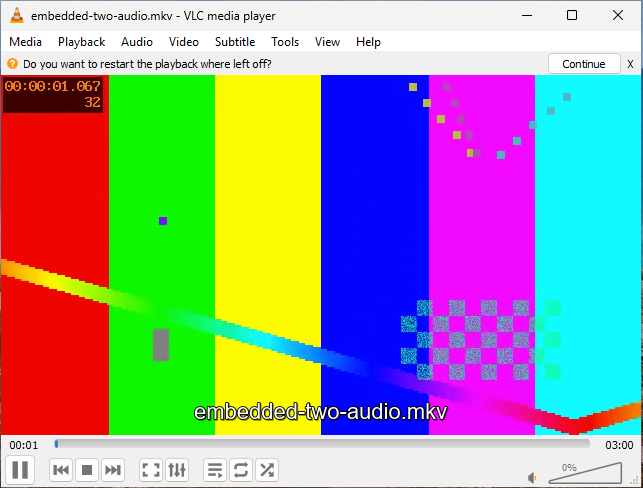
VLC’s seeking, subtitle timing and resume controls are the reason I would keep it installed. The three-minute 640×360 test video had a burned-in clock and frame counter, two labelled audio tracks and subtitle cues near the start and end. The picture itself was the reference for seeks and timing.
Seeking was exact enough. Go to Time (Ctrl+T) for 0:45 landed on 0:44.933, two frames early, and the video stayed paused. Alt+Right jumped ten seconds, Ctrl+Right a minute, Ctrl+Left a minute back, and the burned-in clock agreed each time. At the end of the file VLC stopped and went back to its orange cone. No repeat, no autoplay of something else.
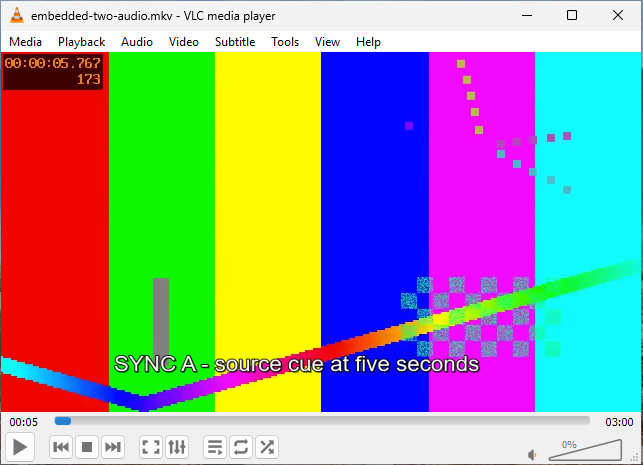
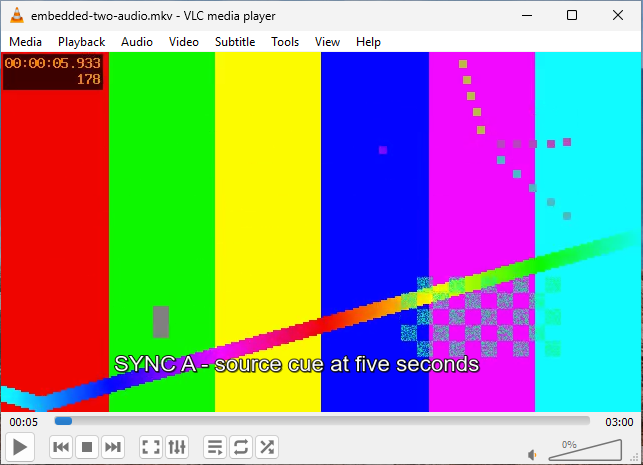
The MKV with its embedded subtitle track showed the first cue at 0:05.933, inside its 5.0 to 6.5 second window, with the subtitle on by default. Subtitle, Sub Track, Disable removed it.
 Open larger screenshot
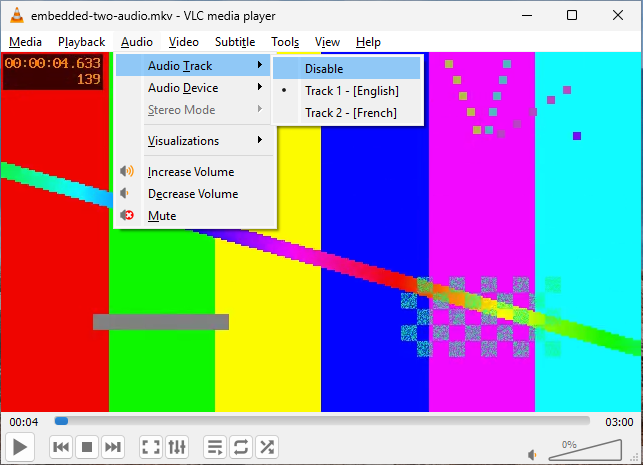
Audio tracks were listed by language, Track 1 English and Track 2 French, and switching moved the selection. My test machine had no sound device, so this confirmed the menu selection, not audible output. If you depend on dual-audio files, play one and listen before you trust it.
 Open larger screenshot
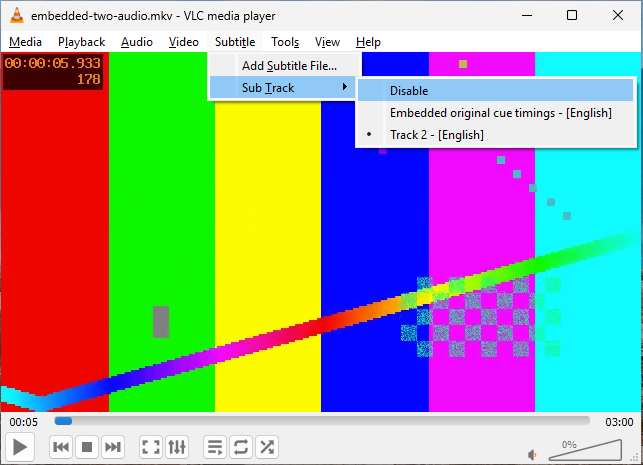
The separate subtitle file was easy to identify: VLC listed the added .eng.srt as Track 2, English, beside the embedded track. It was deliberately two seconds late, and its first cue appeared at 0:07.700.
 Open larger screenshot
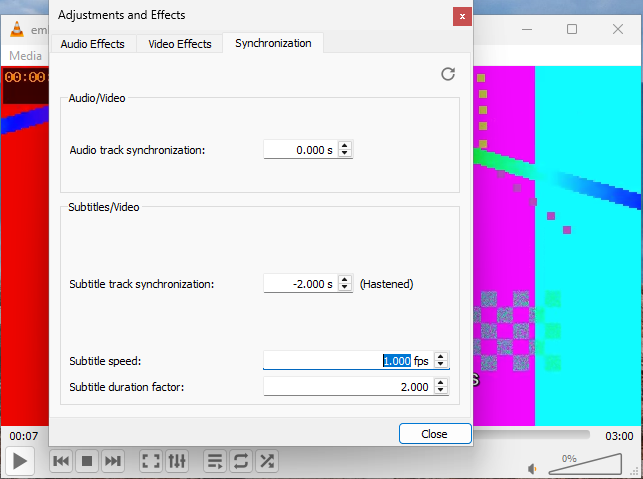
One setting corrected the two-second delay at both cue points. Subtitle track synchronization at -2.000 s (Hastened) put the first cue at 0:05.767 and the last at 2:51.000, both inside their original windows. The control is on the Synchronization tab in Adjustments and Effects (Ctrl+E). That is useful while watching: fix the timing without editing the subtitle file.
 Open larger screenshot
Resume is useful, but its question is easy to miss. Reopening the MKV after stopping at 1:40 showed a Continue button, which returned playback to the saved position. The catch is that the video starts from the beginning while VLC asks, and the bar disappears after a few seconds. I missed it the first time. Preferences, Interface has a Continue playback? setting, which was set to Ask.
 Open larger screenshot
Installation and first run
The x64 installer is 46.3 MB. It is signed by VideoLAN, and its SHA-256 matched the checksum VideoLAN publishes. Windows showed VideoLAN as the verified publisher. Setup asks for a language, shows the GNU GPL licence and then the components page. There are no third-party offers.
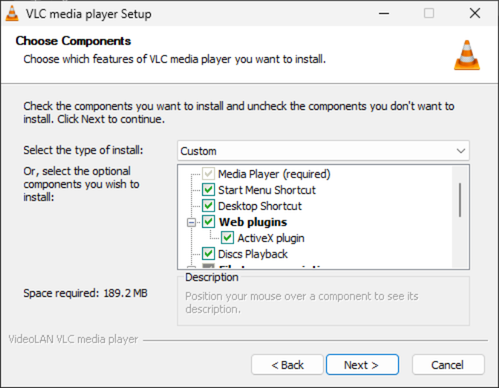
Almost every optional component is ticked: Start menu and desktop shortcuts, the ActiveX web plugin, disc playback, file types for audio, video and most other formats, and context menus. A few of the other file types, such as ISO, ZIP and RAR, are left out, and so is “Delete preferences and cache”, which clears settings from an earlier install. The list scrolls, so it is easy to click Next without seeing half of it. Copying the 582 files took about a minute, and the finish page has Run VLC media player ticked.
 Open larger screenshot
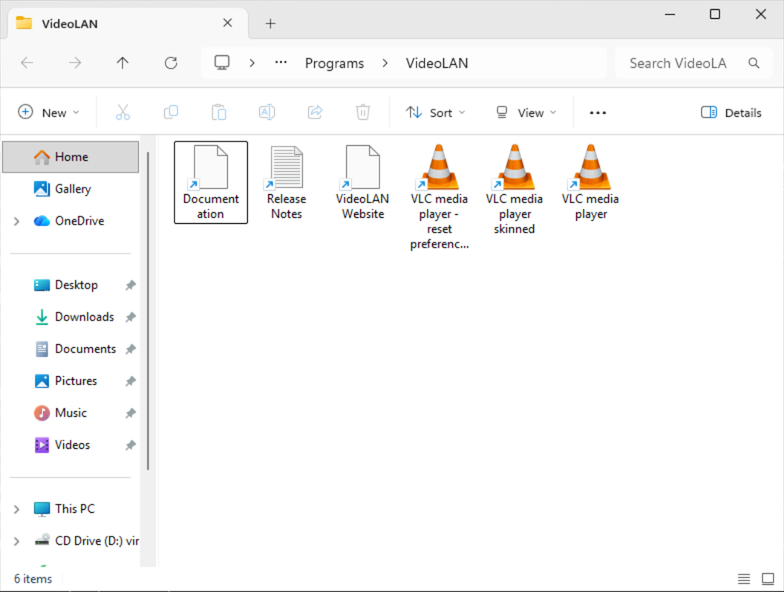
For all those extras, the background footprint was clean: no services, scheduled tasks or startup items. The installer added a VideoLAN Start menu folder with six entries (VLC, a skinned VLC, a reset-preferences shortcut, documentation, release notes and the website), a desktop shortcut, file types for audio and video, and two folder commands, Play with VLC media player and Add to VLC media player’s Playlist.
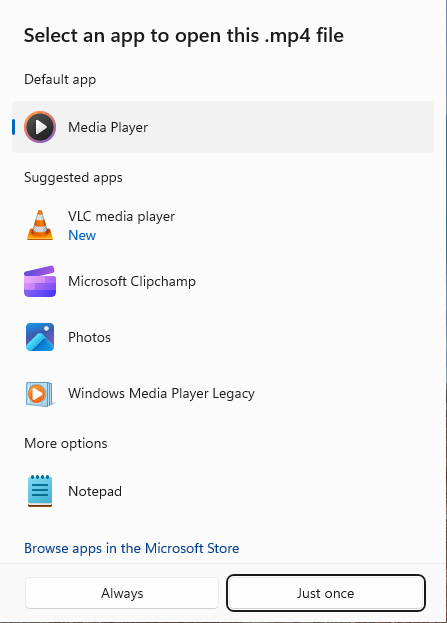
The file types are less of a takeover than they sound. Setup registered VLC for MP4, MKV, MP3 and the rest, but Windows kept Media Player as the default. When I double-clicked an MP4, Windows asked which app to use, with Media Player selected and VLC listed as new. You have to choose VLC yourself, once, in Windows.
 Open larger screenshot
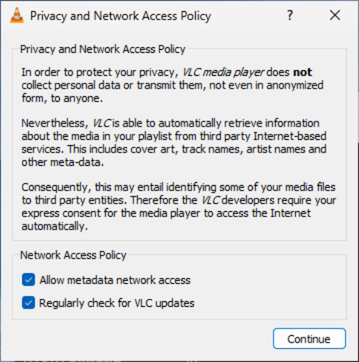
The first launch opens a Privacy and Network Access Policy dialog. It says VLC collects no personal data, but that fetching cover art and track names from internet services may identify some of your media files to those services. Both boxes are ticked: Allow metadata network access and Regularly check for VLC updates. I like that it asks. I would like it more if it asked with the boxes empty.
 Open larger screenshot
Day-to-day use
Day to day, VLC is quiet. In nine launches I saw the privacy question once and the resume bar when it applied. No donation request, no account, no rating prompt, no ads.
It is also light when it’s idle. With only the empty main window open, about five minutes after start, it used 37.5 MiB of working set and 9.6 MiB of private memory, steady over six samples. The captured TCP connection list for VLC was empty. Playing my 640×360 MKV it used about 96 MiB of working set. Bigger files cost more, and that is normal: about 220 MiB for a 1080p H.264 clip, about 128 MiB for 720p AV1 and about 45 MiB for a FLAC file, which showed its title from the tags.
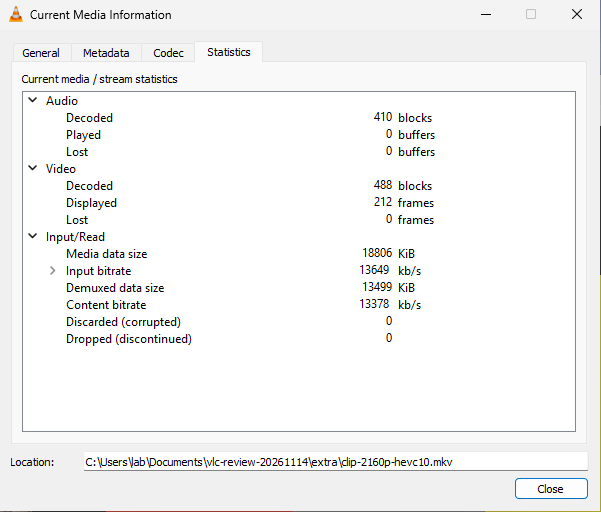
The 4K HEVC 10-bit clip is the one to know about. VLC played it, and its statistics showed no lost frames, but it used about 1 GB of memory and about half of my four processor cores. My test machine had only a basic display adapter, so that was software decoding.
 Open larger screenshot
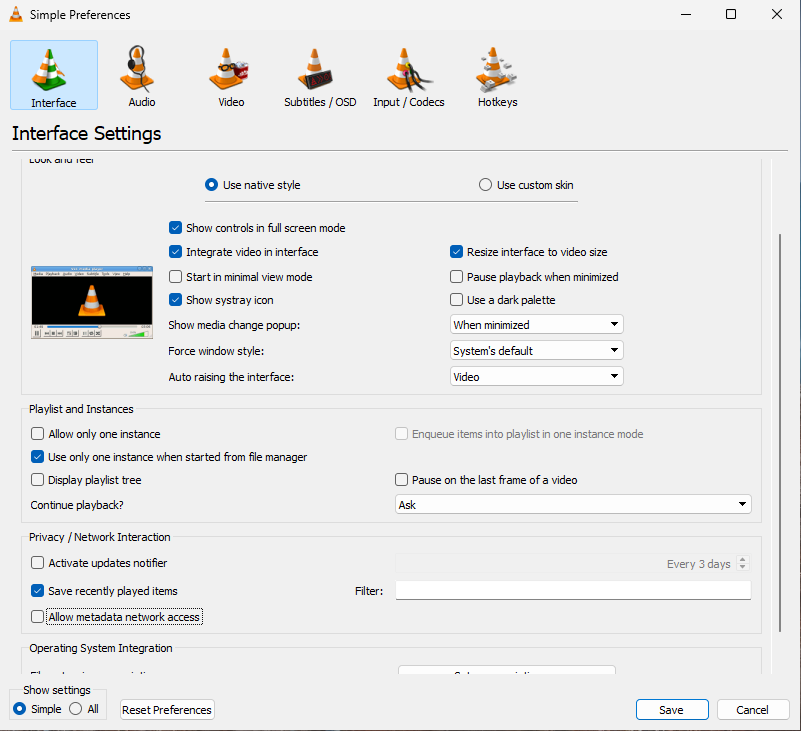
One default annoyed me. Resize interface to video size is on, so the 1080p and 4K clips opened windows bigger than my 1280×800 screen. On a big monitor you may never notice. On a laptop, untick it in Preferences, Interface.
The two network preferences stayed off after a restart, and the privacy question did not return. Both choices were also saved in VLC’s settings file. The controls are Activate updates notifier and Allow metadata network access, under Tools, Preferences, Interface, Privacy / Network Interaction. While the notifier was on, the settings recorded an update check on the first day; with 3.0.24 current, no prompt appeared.
 Open larger screenshot
Price and value
Free, with nothing held back. No paid edition, no trial and no subscription. VideoLAN takes donations on its website, and the app never asked me for one.
For a mixed collection, the appeal is having the playback and subtitle controls in one free player. You can try it alongside the player you already use before deciding which should open your files.
What happens when the trial or subscription ends
There is no trial or subscription to end. VLC is free software under the GNU GPL, with no activation, key or renewal. There is no expiry date that takes away playback or access to your files.
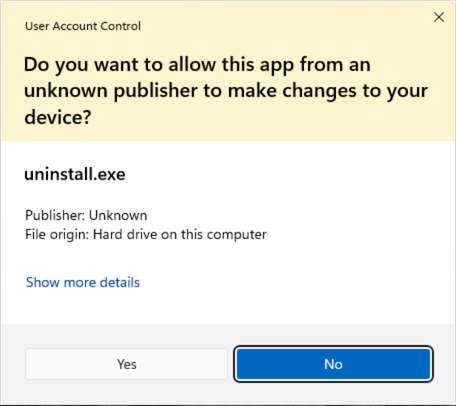
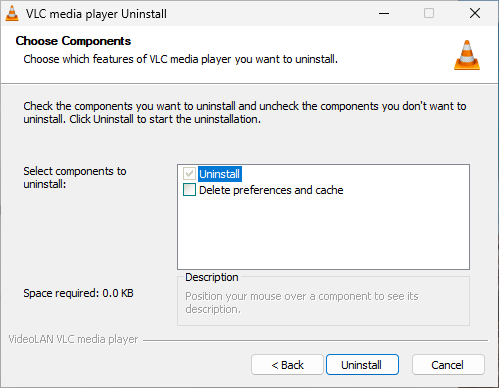
Uninstalling through Windows Settings works, with two small catches. The uninstaller isn’t signed, so Windows’ permission prompt shows an unknown publisher, unlike the signed installer. And its “Delete preferences and cache” option is unticked by default, so your settings stay behind.
 Open larger screenshot
With the defaults, removal took out the program, the shortcuts, the file types, the folder commands and VLC’s registry key. It left an empty VideoLAN folder in Program Files and VLC’s settings folder in my profile, about 98 KB. If you don’t want your settings left behind, tick the option.
Alternatives, and who should skip it
The Media Player app in Windows is already there and stays the default after VLC installs. For phone videos and ordinary MP4 files it may be all you need.
For conversion, I would start with HandBrake. Its presets and queue are built around that job, and in my HandBrake review its short MP4, MKV and burned-subtitle jobs produced playable files. VLC also has Convert/Save; the playback and subtitle controls are what earned its place here.
Skip VLC if Windows already plays everything you have, or if you want a player that looks and behaves like a Windows 11 app. VLC doesn’t.
Bottom line
Get VLC if your videos come from more than one source, especially MKV files with several tracks or subtitles that are out of sync. During setup, scroll through the components and untick what you don’t want. On the first launch, decide on the two network boxes instead of clicking Continue.