

What ShareX is now, and who it’s for
ShareX is useful when a screenshot needs markup, a local file and a clipboard copy. Its after-capture tasks bring those steps together.
It is free and open source, with screen capture, recording, image tools and optional upload destinations. I used the 22.4.0 portable x64 package for the capture jobs on Windows 11, then tested the same version’s installer and uninstaller. The stable release is for Windows; Mac and Linux builds are available separately as previews.
Expect to spend a little time choosing tasks. That setup makes most sense when you prepare support replies, instructions or bug reports regularly.
Do the 22.4.0 changes matter to you?
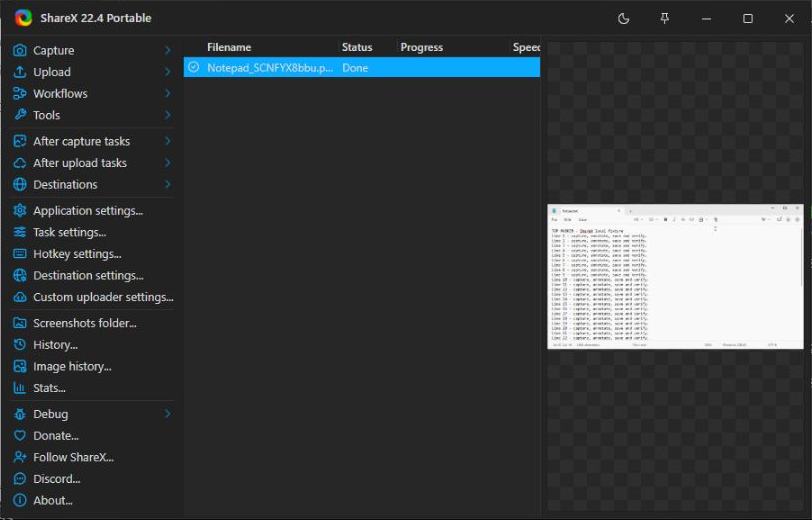
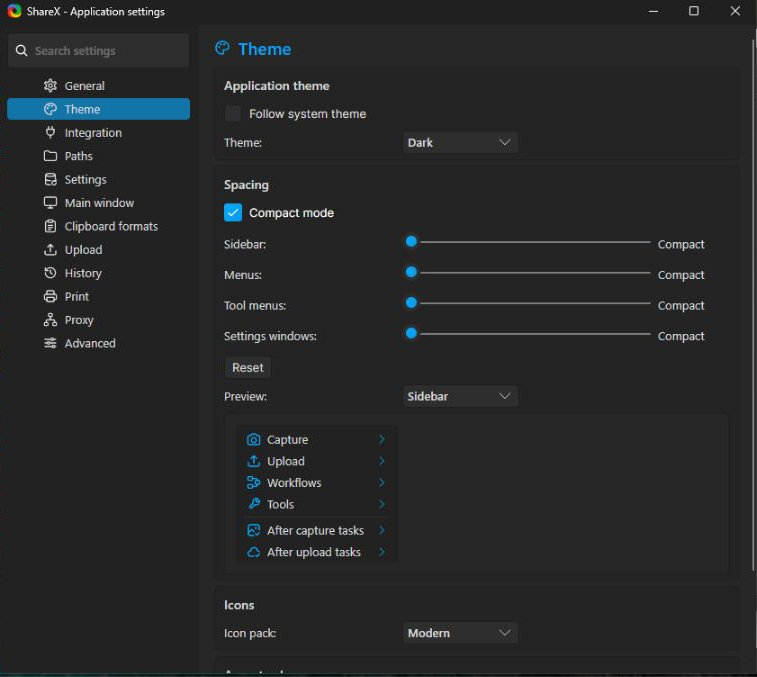
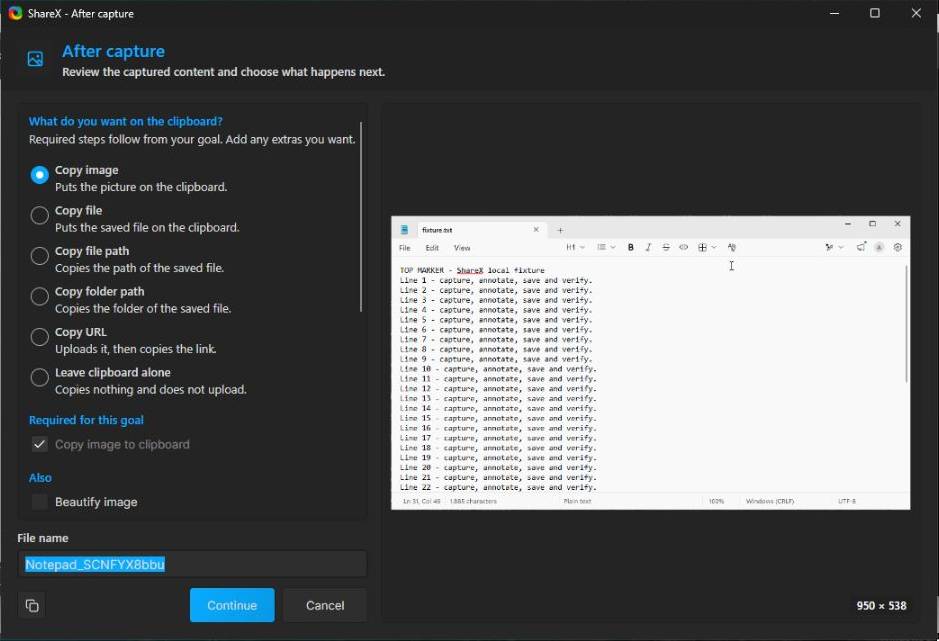
The changes I found useful were the ones that let me simplify the window. Version 22.4.0, released on 8 November 2026, lets you switch between thumbnail and list views, show a preview beside the selected task, and adjust interface spacing. I switched to list view and Compact mode. The selected capture had its preview, the spacing tightened, and both choices survived a normal exit and relaunch.
The after-capture window is now built around what you want on the clipboard. I chose Copy image, which made that step required while leaving the editor and local save available as extra tasks. That is easier to follow than choosing several unrelated actions and hoping they produce the result you wanted.
The release notes also cover canvas resizing, arrow controls and recording changes. The full changelog below covers the listed release; the practical results that follow are for the jobs I ran.
 Open larger screenshot
Capture and editing in practice
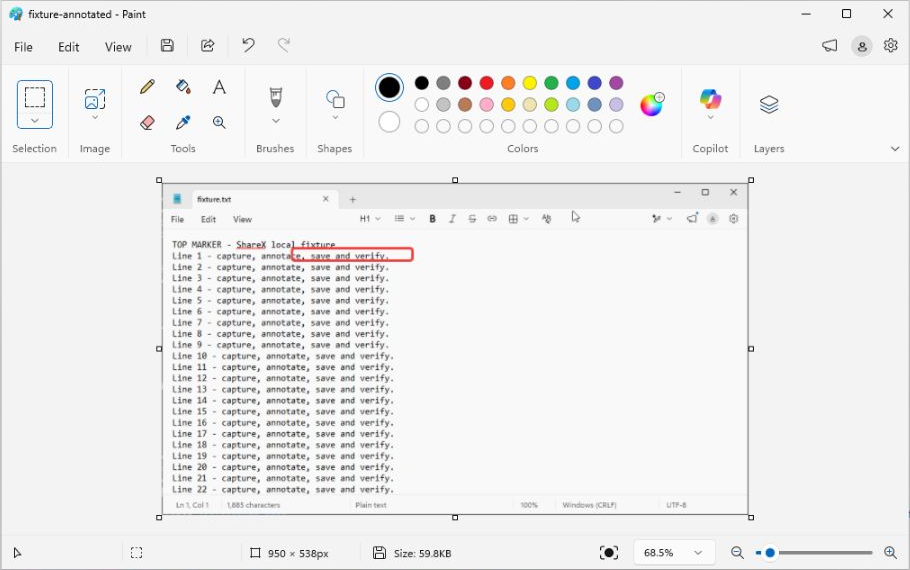
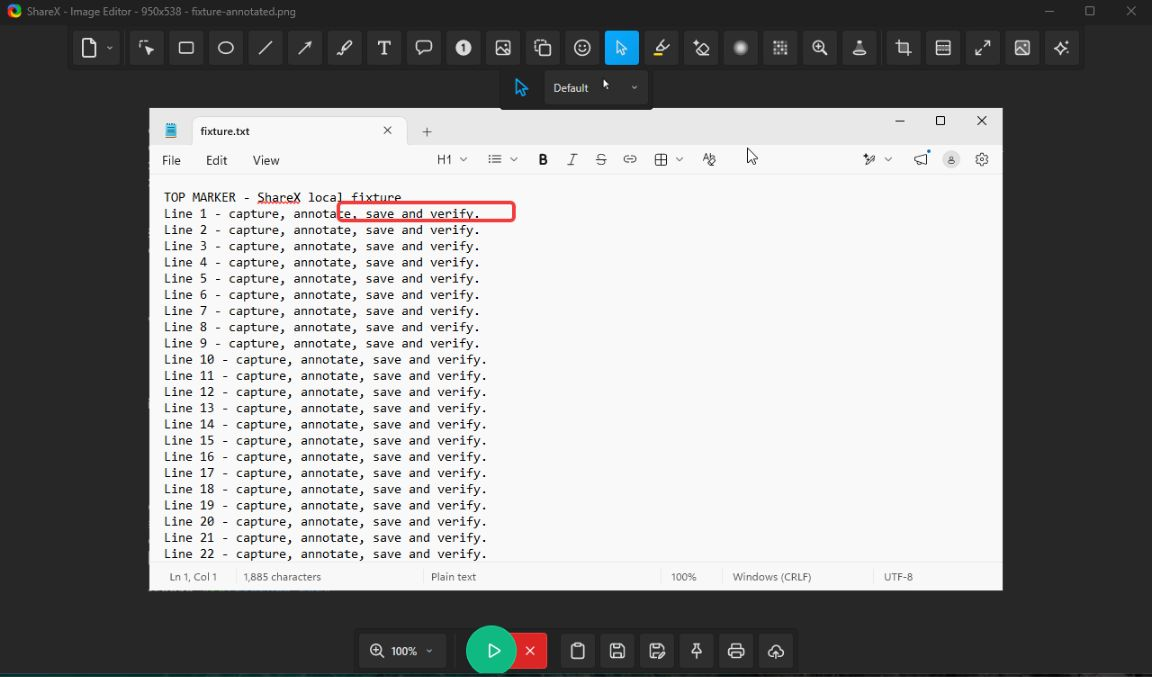
The ordinary capture-and-markup job worked. I captured a Notepad window, opened the image editor, drew a red rectangle and saved the result. Paint opened the exported PNG at the original 950 x 538 dimensions with the rectangle in place.
 Open larger screenshot
A scrolling document
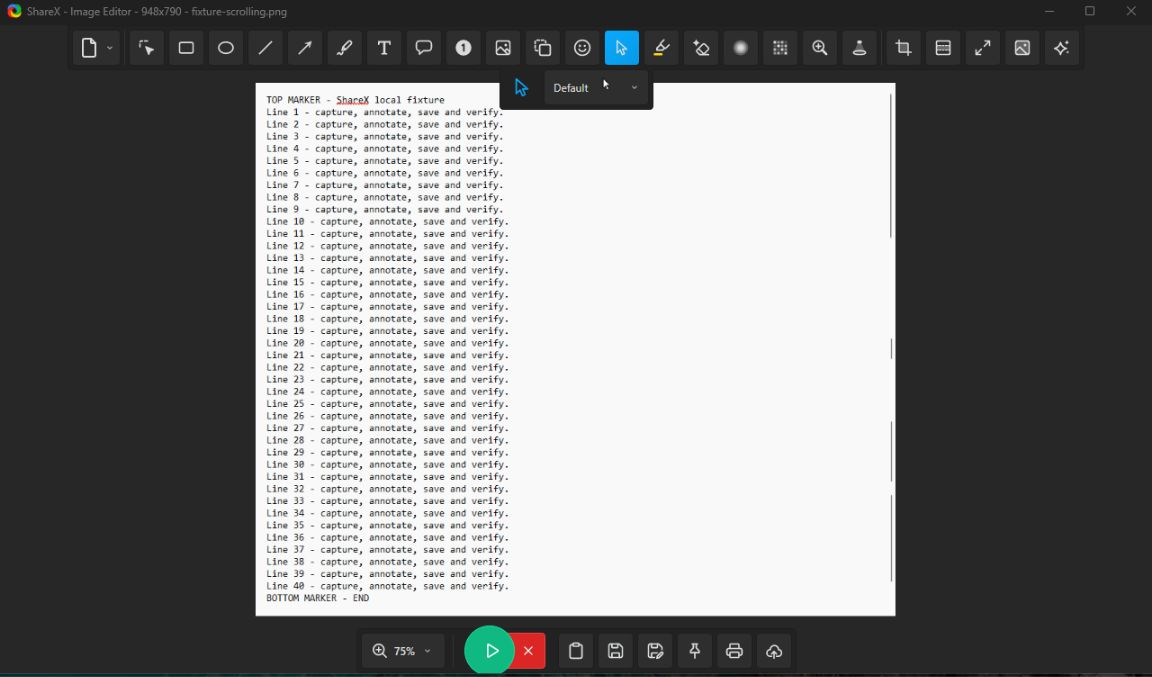
Scrolling capture got the whole static text document. My input had a top marker, 40 numbered lines and a bottom marker. ShareX joined it into a 948 x 790 image with both markers and the complete sequence. The saved file and the image copied to the clipboard matched pixel for pixel.
That is useful for a document that will not fit in one window. Moving banners, sticky page elements and animated content make a different capture job; if those are what you need, try your actual page rather than judging by a plain document.
 Open larger screenshot
Making room on the canvas
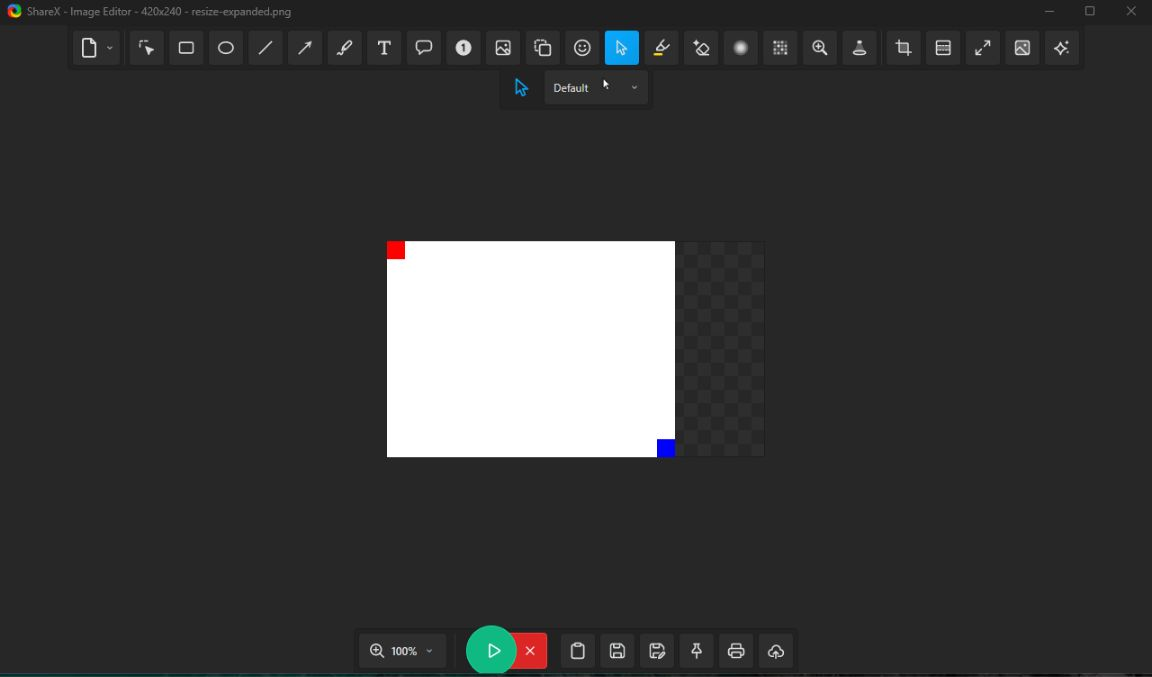
The Canvas size tool did the simple job I wanted from it: add space without resizing the picture. I expanded a 320 x 240 image to 420 x 240 by dragging its right edge. Every original pixel stayed the same, and the extra strip was transparent. Cropping that edge back to 320 x 240 returned a file identical to the original.
For a screenshot that needs a label beside it, that is more useful than stretching the picture and making its text larger too.
 Open larger screenshot
A short screen recording
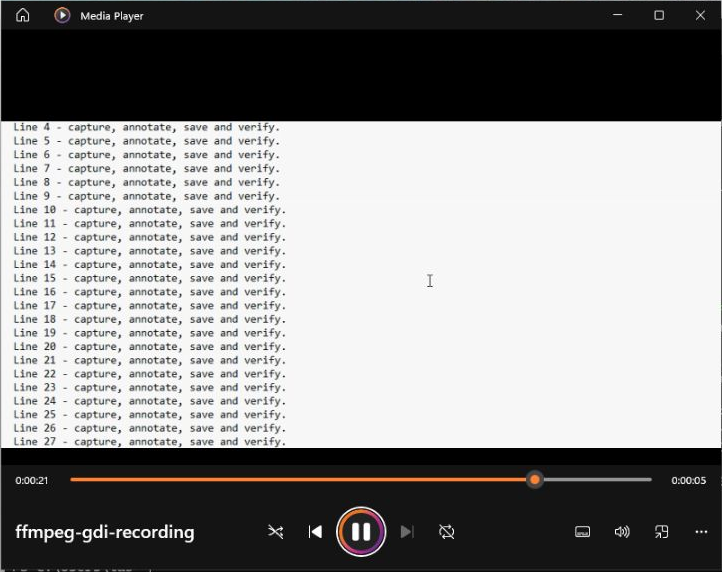
A silent recording through FFmpeg’s Desktop capture (GDI) route saved and played. I used H.264 software encoding at 30 frames per second, recorded a 948 x 430 area while scrolling the text, and stopped after about 27 seconds. The recorder bar appeared before recording began.
The resulting MP4 was about 481 KB. Windows Media Player played it, and a full decode of its 804 frames reported no errors. This was a simple text demonstration with audio off. If recording is your main reason to install ShareX, try your own display and audio setup before making it your default recorder.
 Open larger screenshot
Installation and first run
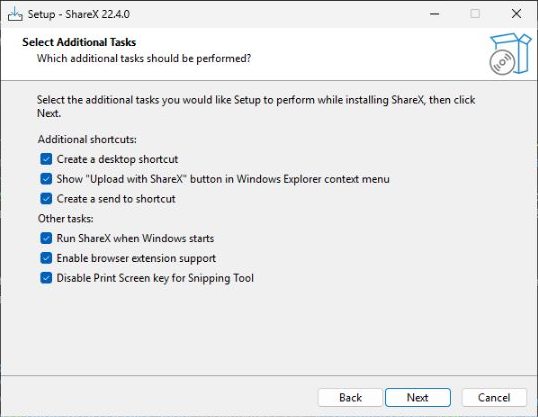
Read the setup choices before clicking through. All six were checked: a desktop shortcut, an Upload with ShareX entry in Explorer, a Send To shortcut, Windows startup, browser-extension support and disabling Print Screen for Snipping Tool. I kept the first three and switched off the last three. They were ordinary checkboxes, with no detour needed to decline them.
 Open larger screenshot
The signed installer is 145.4 MB and asks for at least 489.9 MB of disk space. It installed to Program Files and launched ShareX from there. I got a desktop shortcut, Start menu entries for ShareX and its uninstaller, and a Send To shortcut. Startup stayed off with the option I chose.
The portable alternative is a 209.7 MB ZIP. Both first-run screens offered appearance and startup choices and opened without an account or payment gate.
The capture jobs needed no upload account: file saving and clipboard copying were selected, with uploading unchecked.
Day-to-day use
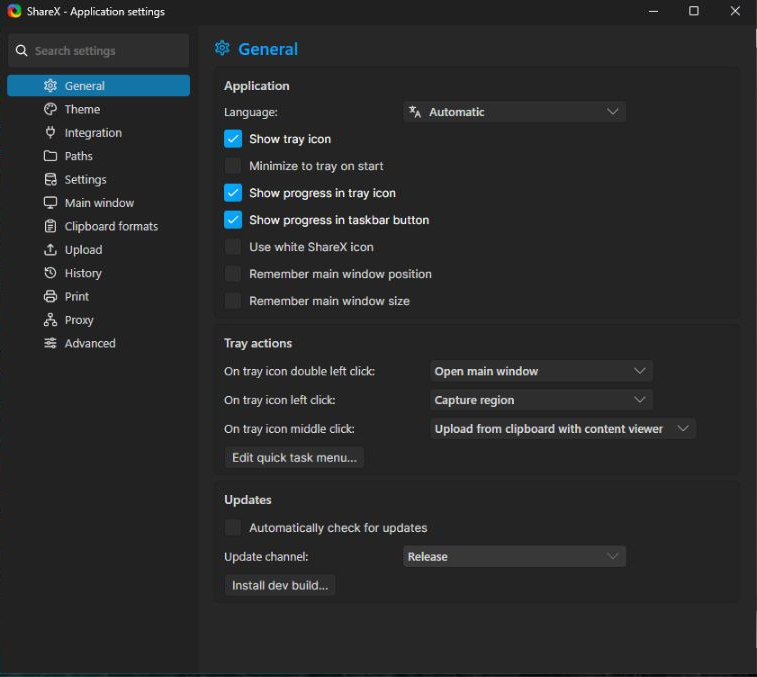
The portable run kept the choices I cared about. List view, Compact mode and the preference to disable automatic update checks all survived a normal exit and relaunch. The update preference has an accessible switch; changing it does not require editing a scheduled task.
 Open larger screenshot
The startup switch also made a concrete change. Turning it on added a ShareX shortcut to Windows’ Startup folder, pointing at the portable program with the -silent argument. Turning it off removed that shortcut and its startup-command entry.
With only the main window open after startup settled, ShareX used about 187 MiB of working-set memory in three samples two seconds apart. That is the main-window state, not a recording workload. After a normal Exit from the tray, no ShareX process remained.
Across two normal launches and the capture jobs, I saw no account gate, payment prompt or third-party ad. Donate and Follow links were present.
Removing it
The normal uninstaller offered to close the running app, removed it and reported completion. The program folder, added desktop and Start menu shortcuts, Send To link and installed-app entry were gone, and no ShareX process remained. Its UAC prompt said Unknown publisher, although the installer itself had a valid signature.
Documents still held a ShareX folder with nine settings, history, backup and log files. My existing annotated PNG still opened in Paint after uninstall. So removal gets the program out of the way, but it leaves that saved data for you to keep or remove.
Price and value
There is no paid ShareX edition to choose. The editor, scrolling capture and recorder are available in the free app.
The complete scrolling document justified the setup for me. For a single window picture, the built-in tool avoids that setup.
What happens when the trial or subscription ends
There is no trial or subscription to end for the free ShareX app. My saved PNG also opened in Paint after ShareX had exited, with its annotation intact. An exported picture does not need ShareX running beside it.
Alternatives, and who should skip it
Windows Snipping Tool captured the same Notepad window. Try it first for basic window pictures; ShareX adds the scrolling and task choices exercised here.
Snagit is the paid alternative to consider for editable capture projects. Its separate review covers the subscription and what happened to those projects when the trial ended.
Skip ShareX if you want a quick snip without configuring task menus.
Bottom line
In After capture tasks, keep Save image to file checked and Upload image to host unchecked. Enable Show After capture window, then choose Copy image in the After capture window. Open the editor when you need markup. For recording, check a short saved clip with your chosen capture route and audio settings before relying on it.