






What Beyond Compare is now, and who it’s for
Beyond Compare is worth paying for if comparing files is part of your work. It puts two copies beside each other, shows what changed, and lets you copy the changes you want. It also compares whole folders and keeps one copy in step with another. For project files, configuration files and two versions of the same document, that is useful. For checking one file once a month, I would start with something free.
There are two editions in the same download. I tested ordinary file and folder comparison in Standard, then repeated the folder sync jobs in it. Pro adds the three-way text merge I tested: an original file, two edited copies and a place to combine them. Pro also includes remote and cloud connections, which I didn’t test.
The window is a collection of separate tools: Folder Compare, Text Compare, Folder Sync, and so on. It takes longer to learn than a plain two-pane file manager, but the tools have clear jobs. I would rather choose the right one at the start than discover halfway through a copy that I meant to merge.
I used the 64-bit Windows build. There are also macOS and Linux versions; I didn’t test those, the 32-bit build or Windows on ARM.
Do the 5.2.6 changes matter to you?
If you already use Beyond Compare, 5.2.6 is worth installing for the fixes. It is a maintenance release, not a reason to buy the program for the first time.
The release notes cover a 7-Zip library vulnerability fix and crashes in text and table comparison. The Windows changes also cover upload file types and uninstall registration. My tests focus on comparison, sync and merge results rather than reproducing the old security flaws or crashes.
For a new buyer, the more useful question is whether the comparison and merge tools save enough work to justify paying. That is what I tested.
Comparison and sync in practice
Beyond Compare found the changes I put in my files. The catch was getting it to look at the contents in the first place.
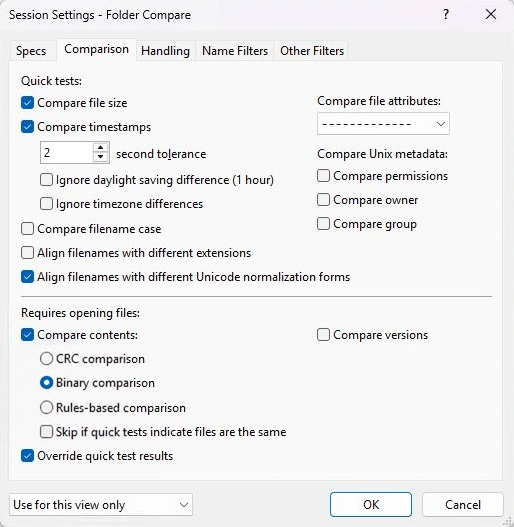
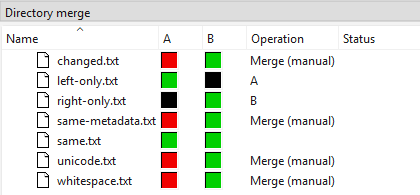
Its default folder check compares size and modification time. I gave it two files containing AAAA and BBBB, with the same length and date. It showed them as a match. A second pair, containing different Japanese text with matching sizes and dates, looked equal too. Turning on Compare contents, Binary comparison and Override quick test results marked both pairs as different.
 Open larger screenshot
That is a sensible shortcut when you want a quick look through a folder. It is not enough when you need to know that two copies really contain the same files. For that job, turn on the content check. The choice is there; I think the distinction needs to be clearer to a first-time user.
 Open larger screenshot
Text and tables
The text view is the part I liked most. My changed setting appeared beside the original, with the changed word picked out inside the line. You can see the change without reading both files from the beginning. In a configuration file with dozens of similar lines, that is the point of buying a comparison tool.
The rules also matter. My files with different spacing and line endings came back as similar in a rules-based text check, while a binary check found different bytes. That is useful if you care about the words rather than the formatting. It would be the wrong setting for checking an exact copy.
I generated side-by-side HTML reports for the text pair and a CSV table with one changed number. Both showed the intended change. Someone receiving the report can read it without installing Beyond Compare. I only tested a small CSV, not Excel formulas or conversion of Office documents.
Update and Mirror
Standard can handle the folder sync jobs I tried. I switched off the Pro evaluation features, restarted, and ran Update and Mirror again on fresh copies of the test folders. Both gave the same results as the earlier Pro runs.
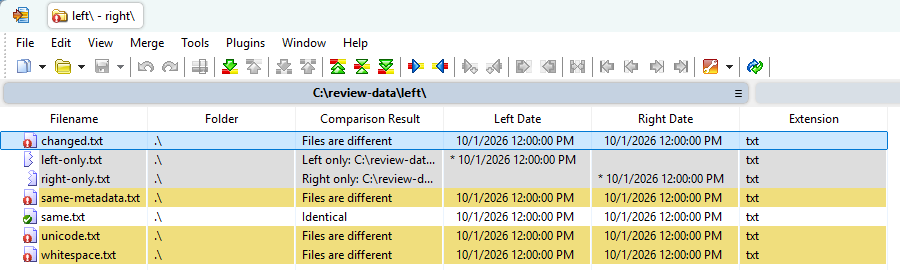
Update from left to right copied the file that existed only on the left and left the right-only file alone. It also left files whose dates matched alone, even when their contents differed. In a separate check with timestamp comparison enabled, it copied my newer source file and preserved the newer destination file. Keep the date check on for Update: it needs dates to decide which side is newer. It does not promise an exact duplicate.
Mirror is the exact-copy job. With binary content comparison on, it removed the right-only file and made all six remaining files match the source by hash. The earlier quick-check run had left equal-size, equal-time differences behind. So choose both the operation and its comparison rules deliberately.
 Open larger screenshot
I would try any sync job on copies first. Mirror deletes files that exist only at the destination; that is what it is for. If you want to keep old or deleted work, you still need a backup. These were small local folders, not interrupted network or cloud jobs.
Pro’s three-way merge
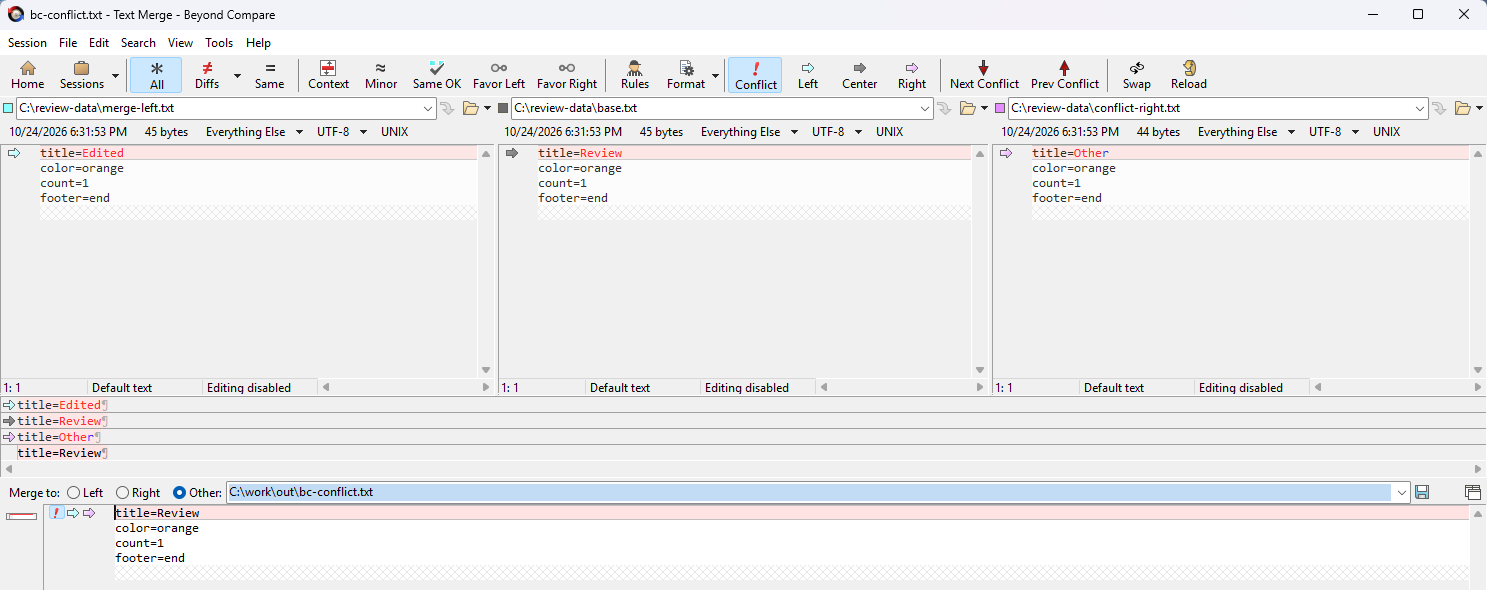
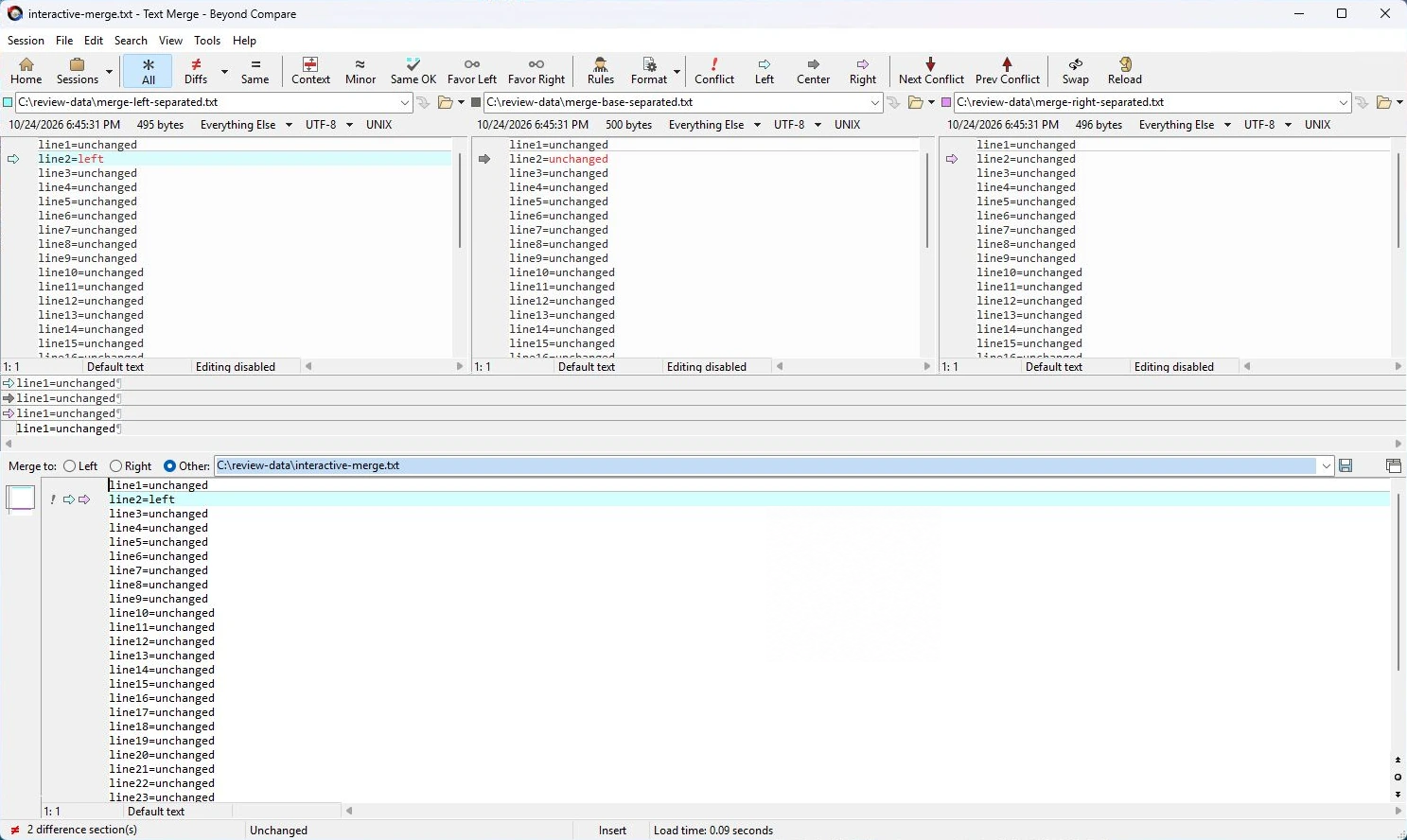
Pro earns its extra cost when combining edits is a regular job. It keeps the original and both edited copies above the output, so you can see where each change came from.
I changed line 2 of a 30-line file on one side and line 25 on the other. The automatic merge kept both changes. I opened the result in the merge window, saved it and checked the output against the expected file. It matched.
 Open larger screenshot
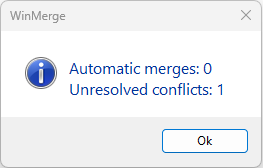
When both sides changed the same passage, it left a conflict instead of choosing for me. The forced command-line output included conflict markers. Even two nearby changes in a short four-line example needed a decision. I am happy to check a conflict; I would be less happy to discover later that the program had quietly thrown one edit away.
Installation and first run
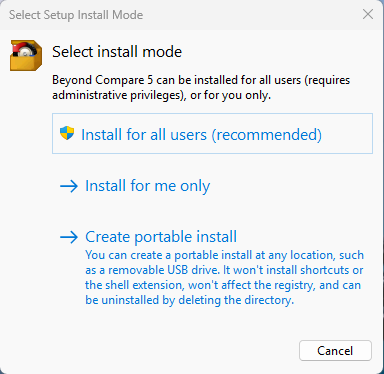
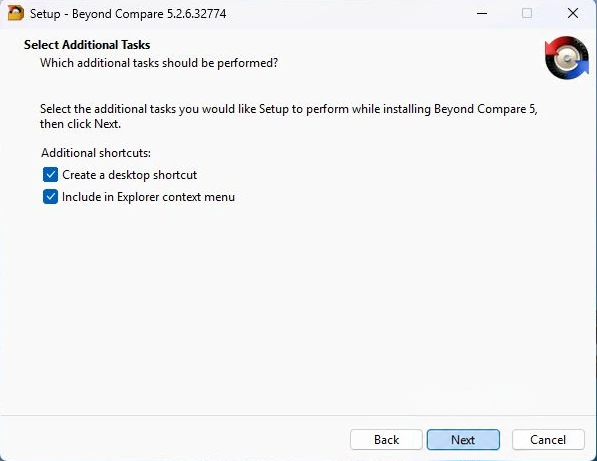
The installer is restrained. It offers all-users, current-user and portable modes, then separate choices for a desktop shortcut and Explorer integration. Both additions are ticked, and both can be unticked. I used the all-users install and saw no third-party offers, account requirement or card request.
The clean unattended install took about ten seconds and occupied about 62 MB. I inspected the normal installer screens during the reinstall test. The footprint check found the desktop and Start-menu shortcuts and Explorer entries, with no added Beyond Compare service, scheduled task or startup entry. The optional Clipboard Compare startup helper was off.
On a separate clean install, opening my merge files went straight to the comparison. No trial pop-up first. The reminders came later, during the grace period. I used the evaluation throughout and didn’t buy or activate a licence.
Day-to-day use
Once I had the right view open, Beyond Compare was easy to follow. The learning is mostly in choosing the view and its rules, not in finding the changed line. I could go from the folder result to the text that caused it without losing track of the two copies.
It was quick on my text files. A 100,000-line pair, about 4 MB per file with one changed line, took about 0.36 seconds in each of three command-line runs, including process startup. An 80,000-character line compared without a crash. These were local text files; a whole drive is a different workload.
With only Standard’s main window open, it used about 44 MB of working-set memory in three samples. The earlier small Pro merge used about 58 MB. The published minimum is 1 GB, with more recommended for large comparisons. I didn’t measure a huge folder or disk image.
Updates and network
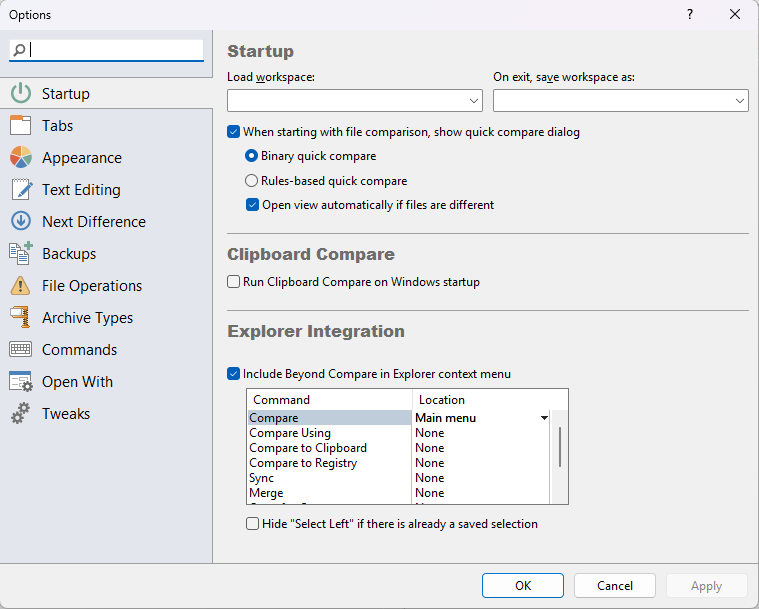
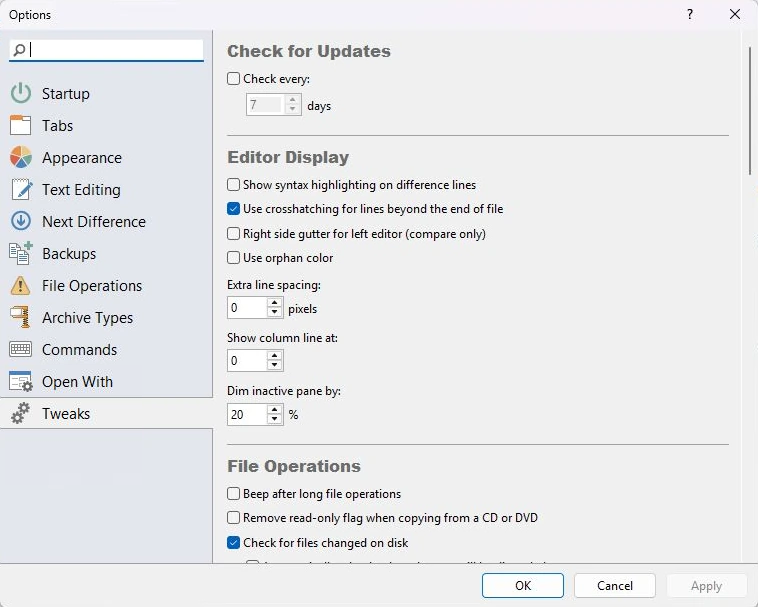
The update check has an off switch, and it works. Under Tools, Options, Tweaks, Check every was set to seven days. I unticked it, closed the program and opened it again. It stayed off. There was no separate updater service or scheduled task to hunt down.
I saw outbound connections with the default update setting enabled. I didn’t inspect their contents, so I can’t say whether any carried usage data. Local comparison itself needed no sign-in.
Removing it
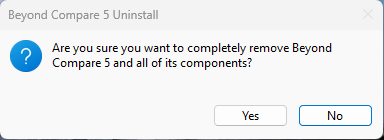
Uninstalling was straightforward: a confirmation, then success. No survey, no offer to stay. The program folder, shortcuts and Explorer entries went, and no Beyond Compare process or app-added startup task remained. Preferences, saved-session files and Scooter Software registry keys stayed behind. Small leftovers, but worth knowing if you expect an uninstall to forget everything.
Price and value
The one-time licence is a fair deal for regular use. It is harder to justify for an occasional comparison, because the free tools did the basic jobs well too.
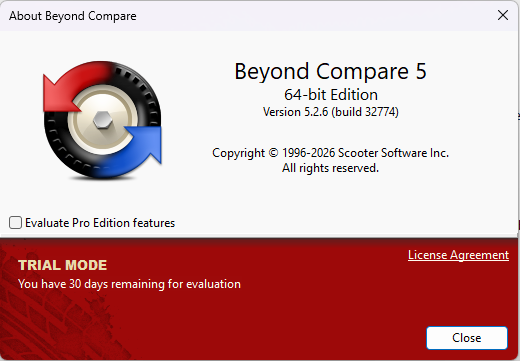
I would evaluate Standard first. Comparison and folder sync worked in my Standard tests; paying for Pro makes sense when you actually need its merge tools. Turning off Evaluate Pro Edition features in About and restarting removes the extras, so you can find out before buying.
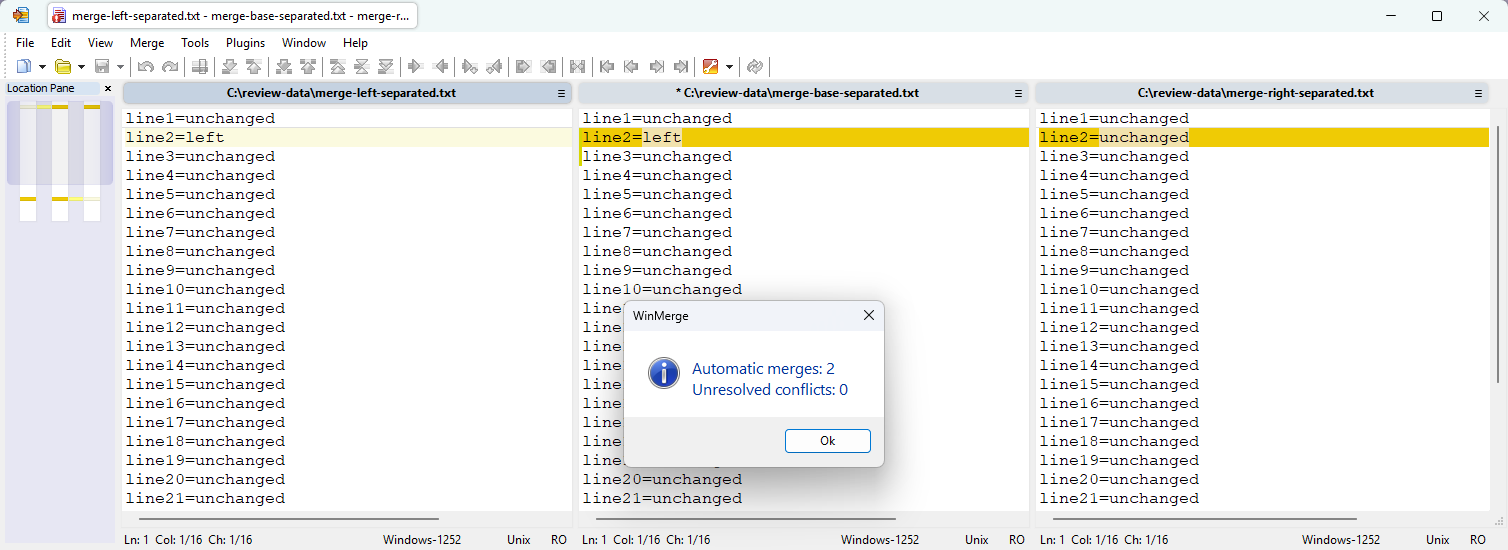
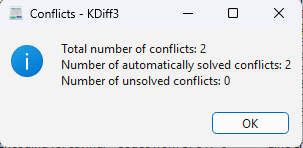
But don’t buy Pro just because it has a three-way merge. WinMerge and KDiff3 combined the same independent edits correctly in my tests. What I prefer in Beyond Compare is keeping the three inputs above a separate output pane and moving between the different kinds of comparison. That is a reason to pay if it suits the way you work. It is a preference, not a feature the free tools lack.
The licence includes minor updates and lets one user work on multiple computers; future major upgrades may cost extra. Finish the evaluation before ordering, because returns are generally excluded once a key is issued. The discretionary exception for technical or platform problems requires a request within 30 days and a signed destruction statement. I didn’t test paid activation or a refund.
What happens when the trial or subscription ends
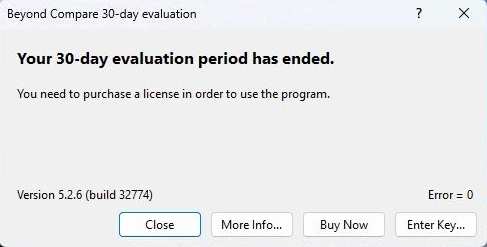
The trial gives you plenty of time to decide, then it stops the program. It counts days of use, not simply days on the calendar.
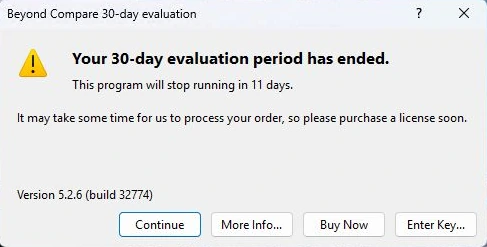
Moving the test machine’s clock forward 31 days used just one evaluation day. I then launched it on successive simulated dates until the 30 use days ran out. It offered another 15 use days of grace, with a reminder at launch, and comparison still worked. A large calendar jump during grace also used only one day.
After enough simulated daily launches, Continue was gone. The choices were Close, More Info, Buy Now and Enter Key. A scripted comparison waited at that expiry dialog and produced no report. Uninstalling and reinstalling with the clock still forward gave the same lockout. These were clock tests, not 45 days of ordinary use, and I didn’t reset the trial records.
 Open larger screenshot
My files were fine. Text files and merged output still opened outside Beyond Compare. The licence requirement stopped the tool; it didn’t lock up the work I had made with it.
There is no subscription to cancel. A version 5 licence covers continued use of version 5 releases; a future major upgrade is a separate purchase decision.
Alternatives, and who should skip it
The free alternatives are good enough that I would try them before paying, especially for local text work. I used the same files for the checks below.
- WinMerge 2.16.58.2. My first free choice for two-pane comparison on Windows. It found the ordinary text change, the UTF-8 Japanese change and the equal-size, equal-time content changes. Its binary folder report also separated identical, different and one-sided files correctly. For a three-way merge, it combined my two separated edits and saved an output identical to the expected file. The overlapping edit produced one unresolved conflict. That covers more than an occasional file check, and it weakens the case for buying Beyond Compare just to merge text.
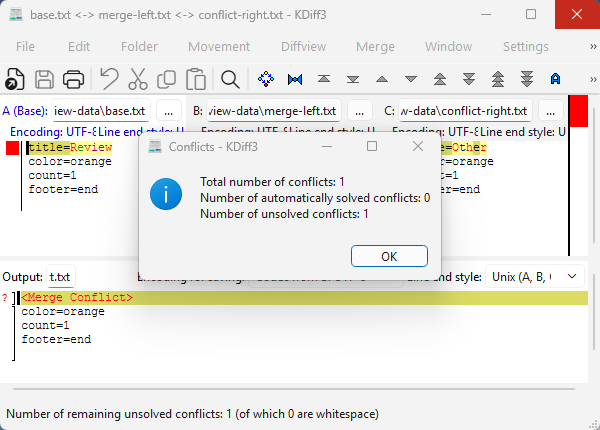
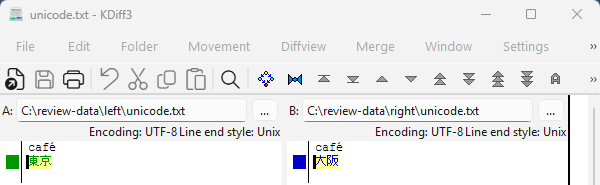
- KDiff3 1.12.4 for Windows. Another free option worth trying for three-way work. It combined the separated edits into the same correct file, stopped for the overlapping conflict, displayed the Japanese text correctly and found the changed contents in the folder test. I found its A, B and C labels less immediate than Beyond Compare’s separate input and output layout, but the results were right.
- Windows’ fc command. Already there, and enough when all you want is an answer about two files. In binary mode it detected every differing pair I gave it, including the files with matching sizes and dates, and reported the identical pair correctly. The line-number mode showed the changed setting. You get console output, rather than Beyond Compare’s views for following and combining changes.
These were comparison tests, not full reviews of the free tools. Skip Beyond Compare if one of them already fits your work. Try its paid editions when you spend enough time comparing and reconciling files that the layout and workflow matter every day.
Bottom line
Try your next comparison in WinMerge or KDiff3, then do the same job in Beyond Compare’s Standard mode. If its way of showing and handling changes saves enough work to justify paying, buy Standard. Add Pro only for an extra you need; a correct three-way merge by itself is available for free.