

What HandBrake is now, and who it’s for
HandBrake is a good place to start when you have a video file and need another version of it. Pick a preset, check the picture size, sound and subtitles, then make the copy. It is free and open source, with a full windowed application for Windows, macOS and Linux.
I tested the Windows x64 application, version 1.11.2, and its portable package. The useful part is how much control sits behind the presets: you can change the video encoder, dimensions, audio tracks and subtitles without writing a command. The less useful part, for a beginner, is having to understand which of those controls matters.
HandBrake always re-encodes the video. It does not join clips into a film, provide a timeline editor or remove copy protection. If the picture already has the right codec and you only want a different container, there are tools that can copy it without another encode. More on those below.
Do the 1.11.2 changes matter to you?
This is a maintenance update. Its release notes concentrate on encoding failures and smaller platform fixes, rather than giving you a new way to edit video. The Release Highlights pick out the changes most relevant to Windows users.
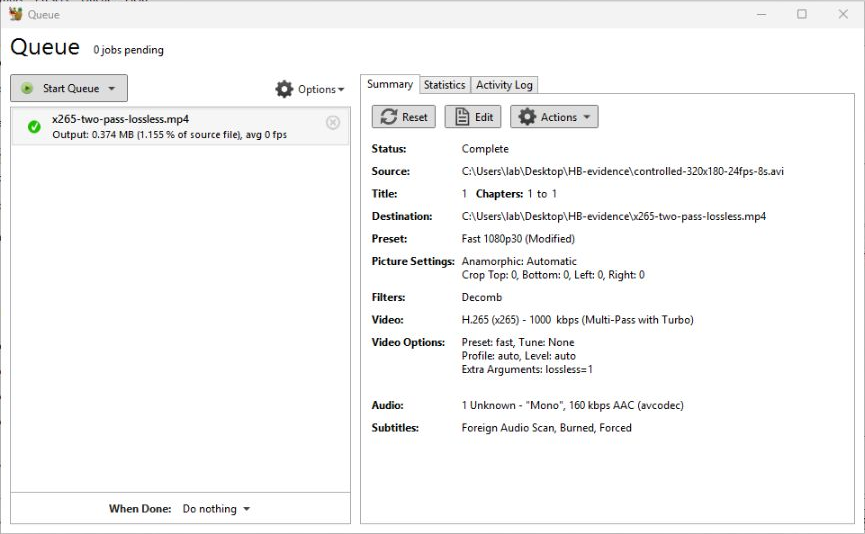
The two-pass lossless x265 crash fix matters if you use that combination. My short job logged 192 frames in each pass and completed without a crash. That establishes completion; independent HEVC picture playback remains unverified. Play a sample in your intended player before choosing HEVC for a batch.
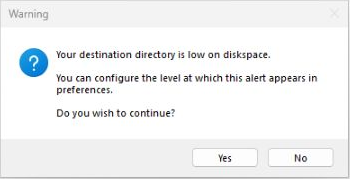
The low-space change matters to anyone leaving a queue running. Raising the threshold above the available space produced a warning before encoding, and the short job then completed. That confirms the preflight warning; the runtime queue-pause fix remains unverified. Leave room for the batch instead of relying on that safeguard.
For an ordinary H.264 conversion, the new version does not change the basic workflow. Finish pending encodes and save your custom presets and preferences before upgrading; newer versions may not accept all older settings.
Conversion in practice: picture, sound and subtitles
The small functional checks worked: an MP4 copy, a smaller picture in an MKV file, and an MP4 with subtitles burned into the image. Each output played through outside HandBrake.
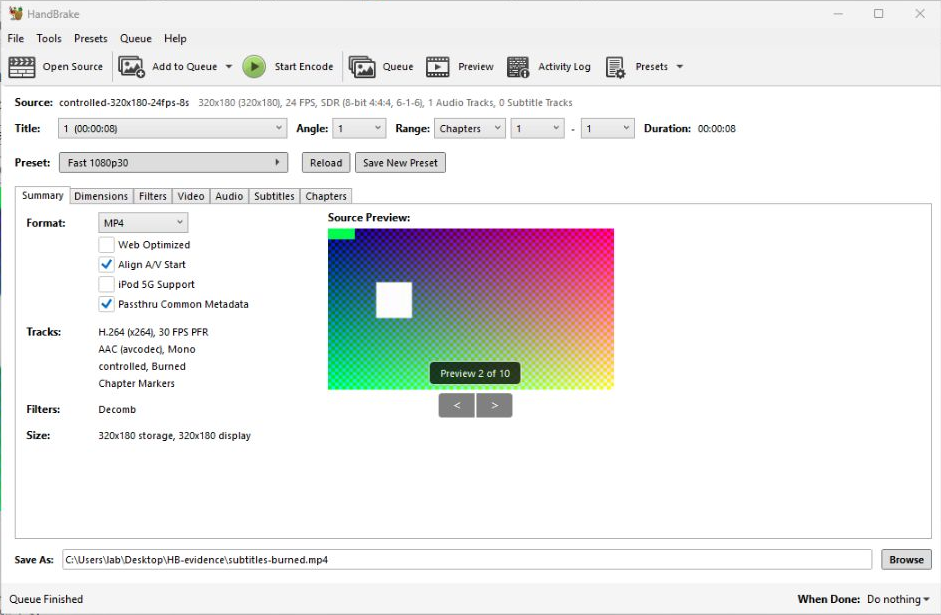
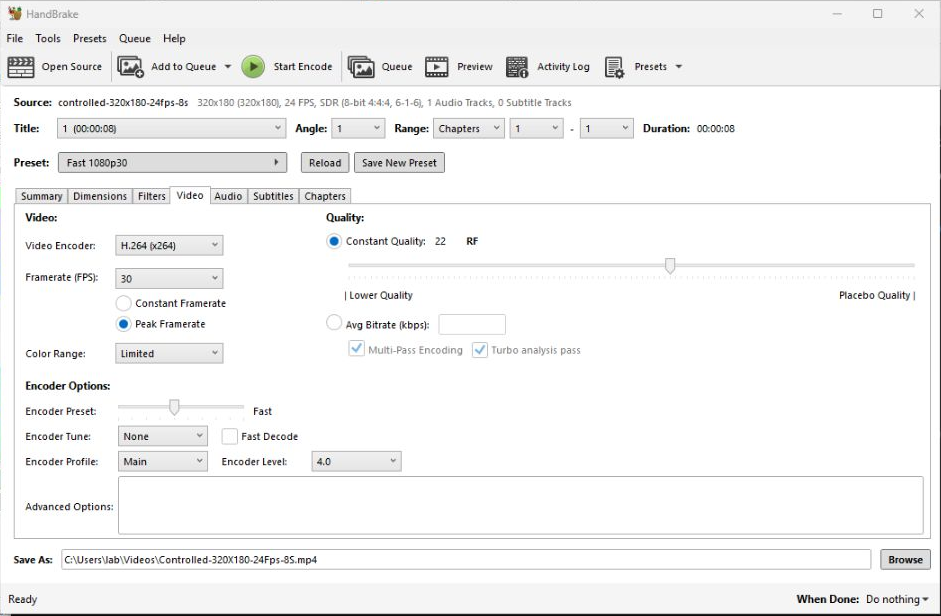
The source was a tiny synthetic clip: eight seconds of 320 x 180 uncompressed AVI, with a moving box, a fine grid and two mono tones. The size table below records functional outputs, not a speed or picture-quality benchmark. I used Fast 1080p30, with H.264 through x264, RF 22 quality, the Fast encoder preset and AAC audio. Despite the preset’s name, the picture stayed at 320 x 180 and the source’s 24 frames per second. Upscaling was off. The preset is not an instruction to turn every source into 1080p.
 Open larger screenshot
| Job | Output size | Picture | Duration |
|---|---|---|---|
| H.264 and AAC in MP4 | 191,906 bytes | 320 x 180 | 8.000 s |
| Resize and change to MKV | 176,078 bytes | 160 x 90 | 8.021 s |
| MP4 with burned subtitles | 195,045 bytes | 320 x 180 | 8.000 s |
The original was about 34 MB because its picture was uncompressed. An already compressed movie is a different starting point; use your own sample to decide whether another encode is worth the size and quality trade. I also changed the container for the resize job, so its byte difference includes more than the smaller picture.
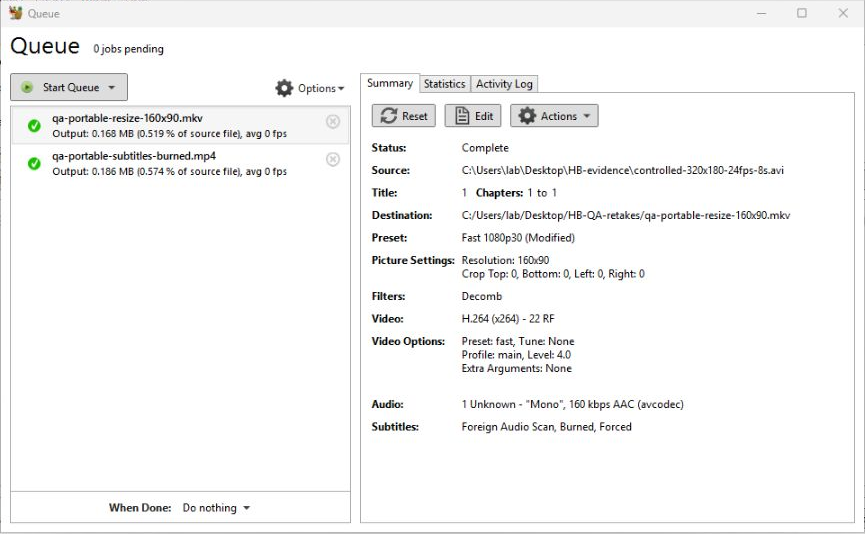
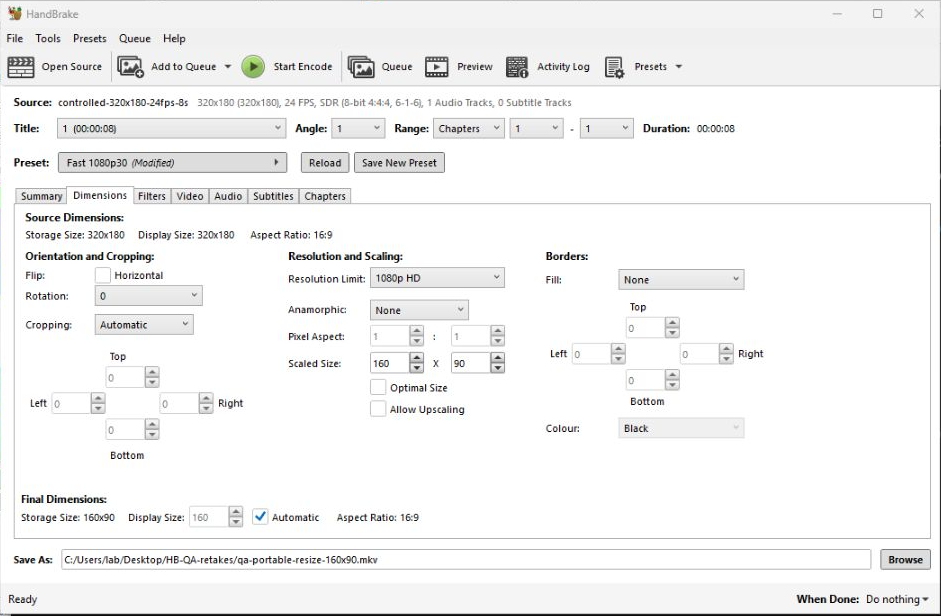
The resize controls did what I asked. With zero crop, square pixels and a 160 x 90 target, the output had those dimensions and the same proportions. Fine lines softened at the smaller size, as you would expect. The point is to choose how much detail you can give up for the screen or file size you need.
 Open larger screenshot
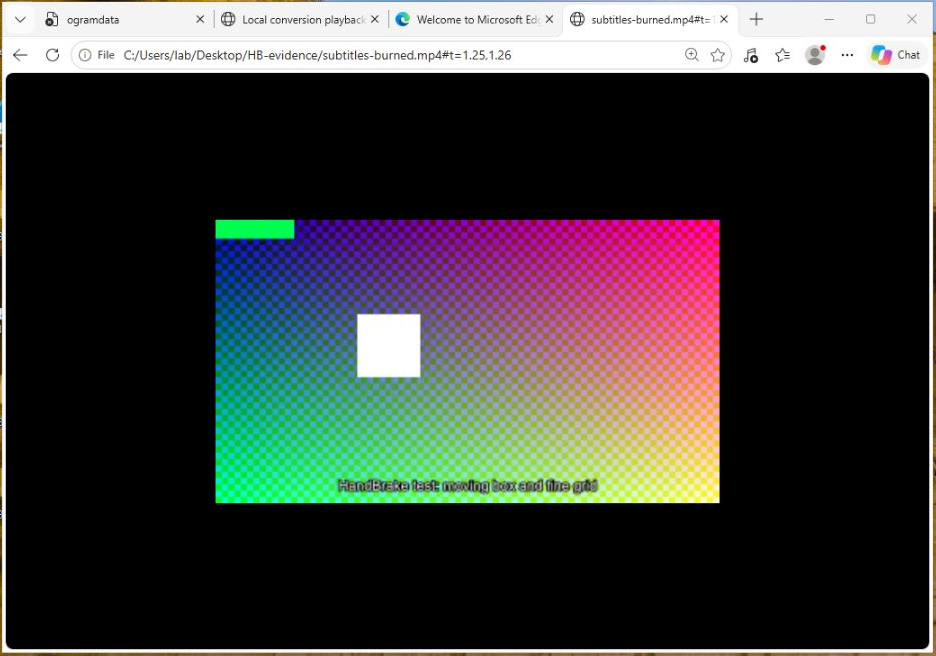
The mono 48 kHz audio decoded in all three core outputs, and the two tone frequencies survived the digital check. For subtitles, I imported a UTF-8 SRT and selected Burn In. The first cue appeared at 1.25 seconds, the second at 5.25, and the gap between them was clear. Burning makes the words part of the picture, so the viewer cannot switch them off.
 Open larger screenshot
Installation and first run
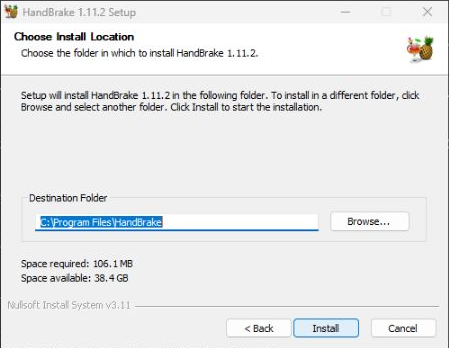
The HandBrake installer was straightforward. The signed 25.3 MB download matched the official checksum, and setup offered the normal installation folder without third-party offers, an account or a payment request. Setup had finished by my first check, about 4.4 seconds after Install, including the time taken to send the click and capture the result.
 Open larger screenshot
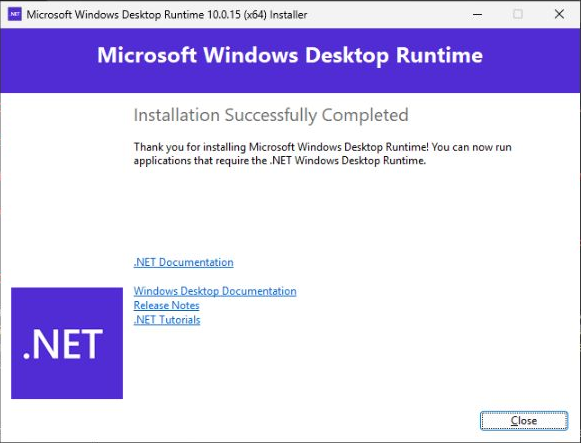
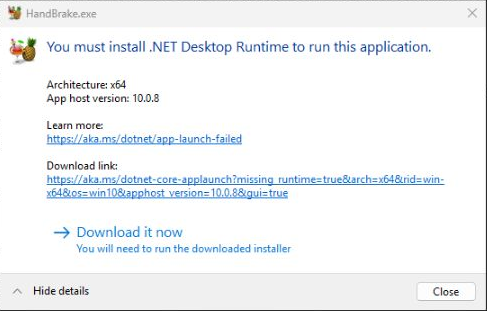
The catch came on first launch: the Windows application needed Microsoft .NET Desktop Runtime 10. I installed the separate official x64 runtime, version 10.0.15, and HandBrake then opened normally without a reboot. That prerequisite was a further 60.1 MB download and is excluded from the installer timing and the 111.4 MB HandBrake program folder.
 Open larger screenshot
Setup added a desktop launcher and two Start menu entries, HandBrake and Uninstall. My inventories found no added HandBrake service, scheduled task or startup entry, and no takeover of file associations.
Day-to-day use
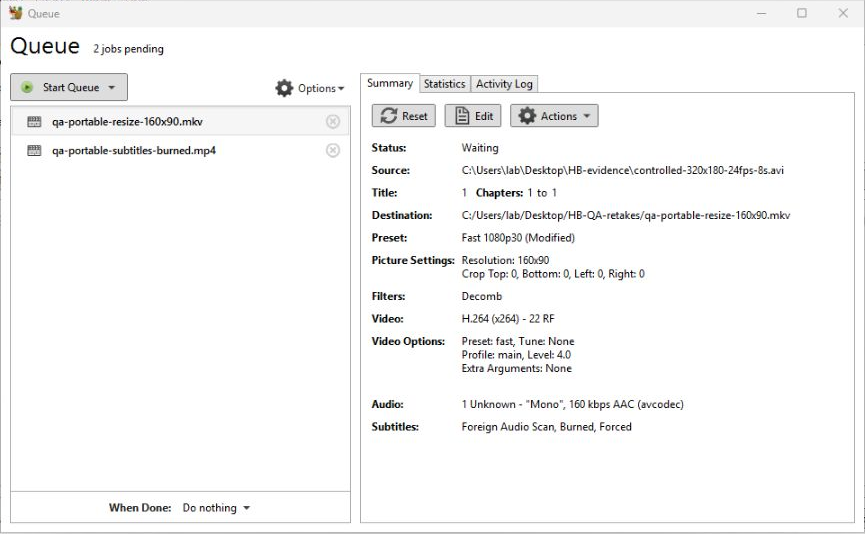
The queue is the reason I would keep HandBrake around for repeated conversions. I added the resize and subtitle jobs with different settings and destinations, then ran them together. Both reached Complete, and their outputs retained the intended differences. A fresh repeat in the portable copy also completed, with its own output files. Checking each job before adding it is easier than trying to work out later which file used which settings.
 Open larger screenshot
The controls reward a little familiarity. Container choice, picture size, encoder quality and subtitle handling live in separate places; a preset gives you a starting point, but the Summary is worth reading before Start. In my small jobs, the window was usable without extra hardware encoders.
With only the empty main window open after startup had settled, HandBrake used about 189 MiB of working-set memory across three samples. That is the idle window, not an encoding requirement. Plan around the published supported baseline: 16 GB system memory for SD/HD, 32 GB for 4K, and at least a 1280 x 960 display. The small jobs here ran on an 8 GB Windows 11 test machine.
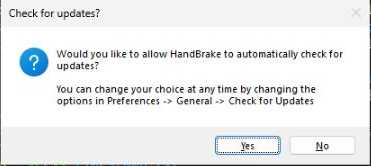
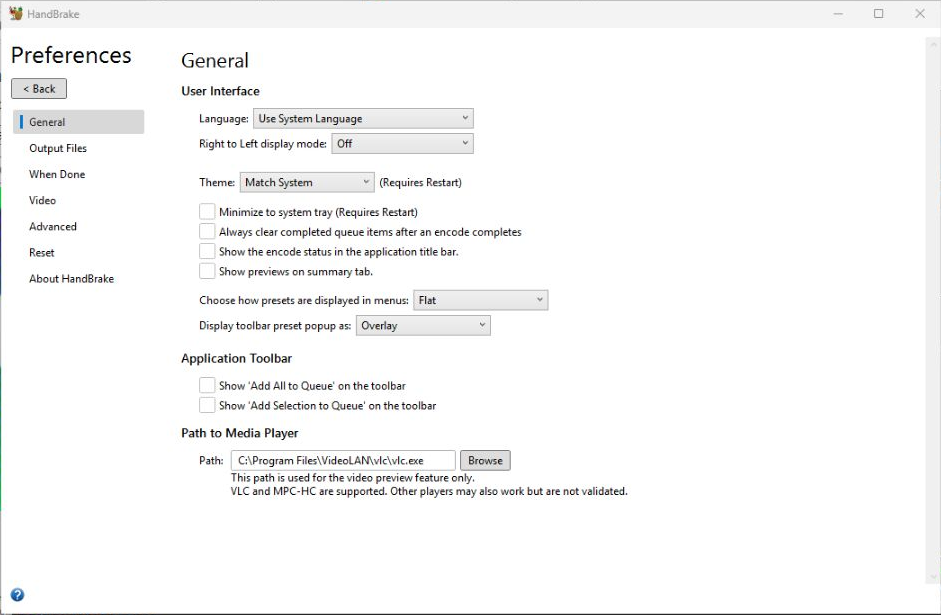
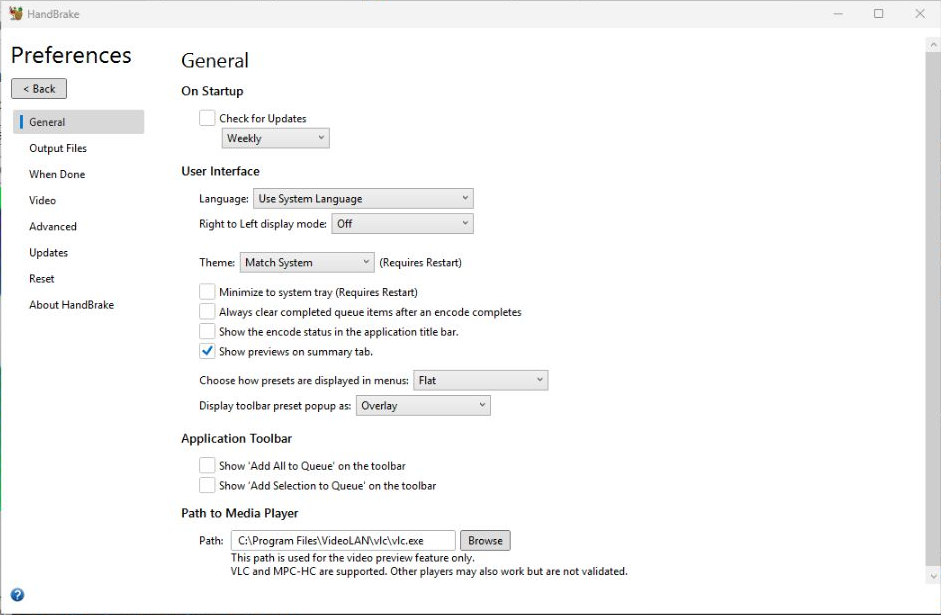
Update checks can stay off. I toggled them on and off, closed the application and reopened it. A later launch asked once whether to enable automatic checks; I chose No, and the next launch kept them off without repeating the question. A manual check reported no newer version. I saw no ads, paid-unlock prompts or exit survey, and closing HandBrake left no HandBrake process running.
 Open larger screenshot
The portable package worked too, with one qualification worth knowing before you put it on a USB drive: the Windows GUI still needs the shared .NET runtime. With portable.ini active, I completed an encode, changed a preference, moved the whole folder and reopened it. The preference stayed, and the installed copy’s settings and presets were unchanged.
Removal was less tidy than installation. The normal uninstaller removed the program folder and app registration, but left all three shortcut files behind, including its own Uninstall link. It also kept settings, presets and six logs. The shared .NET runtime remained installed. Nothing from HandBrake was still running, but I would prefer the uninstaller to remove links to programs it has just deleted.
 Open larger screenshot
Price and value
HandBrake gives you the conversion controls and queue without charging for an export, a codec unlock or a higher edition. There is one free, open-source application. The installer and portable ZIP are different ways to run it, and hardware encoding depends on the computer, rather than a paid licence.
That is good value if you regularly need another size or format of an existing video. The cost is learning enough about the output to choose sensibly. If the file already plays where you need it, there may be no reason to convert it again.
What happens when the trial or subscription ends
There is no trial or subscription to end. HandBrake is free software under the GPL, with no activation or renewal required for the offer I used.
The files also survived its removal. I reopened the MP4, resized MKV and burned-subtitle MP4 in the separate player after uninstalling HandBrake; each played to the end. Their hashes, the original AVI and the source subtitles were unchanged. You do not need to keep HandBrake installed to keep those copies.
Alternatives, and who should skip it
No matched conversion comparison was completed; the installed Clipchamp stopped at an update screen. These alternatives are choices by job, rather than tested speed or quality winners:
- FFmpeg. For scripts and explicit control over streams. It can copy compatible video and audio into another container without re-encoding them. The trade is learning its command line and choosing the right options.
- LosslessCut. For trimming or joining compatible footage and changing containers while keeping the encoded picture. Its lossless operations suit a cut-and-keep job that does not need HandBrake’s resize or quality controls.
- Shotcut. For arranging clips on a multitrack timeline, adding transitions and making an edited film. That is a different job from converting an existing file.
Skip HandBrake if you need a timeline, copy-protection removal or a container change that leaves the existing video stream untouched. Its useful complexity is unnecessary for those jobs.
Bottom line
For a first H.264 copy, start with Fast 1080p30, confirm the actual picture size and audio track, and choose Burn In only when you want subtitles permanently on the picture. Play a sample in your intended player before queueing the rest, and keep the originals until you are satisfied with the copies.