

What KeePass does
KeePass keeps your passwords in a database file you control. There is no account to create before you can use it. That is appealing if you want your credentials on your own storage, but it also means that keeping a backup and moving the file between devices are your responsibility.
The window has groups on the left and entries on the right. Find an entry, copy its credentials or send them with Auto-Type, then lock the database when you are done. Browser integration and getting the database onto another device are choices you make, rather than services supplied by a KeePass account.
KeePass 1.x or 2.x?
For a new database, I would start with 2.x. Both editions are free, but 1.x is in maintenance-only development while 2.x is actively developed. The 2.x line adds entry history, a recycle bin, custom fields and database synchronization, and can run through Mono outside Windows. This review’s hands-on results are for 2.62; the edition comparison is about their documented differences.
The file formats differ: 1.x uses KDB and 2.x uses KDBX. To bring a 1.x database into 2.x, create a new database and use File > Import. Keep the original. Exporting back to KDB loses fields that 1.x does not support, so switching between the two is not simply opening the same file in either program.
What changed in 2.62
The 2.62 release notes put most of the work into integration and smaller interface changes. The change I would pay most attention to is clipboard clearing: if an automatic clear fails, KeePass retries until it succeeds. That matters when another process or a locked Windows session temporarily blocks clipboard access.
LibreWolf and R3dfox users get private-mode URL opening, and people who write XPath searches get regular-expression matching and string comparison. Those are useful if you already need them, but they are not reasons for everyone to change how they use KeePass.
There is a shortcut change to learn: in the main entry list, Ctrl+D now duplicates and Ctrl+K compares. If those keystrokes are muscle memory, check them before working through a database. The release also improves Windows compatibility and corrects unnecessary history entries created by XML Replace.
Installation and first run
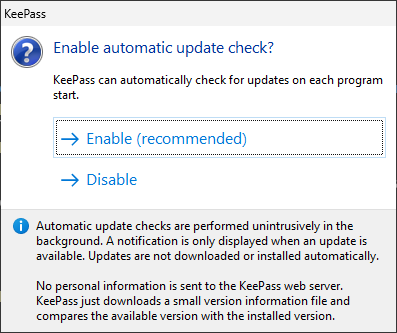
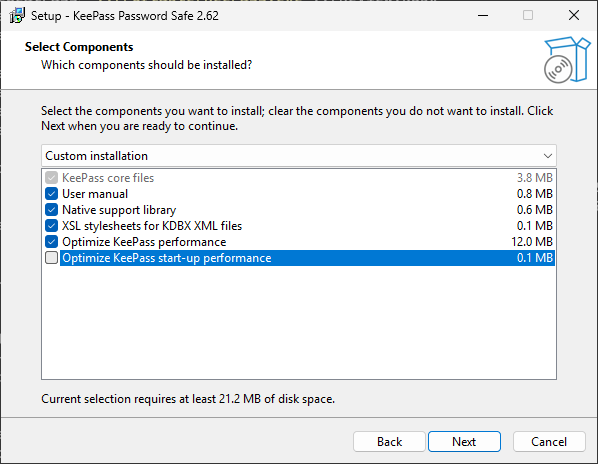
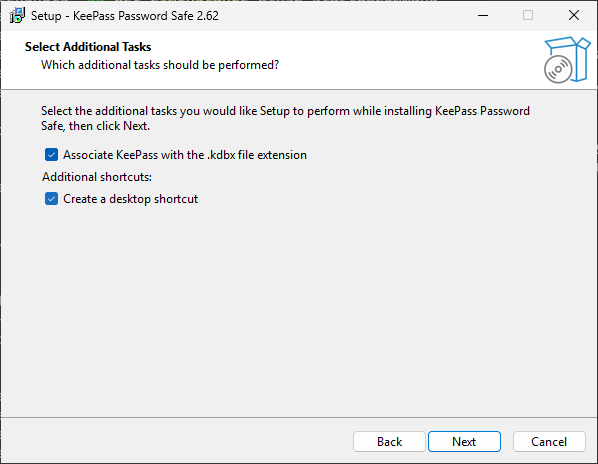
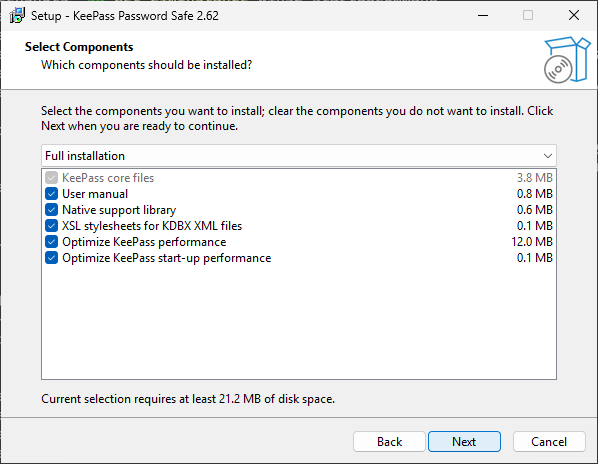
The Windows installer offered the program, manual, native support library, stylesheet and performance options. The option to associate KDBX files was checked; the desktop shortcut was optional and I selected it. I saw no bundled offer or account prompt. On first launch, KeePass asked whether to enable update checks.
In a later repeat installation on the same test machine, I used Full installation with its selected startup optimization. It added a machine-wide startup entry named KeePass 2 PreLoad. In another installation with that one option unchecked and the other components unchanged, no KeePass startup entry appeared. The optimization is intended to start and then immediately exit KeePass when Windows starts; I did not reboot to observe it. If you do not want the entry, uncheck the startup optimization during setup.
I reopened the portable version three times. Each time it asked for the master key to the remembered database; cancelling opened an empty window. I saw no account, payment or donation prompt in those starts.
The portable download works without the installer. I created the test database with it, and the installed version later opened the same file. That gives you a choice of how to run the program without converting the database.
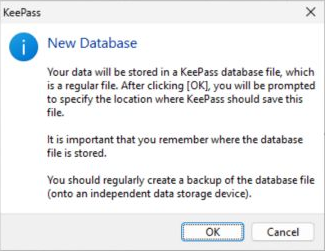
When you create a database, KeePass asks where to store it and recommends a separate backup. It also offers an emergency sheet. These are useful reminders at the point when you are choosing the master key.
With the installed app settled at an empty main window and no database open, the KeePass process used about 63 MiB (66 MB) of working-set memory in two samples. I used the existing test profile with startup optimization off. That is the empty window, not a measurement of a loaded database.
 Open larger screenshot
 Open larger screenshot
Passwords and everyday use
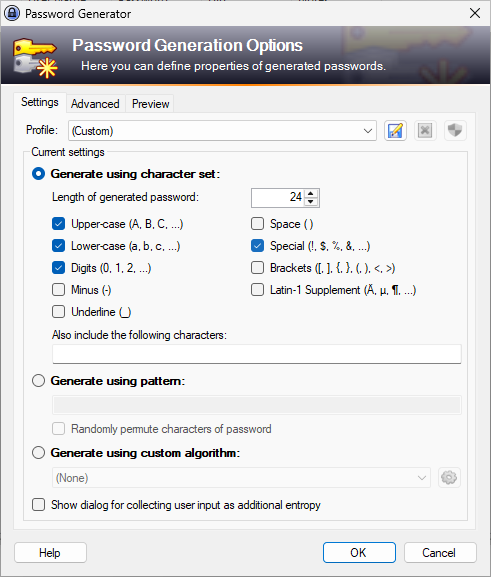
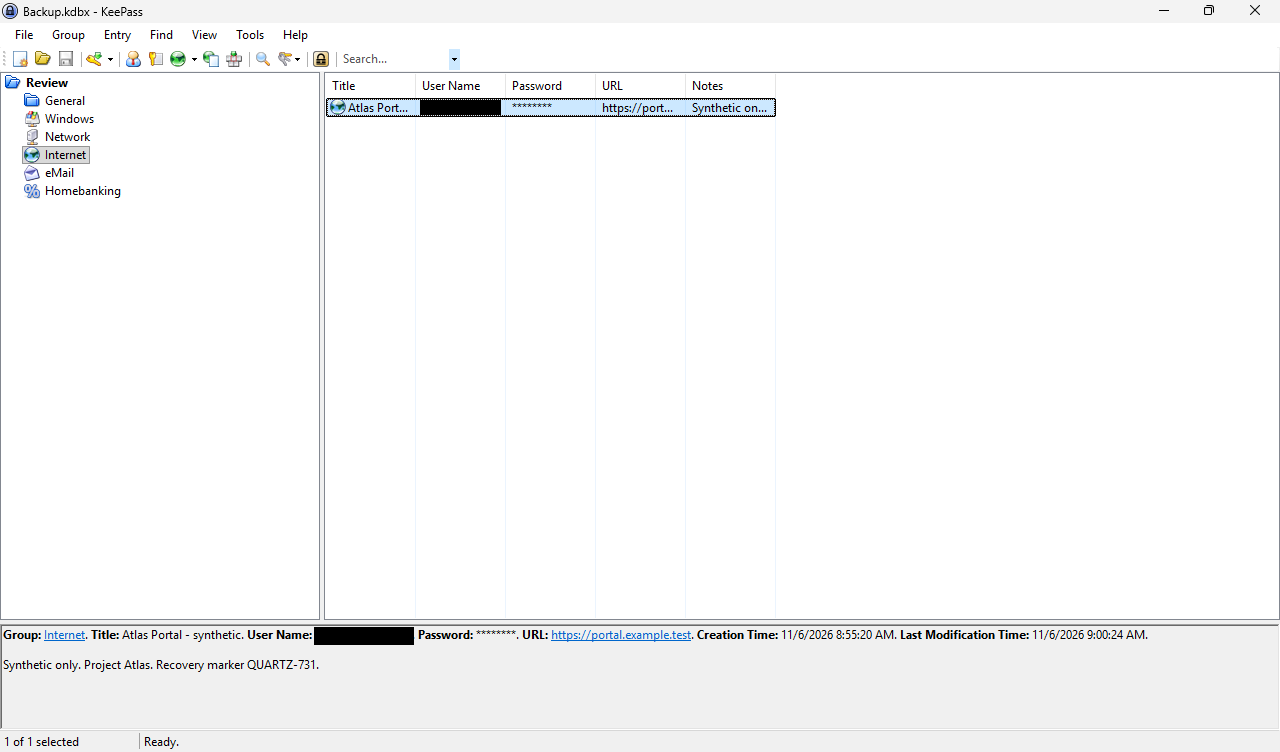
Finding and maintaining an entry worked well. I created one with a synthetic username, password, URL and notes; the fields survived closing and reopening the database. Searching for a marker in the notes found it. The generator let me choose a 24-character password with upper- and lower-case letters, digits and special characters.
For a straightforward login workflow, the entry list lets you double-click the username or password to copy it, while double-clicking the URL normally opens the site. You still choose the right site and paste into the right field. KeePass is storing the credentials, not deciding whether the page asking for them is trustworthy.
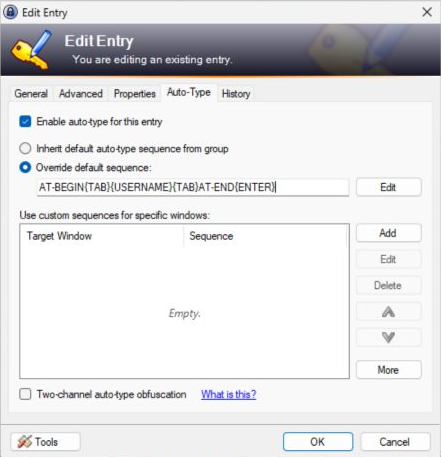
Auto-Type goes further by sending a sequence of keystrokes. It does not need a browser extension, but its window matching is not the same as checking a website’s address. I sent a custom synthetic username-and-markers sequence to Notepad, where the expected text and tabs arrived. That local result is not evidence of a successful website login; check the destination and sequence before using real credentials.
Browser autofill through a plugin and extension is a separate route. I used the standard app with an empty plugin list, so choose and assess that integration before relying on it. If you want installation followed by ready-made browser and phone access, a hosted manager asks less of you.
 Open larger screenshot
KeePass 2.x also has File > Synchronize to merge changes between copies of a database. You arrange the storage or transfer, such as a shared folder or cloud-synced folder; KeePass does not supply an account-based hosting service. A copied file opening successfully is not a synchronization test. Keep a separate backup and check your chosen sync workflow before editing the database on several devices.
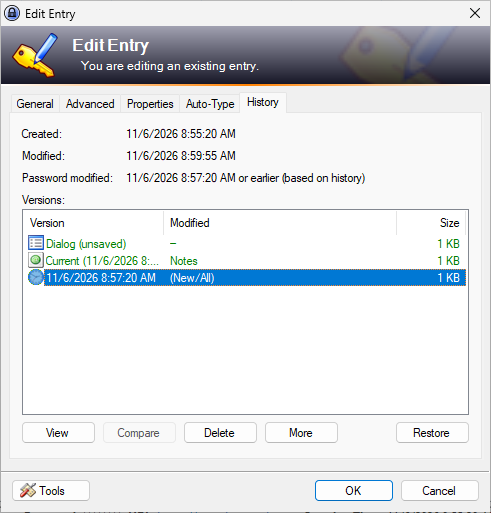
History is useful when an edit goes wrong. I restored an earlier entry revision, and the original notes were present after saving and reopening. Locking hid the contents, an incorrect master key was rejected, and the correct key reopened the database.
The built-in time-based one-time password generator displayed a six-digit code and later a different one from a synthetic seed. Those changing codes were not checked against a live service. Verify your own second-factor setup and keep its recovery codes before depending on it.
What Happens If You Forget Your Password?
There is no password-reset email or universal key to unlock a KeePass database. If you used a master password and cannot supply it, KeePass cannot reset it for you. Check that you selected the right database and the same master-key components before deciding access is lost.
A key file is not a substitute for a forgotten password when both were selected: you need both. A required Windows user account adds another dependency. Recreating an account with the same name and password does not recreate its protected key. I would leave that option off unless I had a tested way to restore the account or its key.
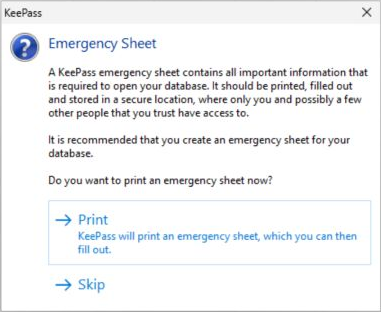
Prepare while you still have access. File > Print > Print Emergency Sheet records the database’s master-key setup; complete it and keep it somewhere secure that you can reach without opening the database. The prompt below offered this during setup. It does not recover missing credentials.
 Open larger screenshot
Backups and Recovery
Back up the encrypted KDBX file, not just the KeePass program folder. Save your changes, close the database and copy the file to separate storage. Keep dated copies and refresh them after changes. Entry history can undo an edit inside a working database; it cannot replace a missing database file.
If you use a key file, keep an unchanged backup on independent storage, protected separately from the database. Losing either required component can lock you out. A database backup still needs the credentials that protected that copy.
Check the backup before you need it. Copy it to a temporary folder without overwriting your working database, open that copy through File > Open and supply its required master-key components. Check a few entries and notes. A CSV or unencrypted XML export exposes the stored passwords, so do not use one as a casual substitute for the encrypted database.
In my test, I closed KeePass, copied the intact database and opened the copy from a moved portable installation on the same Windows profile with the known password. The entry and restored notes were present. That checked the copied database, not recovery from a forgotten password, lost key file or damaged Windows account.
 Open larger screenshot
Security and control
The database settings showed AES-256 and AES-KDF with 600,000 iterations for the database I created. KeePass also supports ChaCha20. The master key protects the database file, so choose a strong one and keep a recovery plan that does not depend on remembering it perfectly.
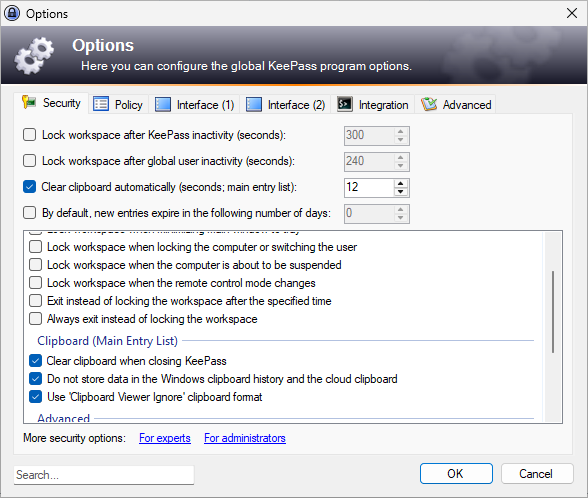
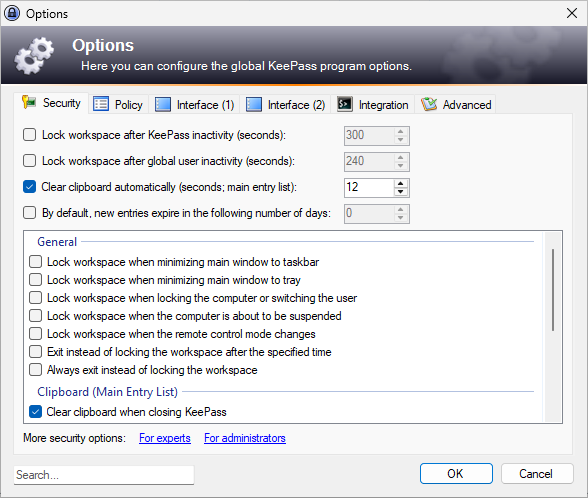
Clipboard clearing was enabled for 12 seconds in the settings. After I copied a password, the clipboard contained text and a later check found it empty. That does not undo a copy already collected by clipboard history or another application.
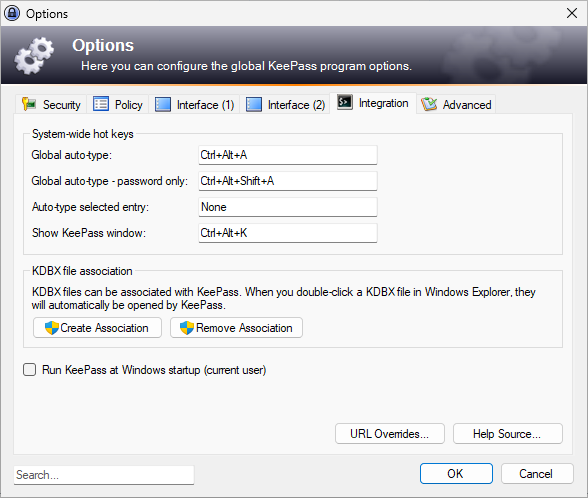
Both options to exclude copied data from Windows clipboard history and the cloud clipboard were checked. The current-user “Run KeePass at Windows startup” checkbox was unchecked. That is separate from the installer’s machine-wide PreLoad entry: an unchecked box here does not prove that setup added no startup entry.
The two inactivity-lock timers were unchecked in the settings I observed. Open Options and choose a lock policy before leaving the database unattended. I enabled the update check at first launch; keeping a password manager current is worth doing.
Plugins can add useful functions, but they also add code to a sensitive application. Install only the integrations you need from a source you trust.
 Open larger screenshot
Removing KeePass
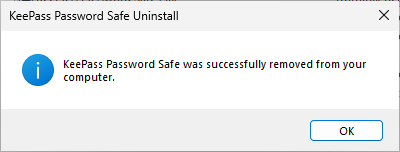
The normal uninstaller removed the installed program and its selected desktop shortcut. In the repeat installation it also removed the KeePass 2 PreLoad startup entry. A post-removal check found no KeePass process. The original database stayed in place, and the portable copy opened it afterward with the entry and notes intact. A user configuration file remained.
That is the right result for your passwords: removing the application should not remove your database. It also means uninstalling alone does not erase that database or its backups.
Price and value
KeePass is free and open source, including for business use. There is no paid edition or account needed for the work I did. The tradeoff is the time you spend managing the database, backups and any synchronization or integrations you choose.
What happens when the trial or subscription ends
There is no trial or subscription to end, and no payment needed to keep opening your database.
Alternatives, and who should skip it
- KeePassXC. Another free, open-source manager using a local database, with desktop applications for Windows, macOS and Linux. It is worth considering if you want a local file but prefer an app built for all three desktops; you still need a plan for backups and moving that file.
- Bitwarden. Its free plan supports multiple devices, mobile apps and browser extensions. It is a better place to look if account-based synchronization matters more to you than keeping a database file yourself.
- Microsoft Edge Password Manager. If you already use Edge, its built-in password manager can save and fill website passwords and synchronize them when you sign in and enable sync. That is convenient inside Edge, but a separate manager may fit better if you move between browsers.
KeePass makes sense if you want to choose where the database lives and are comfortable taking responsibility for a backup. KeePass can run on Linux and macOS through Mono; separately developed mobile apps are not the same product.
Bottom line
Try it with a few disposable entries first. Set an inactivity lock, make a backup, and make sure you can reopen that backup before trusting it with your real passwords.