What PDF-XChange Editor is now, and who it’s for
PDF-XChange Editor gives you enough for free that I would try it before buying a PDF editor. I filled and saved a form, highlighted text, corrected an existing invoice amount and made a scan searchable without paying. None of those saved files had demo stamps. That is a useful working program, not just a preview of one.
The catch is that free and paid tools share the same window. Deleting a page worked too, but it triggered a warning and put demo stamps on every remaining page when I saved. You need to pay attention to which kind of work you are doing.
This is a Windows desktop editor for people who handle PDFs regularly: office forms, marked-up documents, scans and occasional corrections. It supports Windows 10 and later, with x86, x64 and ARM64 downloads. There is no equivalent PDF-XChange Editor for macOS, Linux, Android or iOS. I tested the unlicensed x64 installation of 11.1.1.0, including its restricted tools, on small local documents. I did not test complex layouts, large document collections, digital signatures, redaction, form creation, Office conversion, AI services or cloud workflows.
Do the 11.1.1 changes matter to you?
This is a maintenance release worth taking if you already use the program. The release notes behind the highlights and changelog cover security, stability and saving fixes rather than a new reason to buy it. One fix concerns saved files receiving a temporary-file attribute that can interfere with cloud synchronization. Another concerns SharePoint’s Open and Save dialogs.
I checked ordinary local saves, not those cloud failures or the security fixes. Nothing in this review establishes an improvement over an older build. For a new user, the free-versus-paid boundary matters much more than this version’s small changes.
PDF work in practice: what stays free
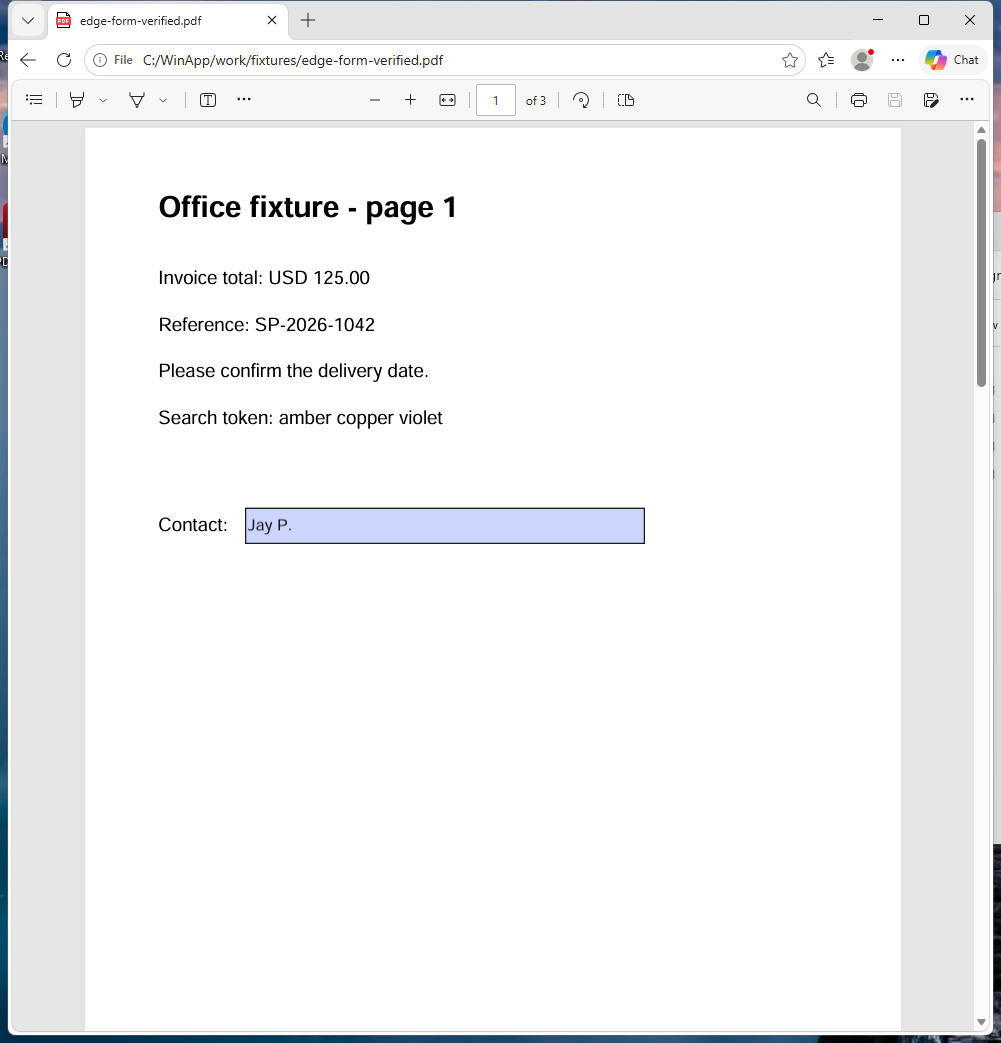
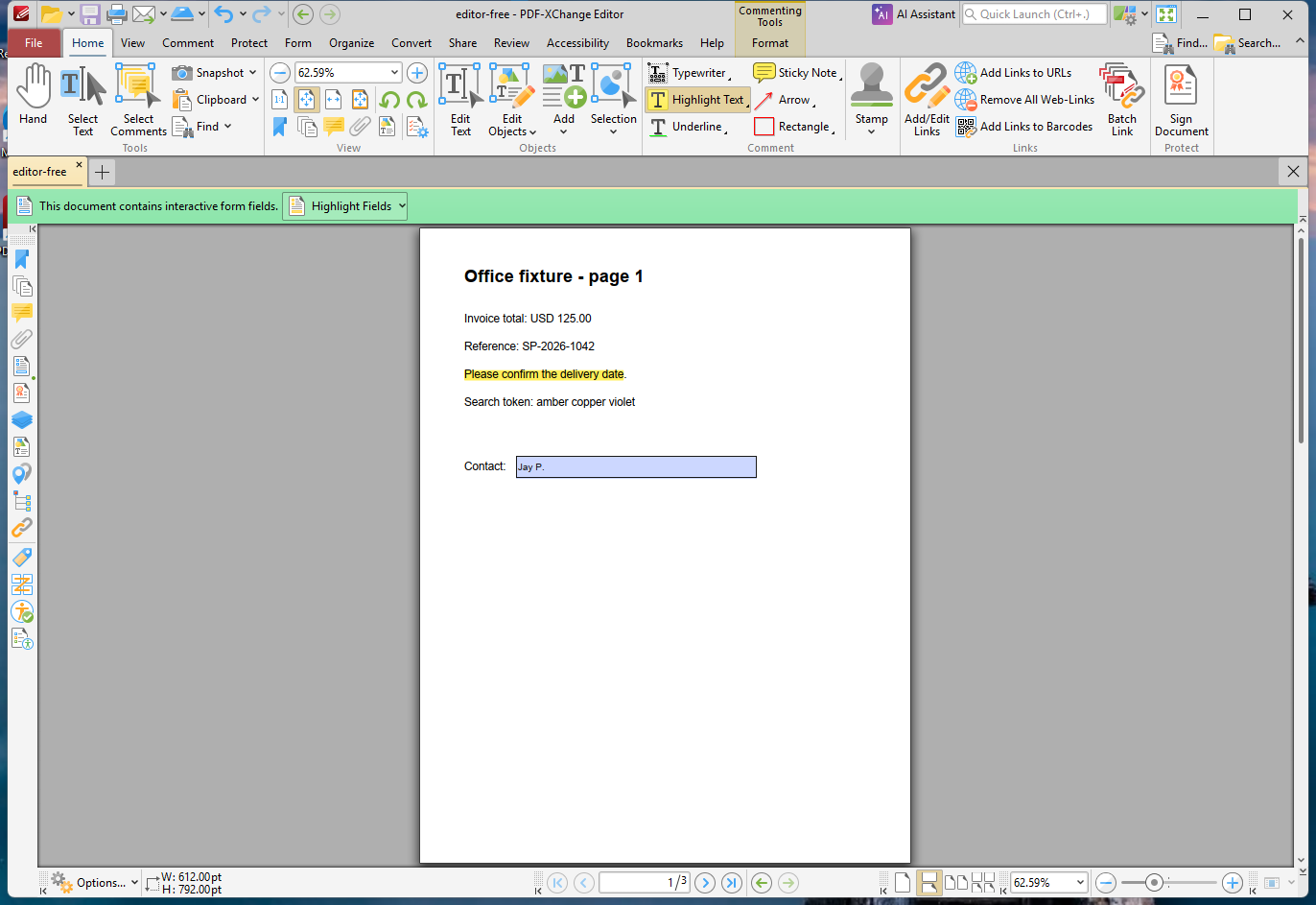
The free tools did the everyday jobs I wanted them to do. I used a three-page PDF with known text and a fillable Contact field, plus a separate image-only scan with five lines of known text. I checked the saved PDFs with independent PDF readers and parsers, including their field values, annotations and page counts.
- Forms and comments. I entered “Jay P.” in the existing field and highlighted a sentence. The saved file kept both the field value and the highlight as separate PDF objects. It reopened with the value and highlight intact.
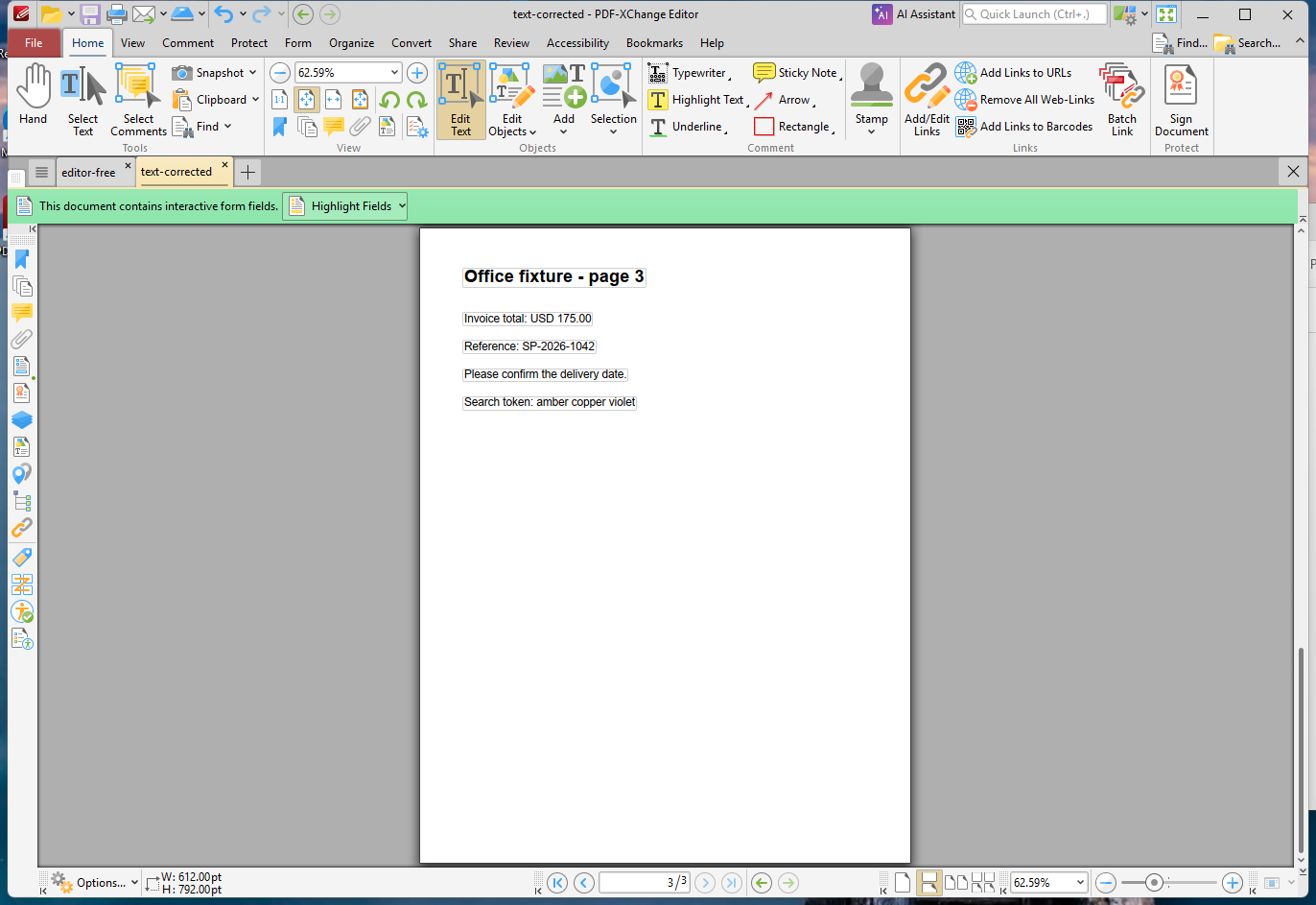
- Correcting existing text. With Edit Text, I changed an invoice total on page three from 125.00 to 175.00. The saved PDF contained the new amount, the first two pages were unchanged, and there were no demo stamps. This was a correction inside an existing text block; I did not move the block or rebuild the page.
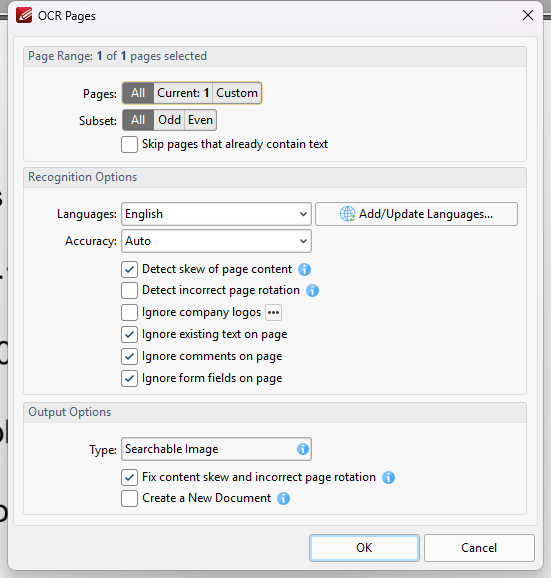
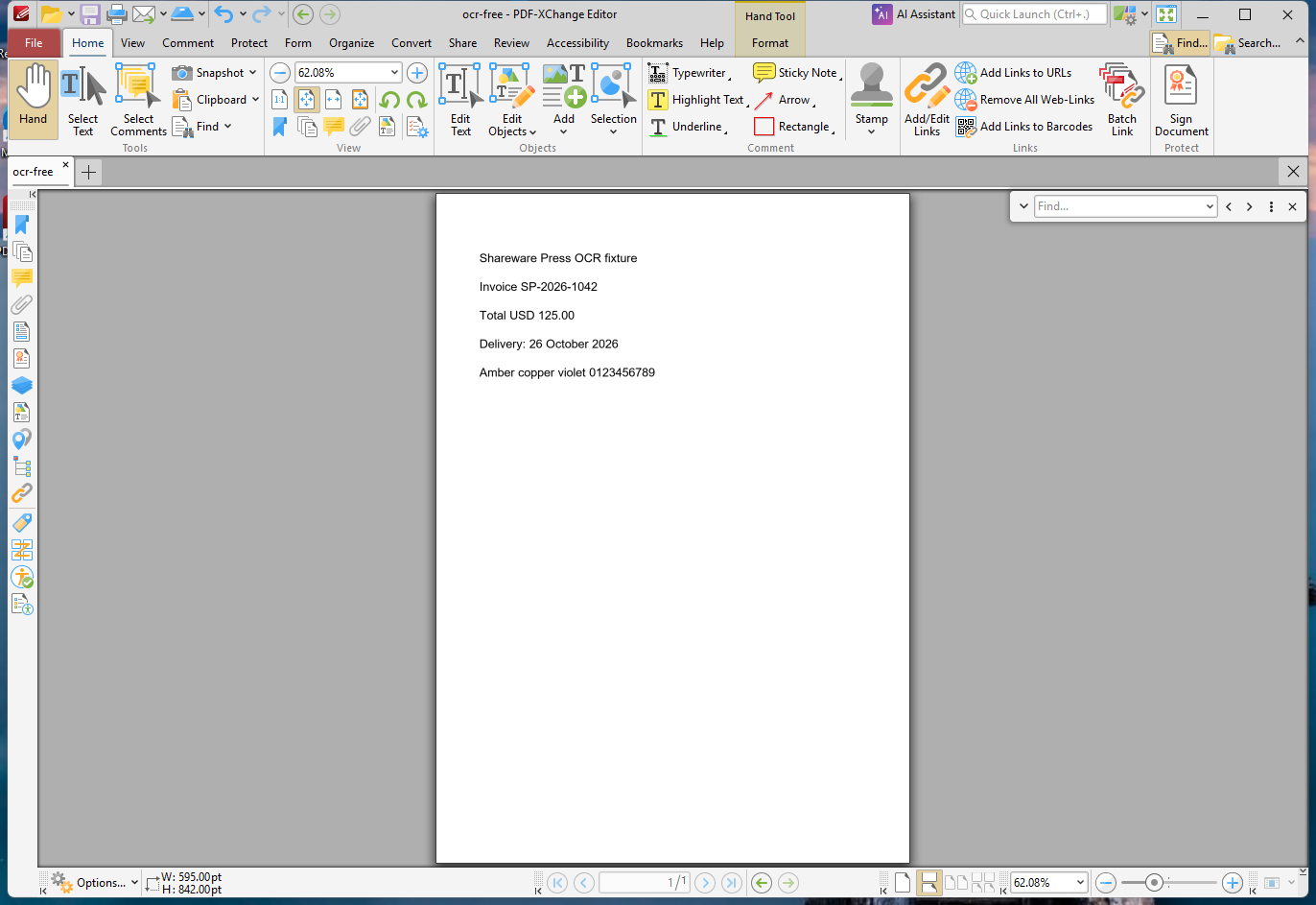
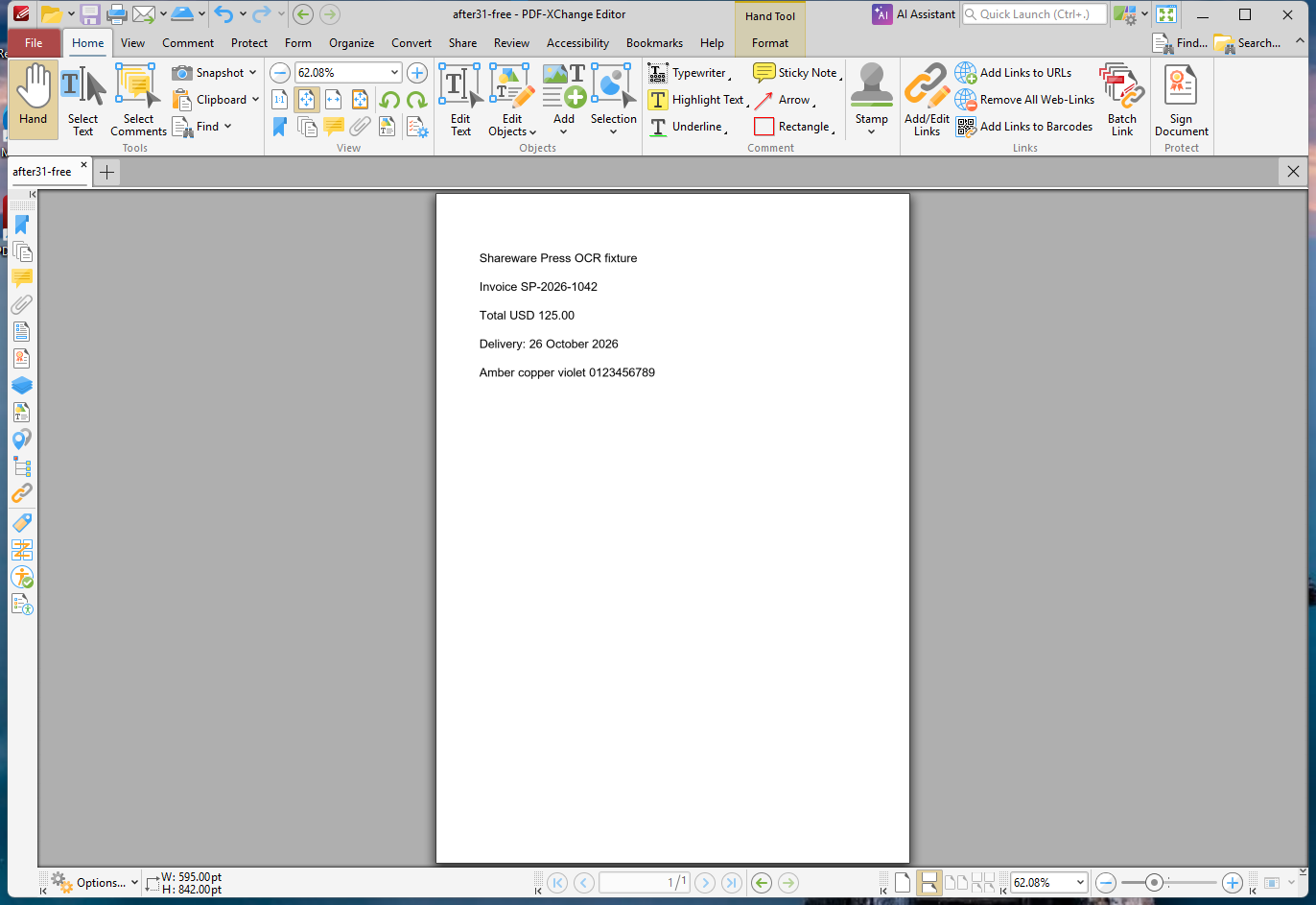
- Making a scan searchable. The free Default OCR engine, set to English, Auto accuracy and Searchable Image, recognized all five lines, including the invoice reference, date, amount and a string of digits. The output had selectable text and no demo stamps. It was a clean, straight English scan, so this says nothing about handwriting or damaged paperwork.
 Open larger screenshot
Existing-text correction is the pleasant surprise. “Free PDF editor” often means adding a note over the page. Here I changed the actual text. That does not make every editing tool free.
Where the paid tools begin
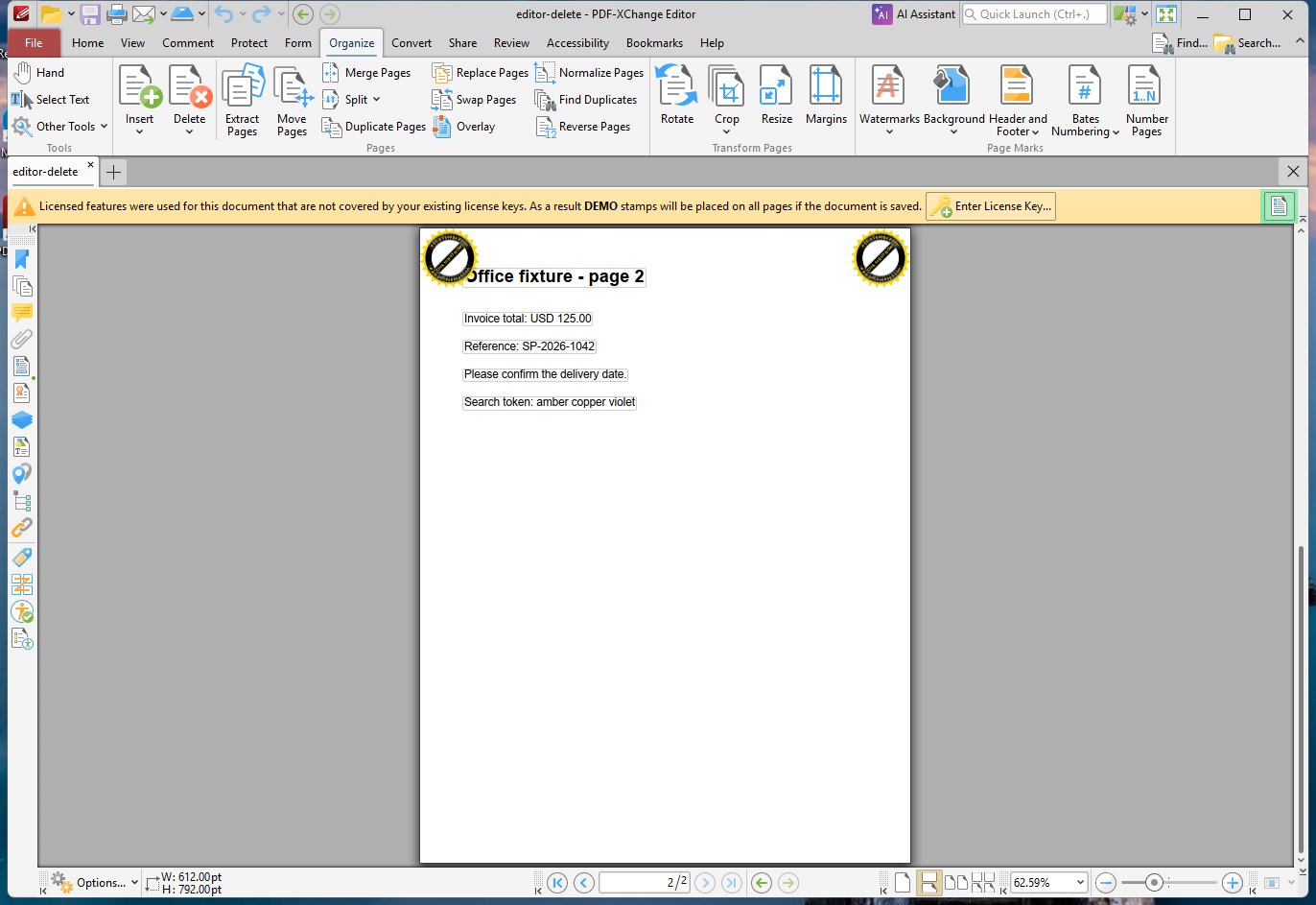
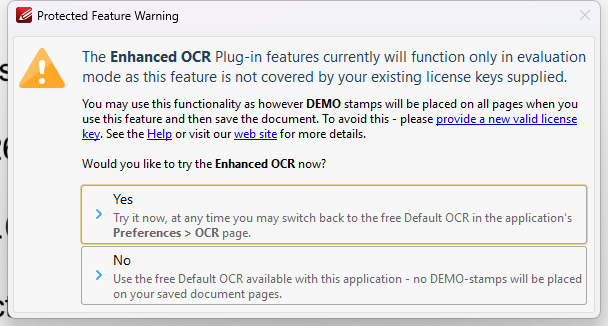
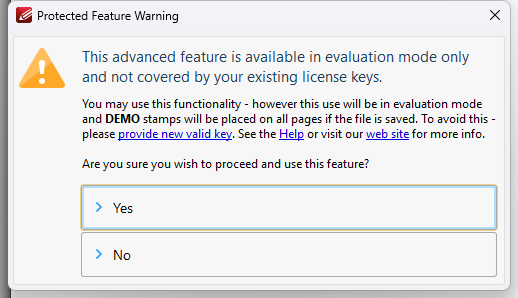
Deleting page three brought up a Protected Feature Warning before the change. It said demo stamps would be placed on all pages if the file was saved. I accepted on a disposable copy. The resulting PDF had two pages, and both carried the stamps. It remained a readable PDF, but it was not a clean document I would send to a client.
 Open larger screenshot
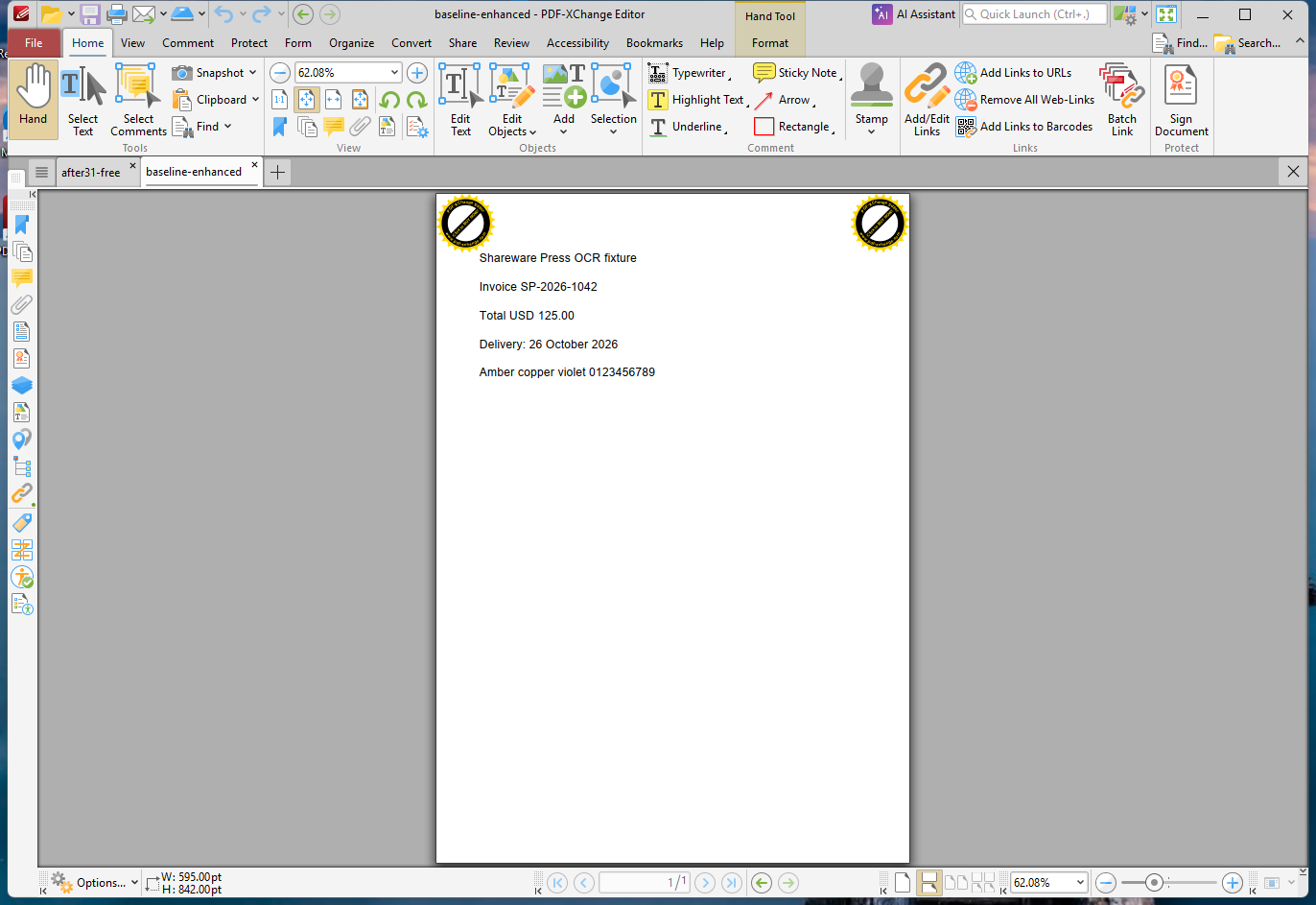
Enhanced OCR, the engine included with Editor Plus, also recognized all five lines. Unlike the free OCR output, its saved result had demo stamps in my unlicensed installation. Its initial warning offered a return to the free Default engine. On this simple scan, both recognized the wording, so my test gives me no reason to pay extra for OCR accuracy. Difficult scans could produce a different answer.
Installation and first run
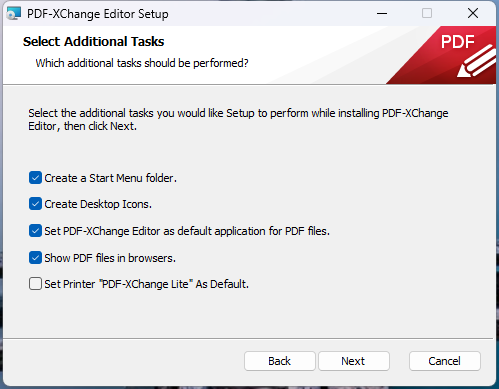
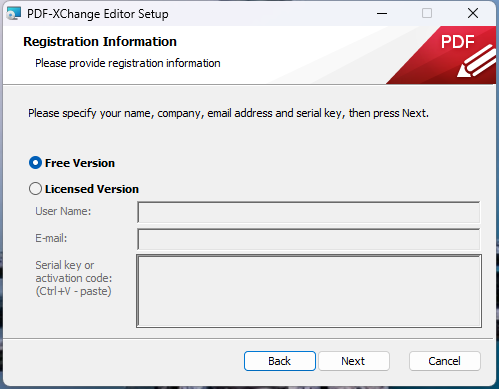
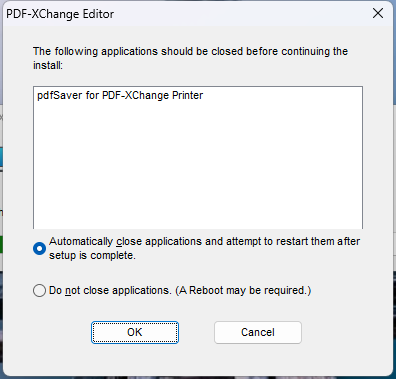
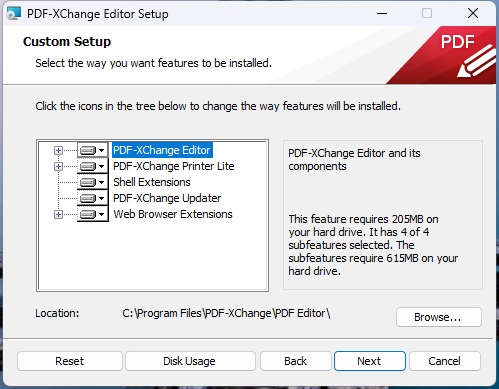
Custom setup is worth opening. It exposes the printer, shell extensions, updater and browser extensions as separate components. The next page offers Start menu and desktop shortcuts, the default PDF association and browser viewing, all checked; making its printer the default is unchecked. I kept those selections for the test. I saw no third-party offers and needed no account or card.
I used the 383.6 MiB x64 MSI after canceling the EXE during a long preparation stage. The MSI also paused before its welcome screen, then completed. From the final Install click to completion was about two minutes and twenty seconds. Both downloads matched their official checksums; the EXE had a valid digital signature. I would not treat that canceled attempt as an installer failure.
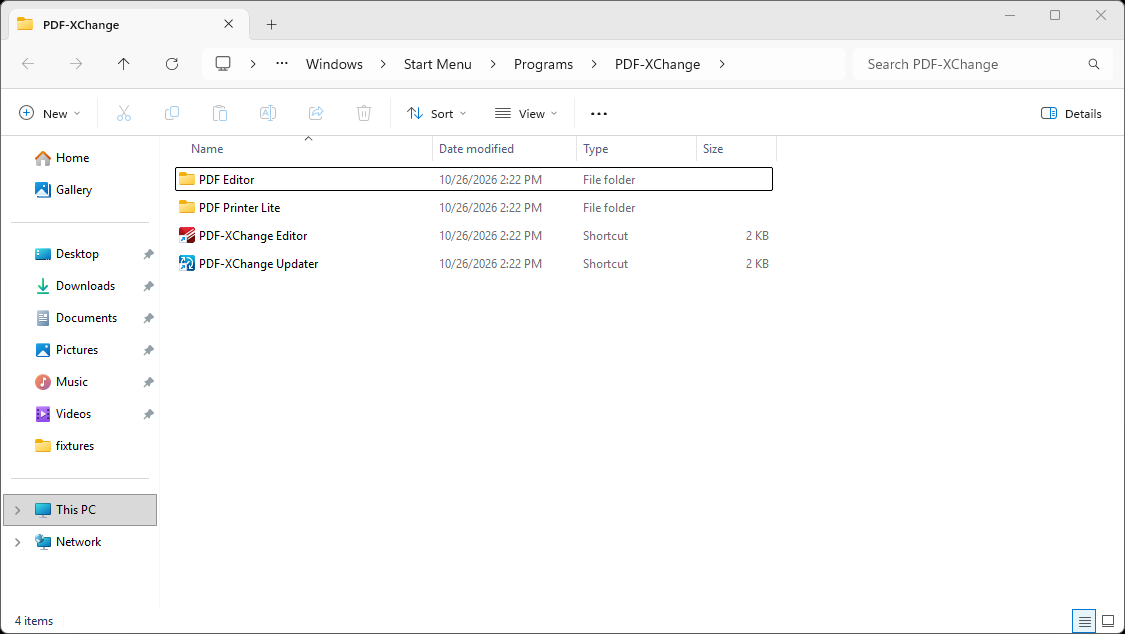
The selected components occupied about 1.01 GiB across the program and shared-files folders. Setup added one desktop shortcut, seven Start menu entries and an update task scheduled every fourteen days. It changed the PDF association as requested. No new application service appeared in my footprint check.
 Open larger screenshot
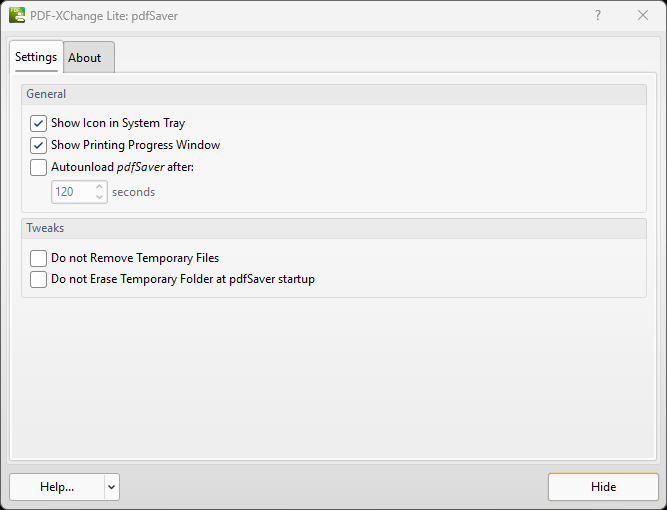
The Updater opened its update window, and Printer Lite’s pdfSaver shortcut opened a usable settings window without asking for an account, payment or another download. Those were limited readiness checks. I did not test printing through the virtual printer. Printer Lite’s free terms are for non-commercial use; a qualifying paid Editor license covers commercial use.
Day-to-day use
The window is busy, but the common tools are easy to reach once you know what they are called. Home puts Edit Text, Typewriter, Highlight Text and the form controls close at hand. The problem is not finding something to click. It is remembering which actions need a license before you save.
With only the initial main window open, I measured about 112 MiB of working-set memory in three settled samples. The small documents in this review were comfortable to work with. I did not benchmark large PDFs or OCR speed. There was no recurring launch or exit buy dialog during my repeated launches; the consequential money prompts appeared when I used restricted features.
Updates: look in the separate Updater
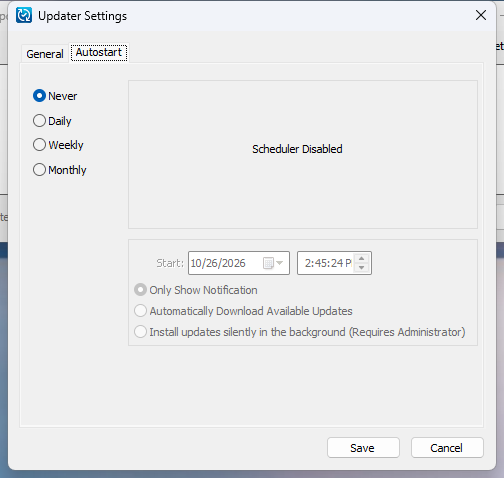
You can turn the scheduled checks off, and it is an ordinary setting. In PDF-XChange Updater, Settings, Autostart, I chose Never. The scheduled task disappeared. Reopening the updater kept Never selected.
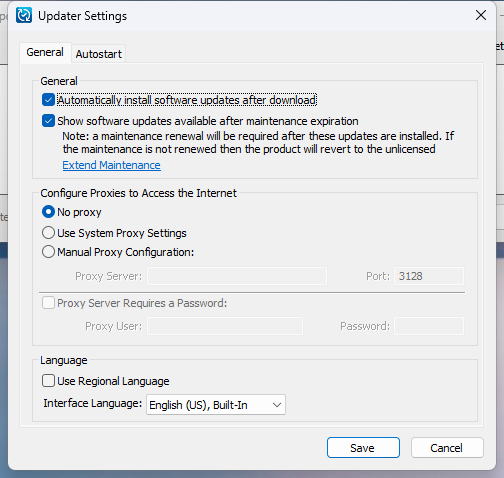
I would also review its General tab before buying. “Automatically install software updates after download” and “Show software updates available after maintenance expiration” were both checked. The latter explains that installing those updates without renewing maintenance reverts the product to unlicensed mode. I switched both off and confirmed that they stayed off when I reopened Settings. The schedule initially used notification-only behavior, so the automatic-install checkbox alone is not evidence that it silently updated anything in my test.
 Open larger screenshot
 Open larger screenshot
Removing it
Removal cleared the program folders, shortcuts, shell extension and uninstall entry. It found the printer helper I had launched and offered to close it automatically; I accepted. No PDF-XChange processes remained in the final snapshot. About 2.2 MiB of application data and some settings keys remained.
One loose end: the registry’s PDF default choice still named PDF-XChange Editor after removal instead of returning to the previous Edge choice. I checked the registration, not every possible double-click fallback. Your saved PDFs were separate files and remained readable in the independent tools after the application was gone.
Price and value
I would start free and buy only after a real job reaches a paid boundary. The free form filling, text correction, highlighting and OCR already cover useful office work. Editor is the cheaper paid option for people who need its restricted editing tools; Plus adds enhanced OCR and form authoring among its extras. My clean-scan result alone does not justify Plus.
The one-time license is attractive, but keep its installer. The published terms say the license remains valid for builds released during your maintenance period. They also say historical installer downloads require current maintenance. If you stop renewing and later need to reinstall, having the right installer matters.
The shop says it does not offer refunds after license keys are issued. Test your own documents before paying. I did not buy or activate a license, renew maintenance or request a refund.
What happens when the trial or subscription ends
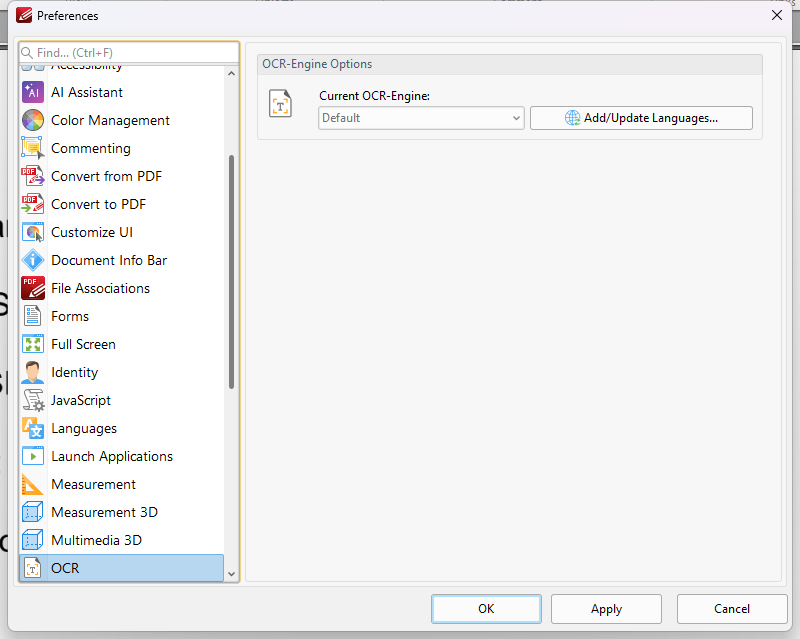
Enhanced OCR expires without taking the free reader or free OCR away. The main free offer has no time limit; the enhanced engine is the exception. Its documentation describes fourteen days. I tested expiry by closing the editor completely, moving the test machine’s clock forward thirty-one days and starting it again. The engine selector was disabled on Default, and the OCR command opened the free engine instead of Enhanced.
I then uninstalled and reinstalled with the clock still forward. Enhanced remained unavailable and the selector stayed disabled on Default. Reinstalling did not reset it.
 Open larger screenshot
The free engine still recognized all five lines of the original scan and saved a clean, searchable PDF. The enhanced-OCR file made before expiry also reopened with its text intact. Its demo stamps remained, because those are part of the saved PDF. Expiry did not lock the file, and it did not remove the stamps either. The saved free form had also reopened with its value and highlight intact during the first clock test.
A paid license and its maintenance are different things. Under the published terms, eligible older builds keep working when maintenance ends; newer builds require a renewed entitlement to stay licensed. I have not tested that transition with a paid key, or purchase, renewal or refunds. The fairness score covers the tested free and evaluation behavior, including enhanced-OCR expiry and removal.
Alternatives, and who should skip it
- Microsoft Edge. On the same form, Edge saved the Contact value correctly, and a separate ink test saved its mark as a PDF annotation. If filling a form and making a quick note are all you need, try the browser you already have. Those checks do not establish a replacement for PDF-XChange’s OCR or existing-text correction.
- Adobe Acrobat. Adobe offers desktop PDF editing on Windows and macOS through its paid plans. It is a relevant option for an office that needs both platforms. I did not compare its output, speed or paid workflow in this review.
Skip PDF-XChange if you need the same desktop editor on a Mac, or if basic reading and form filling are your whole job. Be cautious about choosing it solely for enhanced OCR: my simple scan did not separate the two engines, and harder material needs its own trial.
Bottom line
Try the free mode with copies of the documents you actually use. It did more clean work than I expected, including correcting existing text. If a paid tool proves necessary, buy the edition that covers it, review the updater’s maintenance settings and keep the eligible installer.