
What WinRAR is now, and who it’s for
WinRAR is still an archiver, and only an archiver. It packs and unpacks RAR, ZIP and a long list of other formats, it makes self-extracting archives, and it can add recovery data so a damaged archive can be repaired. No cloud drive, no PDF tools, no account. The download is a few megabytes, and it installs in seconds.
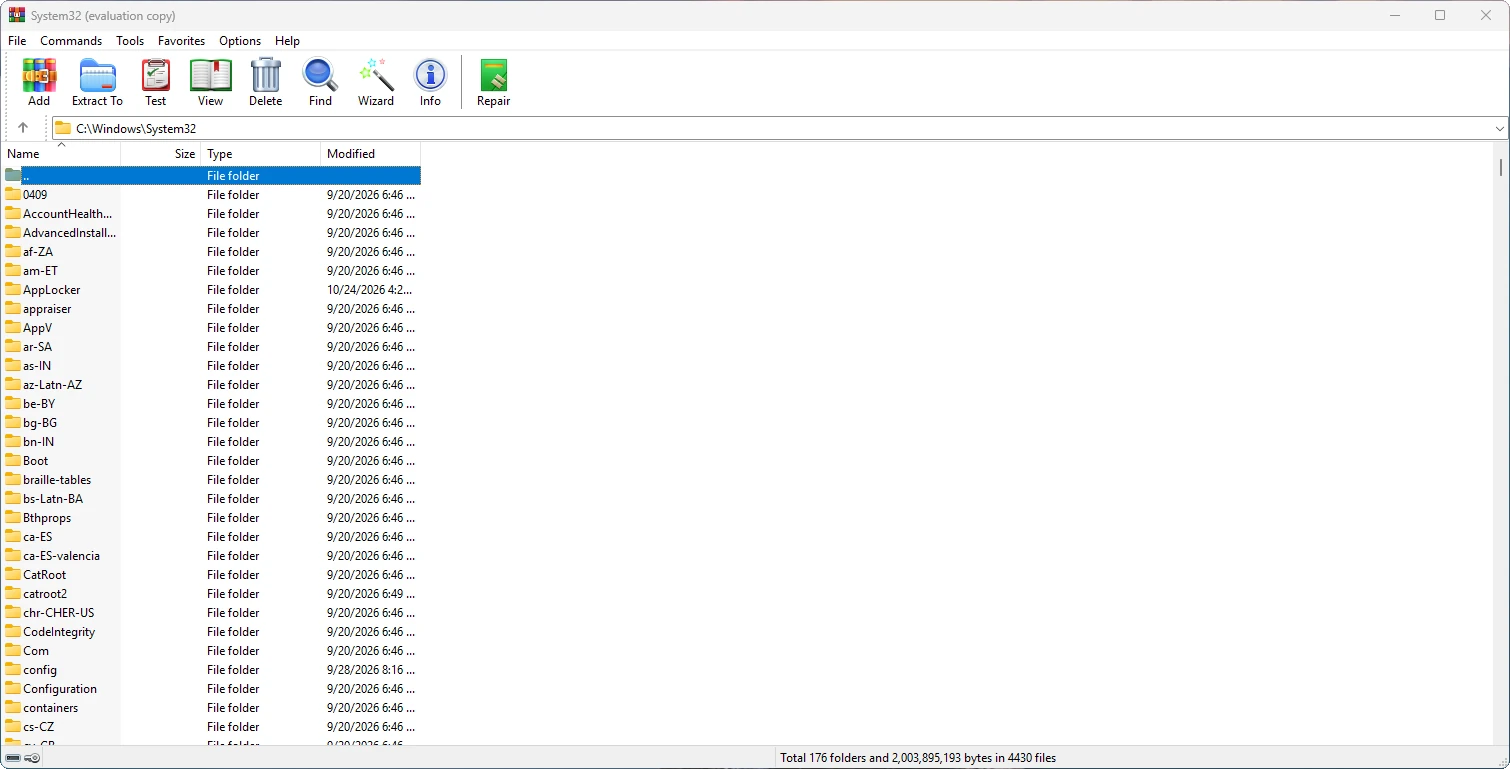
It is sold the old way: one licence, paid once, and you can try it first. The window still looks like a classic Windows program, with a toolbar of big buttons and a file list. Some people will call that dated. I call it predictable: nothing moves between versions.
So who needs it? People who have to create RAR archives, which nothing free can do. People who move big archives around and want recovery records, solid compression and a fast command line. And people who simply prefer it to the free tools. If you only open the odd download, you don’t need WinRAR. And it is a Windows program: on a Mac or Linux PC, RARLAB offers RAR only as a command-line tool, Android has a separate RAR app, and there is nothing for iPhone or iPad.
Do the 7.2x changes matter to you?
7.23 itself is a security release. Its release notes cover two fixes: a memory bug when rebuilding files from RAR5 recovery volumes, and a crafted symbolic link that could make extraction write outside the folder you picked. I didn’t try to exploit either. If you open archives from strangers, those two fixes are the reason to update.
The user-visible changes came earlier, in 7.20 and 7.21. I tested the ones you will actually meet, on 7.23.
Archives with the wrong extension
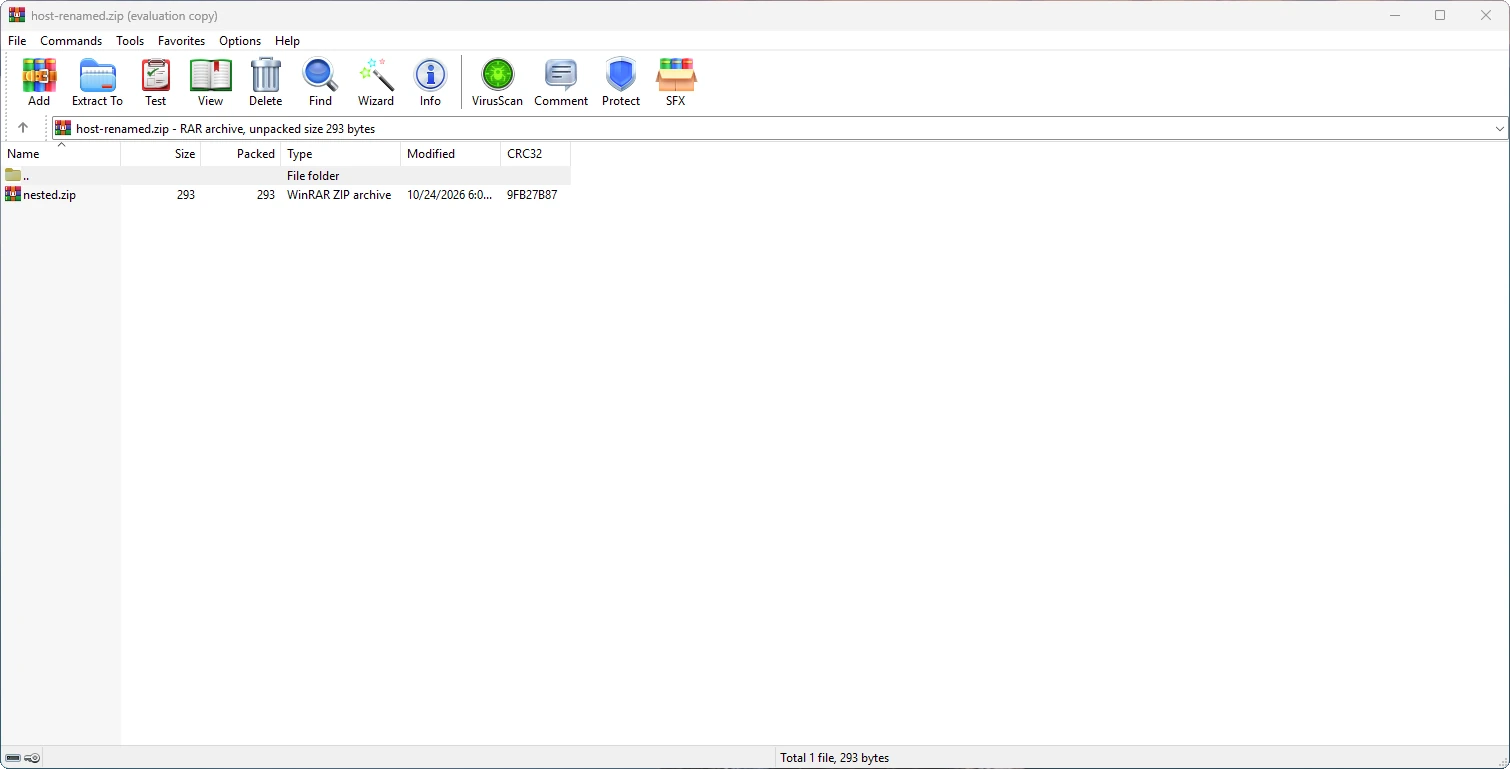
I renamed a RAR to .zip, a ZIP to .rar, and built the tricky case from the 7.21 notes: a RAR that stores a ZIP inside, renamed to .zip. WinRAR opened each one by its contents, not by its name. The path bar said “RAR archive” or “ZIP archive” as appropriate, and it showed the outer archive, not the inner ZIP. No warning, no prompt. It just worked. I tested 7.23, without an older build for comparison.
 Open larger screenshot
Very large archives
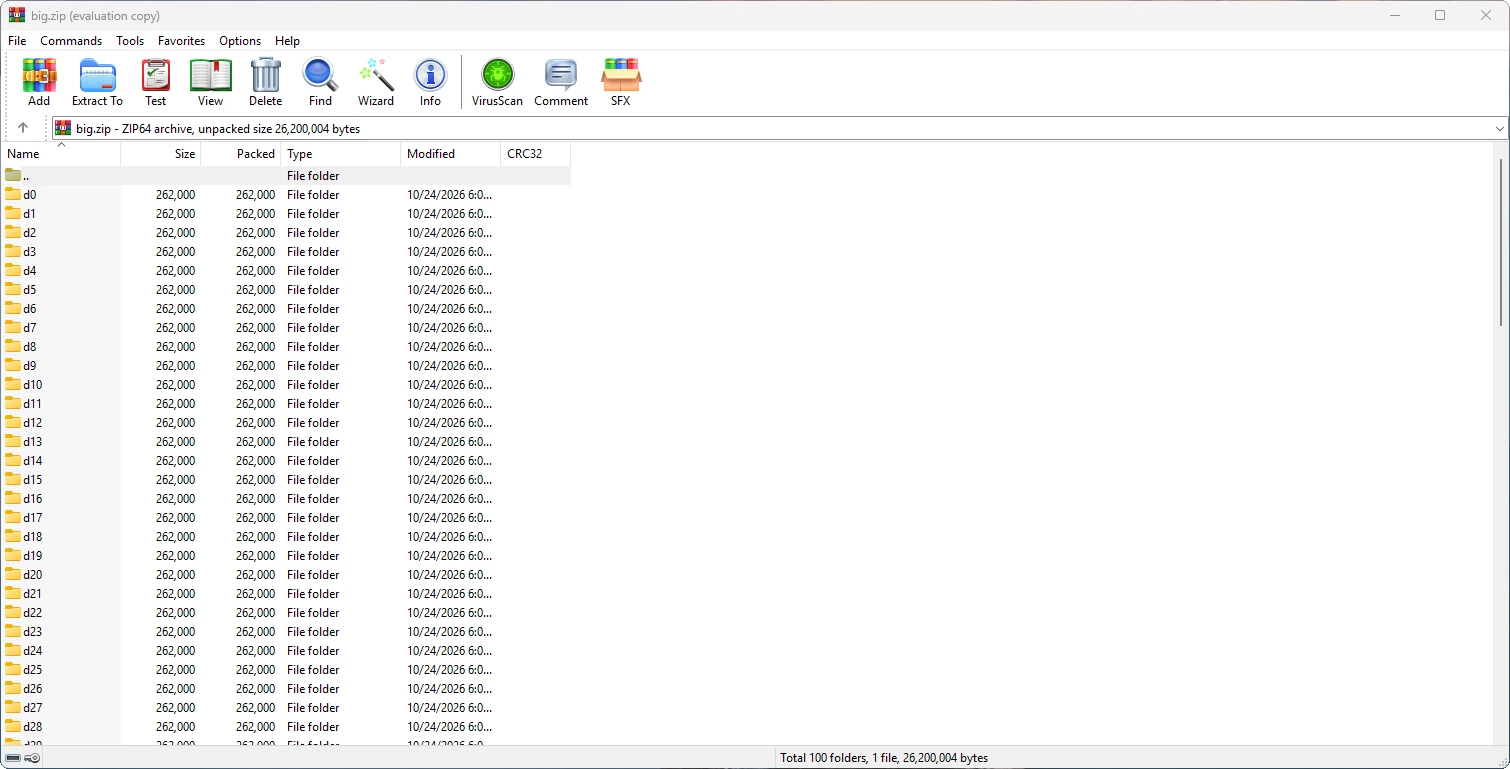
Faster opening of huge archives, especially ZIPs, was one of the 7.20 changes. I made a ZIP and a RAR with 100,000 small files each. The ZIP opened in about 0.65 seconds and the RAR in about one second, three runs each, with the full totals in the status bar and about 58 MB of memory. That is fast, though these timings do not measure the improvement over an older build.
Copying search results
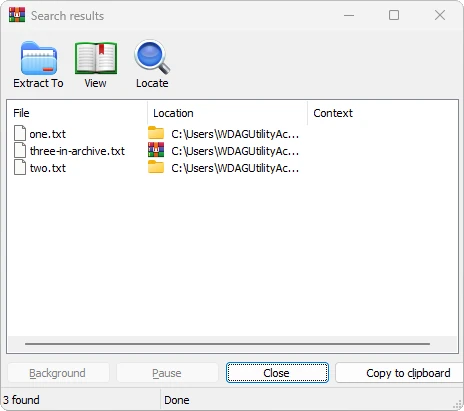
The Find files window now has a Copy to clipboard button. It works, including for hits inside archives. One catch: it pastes the file name on one line and its folder on the next, not one full path per line. If you want to paste a list of paths into a script, you’ll have to fix it up first.
Faster TAR extraction
The TAR extraction changes in 7.20 target hard disks with slow seeks. On the SSD-backed test environment, WinRAR took 28 to 33 seconds to extract a 100,000-file tar. Windows’ own tar.exe took 19 to 20 seconds on the same file. That is about one and a half times slower. That compares the two current tools on one virtual disk; it does not measure the change from an older WinRAR build. Results on a hard disk may differ.
The rest of the list is small: day and month names in archive-name masks, a “Specified time” option for archive dates, report output in UTF-8, a “Cloud files” option that avoids slow reads of OneDrive placeholders, and new command-line switches. I didn’t test those. The faster deleting from solid archives that came in 7.20 was taken back in 7.22 to avoid checksum errors.
Compression in practice: speed, size and safety
WinRAR is fast, and it uses your cores. That’s the short version.
Method, in one line: 1,466 files, 522.6 MB (Windows programs, text files and 100 MB of random data that can’t be compressed), each job run twice in a Windows 11 test environment with 32 logical CPUs and 6 GB of RAM, faster run shown, warm cache.
| Job | Time | Archive size | Peak memory |
|---|---|---|---|
| RAR, fastest setting | 5.1 s | 50.8% | 321 MB |
| RAR, default setting | 8.6 s | 43.7% | 352 MB |
| RAR, best setting | 12.1 s | 43.6% | 628 MB |
| ZIP in WinRAR, default | 7.9 s | 49.7% | 28 MB |
| ZIP with Windows’ tar.exe | 15.5 s | 49.9% | 6 MB |
The default RAR setting gave the best balance here. It kept about nine cores busy and beat ZIP on size by six points. Moving to the best setting meant a 40% longer wait for just 0.3 MB saved. I would leave it on the default for most jobs.
If you need ZIP instead, WinRAR made one about twice as fast as Windows’ own tool, at the same size.
The big dictionaries of the 7.x line made no difference on my files. Same size, same memory. That doesn’t prove they are useless. My test set had little long-range repetition, and that is what a big dictionary needs. VM images or backups might show a gain. I didn’t test that.
Extraction was quick and boring, in a good way. Every archive unpacked in about three seconds with under 60 MB of memory, and every file matched the original. Windows’ tar.exe extracted the ZIP slightly faster, at about two seconds.
Mark of the Web
This is the safety part, and most people never think about it. When you download an archive, Windows marks it as coming from the internet. If the extracted files keep that mark, SmartScreen and Office’s Protected View can still warn you about them.
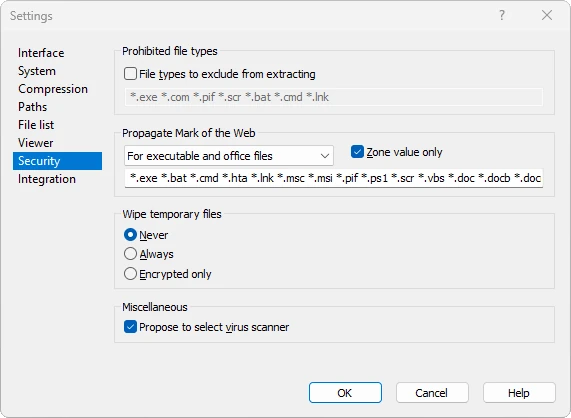
With default settings, WinRAR passed the mark on to programs, scripts, Office files and archives inside the archive. Text files and pictures didn’t get it. The mark also carried into nested archives. That is a sensible default. For comparison, PowerShell’s Expand-Archive dropped the mark completely in my test.
 Open larger screenshot
Two caveats. The command-line Rar.exe passes no mark at all unless you add the -om switch, so scripts and batch jobs lose it by default. And I only checked that the mark was there. Whether SmartScreen actually warns on the extracted program, I didn’t check.
Installation and first run
The installer from win-rar.com is about 3.7 MB, signed by win.rar GmbH, and its checksum matched the one the site publishes. RARLAB’s own site serves a slightly different file. I unpacked both: same program, same version, but the win-rar.com copy points its buy and home-page links at win-rar.com and carries an extra signature.
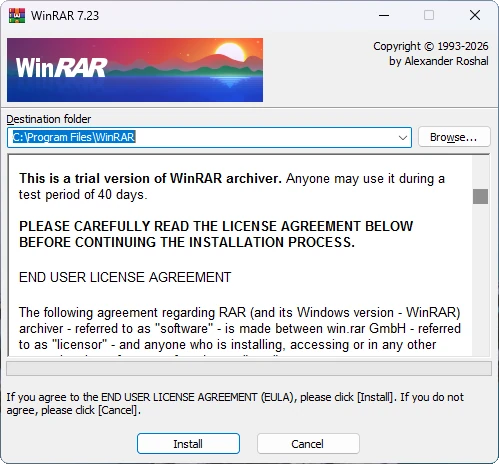
The first page shows the licence in a scroll box and says that clicking Install means you agree. There is no tick box. It also says plainly, at the top, that this is a 40-day trial. The files were in place about two seconds after I clicked Install.
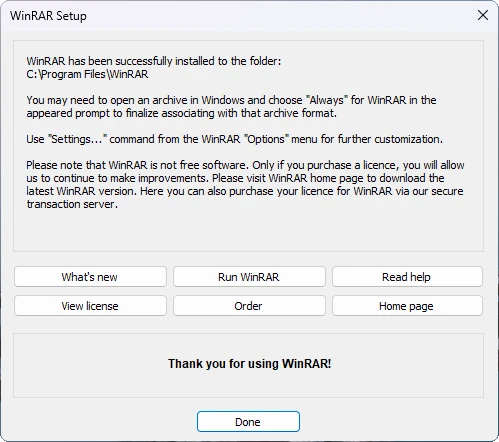
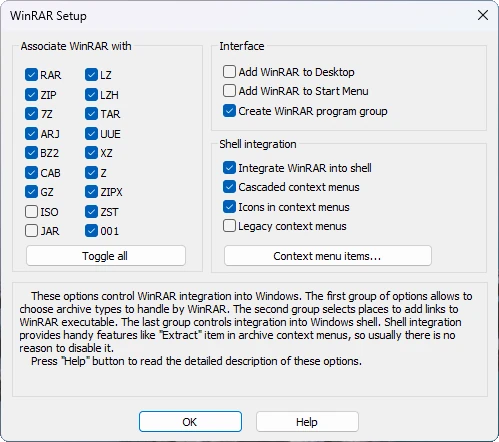
The second page puts every integration choice on one screen. File types: 16 of 18 ticked, so WinRAR takes over RAR, ZIP, 7Z and most others, but not ISO or JAR. Desktop and Start menu shortcuts are off. The program group and the right-click menu are on. You can untick any of it. The last page says WinRAR is not free software, with buttons for what’s new, help, the licence and ordering.
 Open larger screenshot
What it added, by my footprint snapshot: a 9.5 MB program folder, a program group with eight Start menu shortcuts (four for the current user, four for all users), the right-click menu entries for Windows 11, and the file associations. No desktop shortcut. No services, no scheduled tasks, no start-up entries. No offers, no toolbar, no browser window. An installer doesn’t get much cleaner than that.
On first launch the main window opened in under two seconds. The only sign of the trial was “(evaluation copy)” in the title bar. No pop-up, no countdown, and none on the second launch either.
Day-to-day use
Using it every day is uneventful, which is the point of an archiver. The title bar says “evaluation copy” and that’s it during the trial. Closing WinRAR left no processes behind and showed no exit dialog. With just the main window open, it used about 36 MB of memory.
Updates and network
WinRAR 7.23 has no update check. None of the eight Settings pages has an update or internet option, the Help menu has no “Check for updates”, and the help file describes none. I watched its network connections for 90 seconds on two launches and again after the trial ended. It made none, and no WinRAR names showed up in a packet capture.
That is good for privacy and bad for security. 7.23 exists to fix two security holes, and nothing in WinRAR will tell you about it. You have to remember to check the website yourself.
The command line
Rar.exe comes with it and is fast. Before and after the trial, creating an archive prints “Evaluation copy. Please register.” in the console. No windows pop up, so scripts keep running.
Removing it
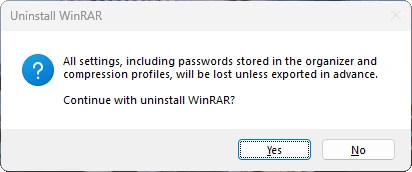
The uninstaller asks one question: all settings, including passwords saved in the organizer and compression profiles, will be lost unless you export them first. Continue? After Yes it took 17 seconds. No survey, no web page, no restart. It removed the program, the settings, the shortcuts, the right-click menu and the file associations, and Windows took back its own handlers. Left behind: one 12-byte file in AppData and one registry value with a remembered folder. That’s it.
I ran the uninstaller that WinRAR registers with Windows, the same one the Start menu uses. I didn’t test removing it through Settings, Apps, which should start the same program. I also didn’t test uninstalling while Explorer still has the right-click menu loaded.
Price and value
For what it does, the price is fair. You pay once, there is no subscription, and a home user’s single licence covers every computer they own. A business needs one licence per computer. Volume prices drop steeply, which helps small offices.
But value is the hard question, because the free options are good. Windows handles plain ZIPs, free tools such as 7-Zip are widely used for unpacking RAR and 7z, and neither nags. What WinRAR sells is creating RAR files, recovery records, a mature command line and speed. If you need those, the one-time price is easy to justify. If you don’t, it’s harder.
Two things in the terms are unclear. The shop describes a licence covering all versions, while another win-rar.com page requires a 12-month support and maintenance package to stay up to date. I couldn’t find a price for that package or a published refund policy on the pages I checked. I didn’t buy a licence to resolve the conflicting update terms.
What happens when the trial or subscription ends
There is no subscription, so the only question is the 40-day trial. I moved the test machine’s clock forward 41 days and launched WinRAR twice.
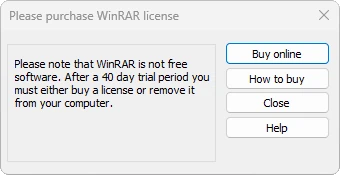
Each launch opened the same small dialog, “Please purchase WinRAR license”: WinRAR is not free software, and after 40 days you must buy a licence or remove it. Buttons: Buy online, How to buy, Close, Help. It appeared on every start, not just once. I clicked Close, and WinRAR worked normally.
 Open larger screenshot
And I mean normally. I created and extracted RAR and ZIP archives in the window and on the command line, and every file came back identical. Nothing was locked, slowed down or counted down. The licence says the reminder may load a web page that can carry ads. In my test it didn’t: it was a plain local dialog with no network traffic. I didn’t click Buy online or How to buy.
So nothing technical stops you after day 40. The licence still does. RARLAB’s terms say you must buy or uninstall, and keeping it without paying breaks them. The reminder on every launch is the price of ignoring that, and I think it’s a fair one.
Registration uses an emailed key file to remove the reminders. I didn’t buy one or test whether reinstalling resets the trial. Your archives remain separate from the licence: plain ZIPs work with Windows and other archivers. RAR archives need a tool that reads RAR, and after I uninstalled WinRAR, Windows assigned .rar and .7z to its own archive handler. I didn’t test how well that handler opens them.
Alternatives, and who should skip it
- 7-Zip. Free and open source. I reviewed it separately: it unpacked every RAR5 archive I made with Rar.exe, faster than Rar.exe itself, but it can’t create RAR files. If all you do is unpack downloads, it’s the obvious free option to try first.
- Windows’ built-in tools. Free and already there. In my test, Windows’ tar.exe made ZIPs at half WinRAR’s speed but extracted TAR faster. No recovery records, no RAR creation.
- WinZip. The other old name. It is now sold mainly as a yearly subscription, and it installs background tasks; I covered that in its own review. If you want to pay for an archiver once, WinRAR is the simpler deal.
Skip WinRAR if you only open the odd download, if a reminder on every launch would annoy you and you won’t pay, or if you are on an ARM PC: 7.23 has no ARM64 build, only the 7.30 beta does. If you run Rar.exe in scripts on downloaded files, add -om, or the Mark of the Web is lost.
Bottom line
If you make RAR archives, buy it. It is fast, it stays out of your way, and it leaves almost nothing behind when you remove it. If you only unpack downloads, try Windows’ own tools or a free archiver such as 7-Zip first and save your money. Either way, check the WinRAR website for updates now and then, because WinRAR won’t.